
Permission changes in Workday don't take effect until you activate them — this is a separate, required step after setting up permissions.
Who this applies to / Prerequisites
- Workday admins setting up or updating the Tilt integration.
- You've made changes to Domain Security Policies or Business Process Security Policies (see the permissions articles).
Steps
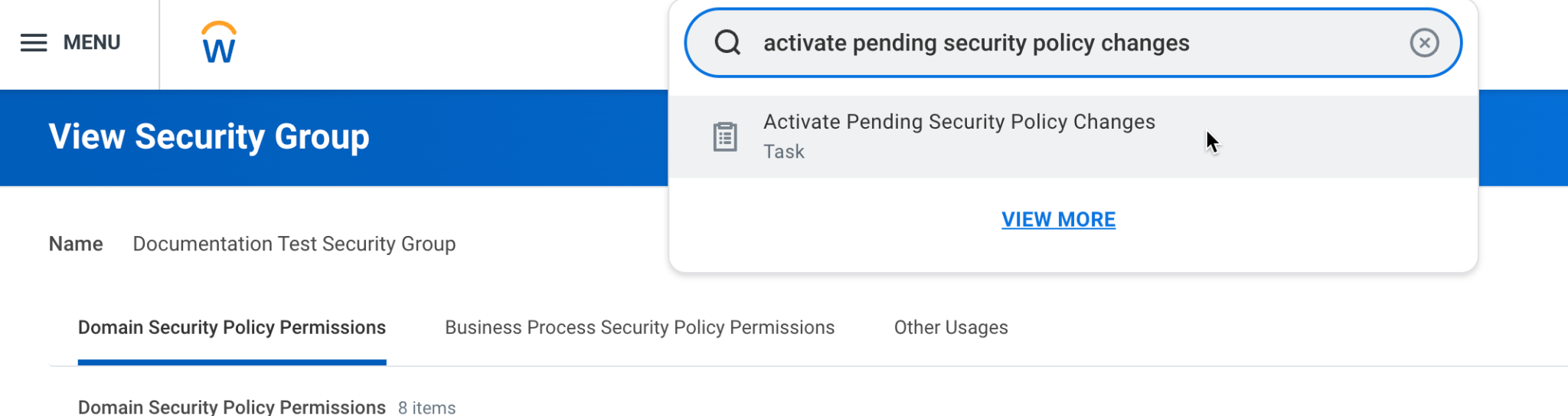
- Type Activate Pending Security Policy Changes in the top search bar and select the task from the dropdown.
- Review the summary of changes that need approval and add comments if needed.
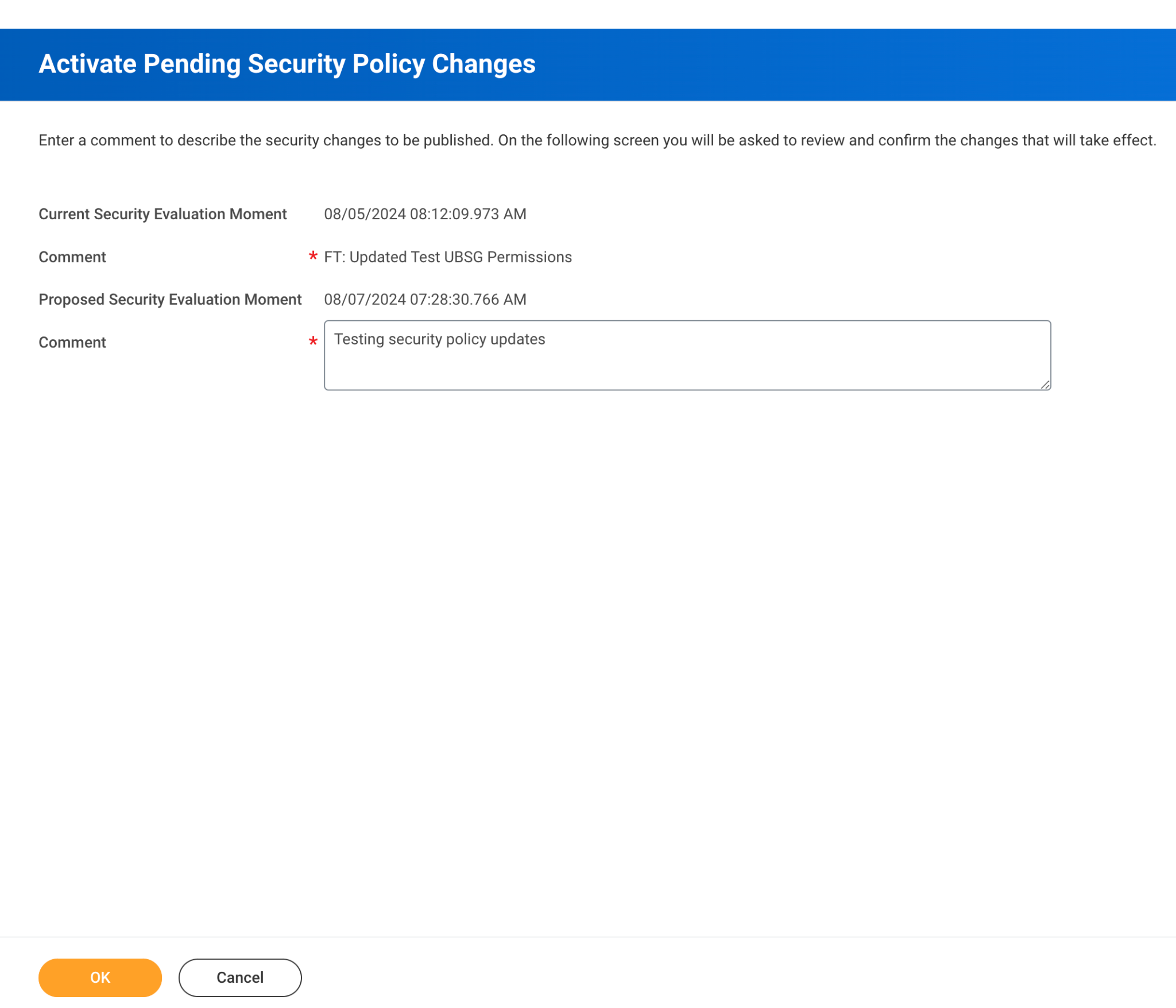
- Click OK.
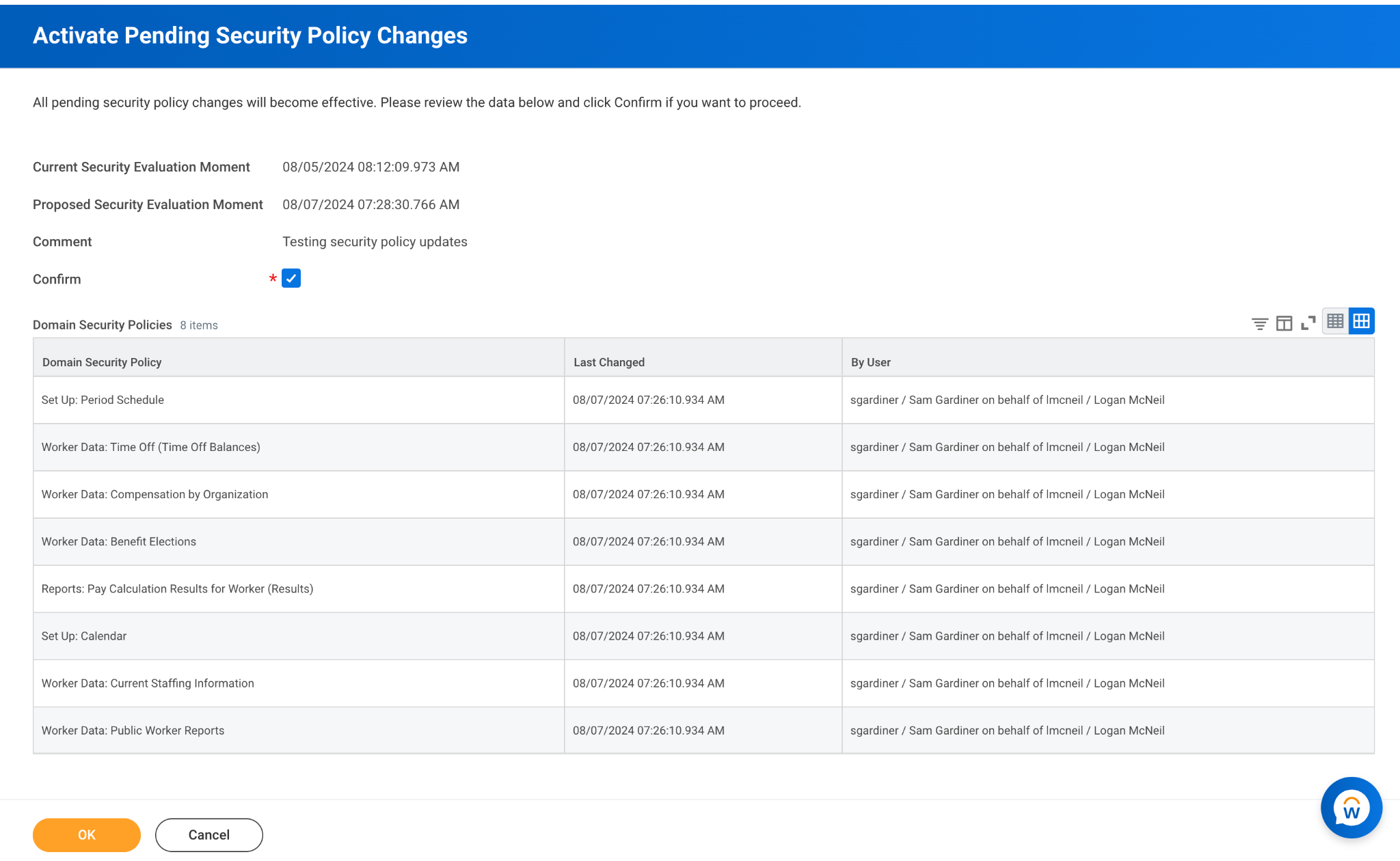
- Check the Confirm box, then click OK again.
What if it doesn't work
- If Tilt still can't access data after this step, double-check the summary of changes in step 2 actually included the policies you edited — if a change is missing from the summary, go back and confirm it saved correctly before activating.
Limits and exceptions
- This step activates all pending security policy changes, not just the ones related to Tilt. Review the summary carefully if other admins have pending changes too.
- Skipping this step is the most common reason newly-set permissions don't seem to work — permissions aren't live until activated.
Related questions
- What permissions does Tilt's Integration System User need in Workday?
- How do I set the authentication policy for Tilt's security group in Workday?