
Quick answer
You can add a new pay period schedule from Org Settings → Pay Periods. Tilt supports monthly, semi-monthly, bi-weekly, and weekly schedules. The setup questions change based on the frequency you choose.
Who this applies to / Prerequisites
- You are an HR or Payroll user at a Tilt customer.
- You need to add your company's pay period schedule to Tilt so leave pay calculations work correctly.
Steps
- Log into Tilt as an HR or Payroll user.
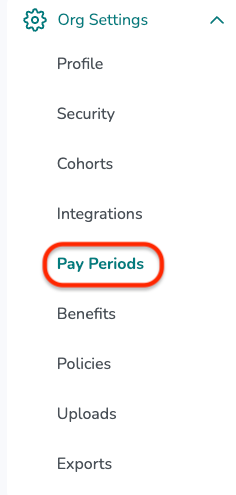
- Click Org Settings in the left-hand navigation.
- Click the Pay Periods tab.
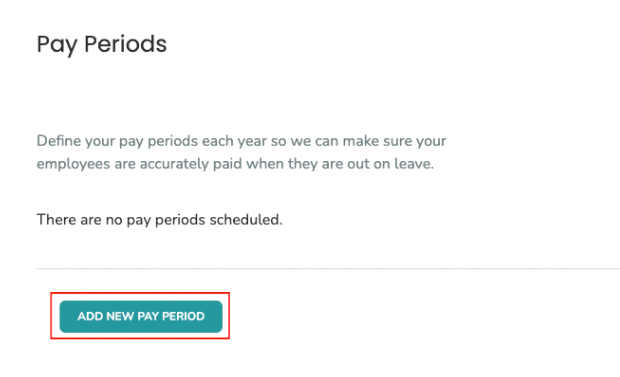
- Click Add New Pay Period.
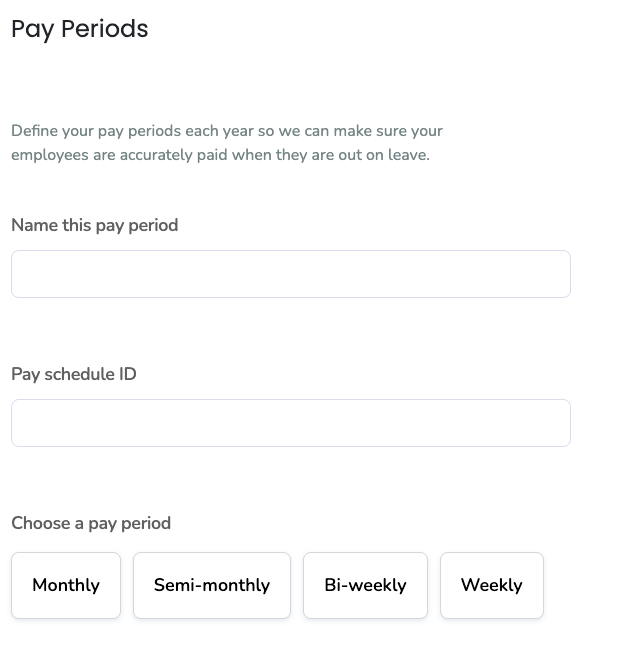
- Give your pay period schedule a unique, descriptive name (for example, "Bi-weekly Salaried" or "Semi-monthly Hourly"). This helps your team identify it later.
- Select the pay period frequency: Monthly, Semi-monthly, Bi-weekly, or Weekly. Follow-up questions will appear based on your choice.
- Answer Which employees are paid on this schedule? by selecting Exempt or Non-Exempt.
For monthly schedules:
- Confirm whether the schedule always runs from the 1st to the last day of every month.
- Yes — you'll be asked for the first pay period's start date (step 3 below).
- No — continue to question 2.
- Confirm whether the schedule always starts on the same day each month.
- Yes — you'll be asked for the first pay period's start date (step 3 below).
- No — you'll be asked to add start and end dates for every pay period across the year. Use Add Pay Period to add more rows, then click Submit.
- Select the start date of the first pay period. This should either be the first-ever date for the schedule OR be inclusive of all leaves currently associated with the schedule.
- Optional: if the schedule has a specific end date, toggle on the end date option before entering the date. Then click Submit.
For semi-monthly schedules:
- Confirm whether the schedule always runs 1st–15th and 16th–last day of the month.
- Yes — continue to step 4.
- No — continue to question 2.
- Confirm whether the schedule always begins on the same days each month (for example, 8th–22nd).
- Yes — you'll be asked to add dates for two consecutive pay periods so Tilt can calculate future dates. Then continue to step 4.
- No — you'll be asked to add start and end dates for every pay period across the year. Use Add Pay Period to add more rows, then click Submit.
- Add the dates for two consecutive pay periods.
- Select the start date of the first pay period. This should either be the first-ever date for the schedule OR be inclusive of all leaves currently associated with the schedule.
- Optional: if the schedule has a specific end date, toggle on the end date option before entering the date. Then click Submit.
For bi-weekly or weekly schedules:
- Enter the start date of the first pay period. This should either be the first-ever date for the schedule OR be inclusive of all leaves currently associated with the schedule.
- Optional: if the schedule has a specific end date, toggle on the end date option before entering the date. Then click Submit.
What if it doesn't work
- If you can't find the Pay Periods tab, confirm you have HR or Payroll access. Regular users don't have access to Org Settings.
- If you're unsure which frequency to choose, check with your Payroll team — the frequency must match how you actually pay employees.
Limits and exceptions
- The pay period schedule you create in Tilt should reflect how your company actually pays employees. Tilt uses it to calculate pay during leave.
- Pay calculations for a schedule with an end date will stop being calculated on the date you specify.
- Once you're using a schedule with employees on leave, avoid changing its frequency. Instead, add a new schedule and phase out the old one.
Related questions
- How do I update a pay period schedule in Tilt?
- How do I close a pay period in Tilt?
- Navigating Tilt's Company Payroll Page
- Understand A Pay Calculation