
Quick answer
You can add an end date to a pay period schedule from Org Settings → Pay Periods. Adding an end date phases out the schedule — pay calculations stop being calculated on the date you specify.
Who this applies to / Prerequisites
- You are an HR or Payroll user at a Tilt customer.
- You have at least one pay period schedule already added to Tilt.
- You want to phase out a pay period schedule by setting a specific date after which pay calculations will stop.
Steps
Navigate to the Pay Periods page:
- Log into Tilt as an HR or Payroll user.
- Click Org Settings in the left-hand navigation.
- Click the Pay Periods tab.
- Locate the schedule you want to phase out.
- Click Edit within the pay schedule details card.
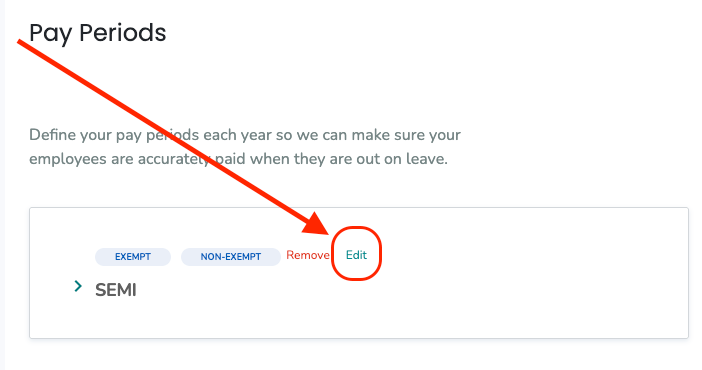
Add the end date:
- For custom monthly or semi-monthly schedules that start and end on different dates each pay period: enter the specific end date directly.
- For any schedule with a more predictable pattern that Tilt has been auto-calculating: toggle on the end date option, then enter the end date.

- Click Submit. Pay calculations for this schedule will stop being calculated on the date you specify.
What if it doesn't work
- If you can't find the Edit button on the schedule card, confirm you have HR or Payroll access.
- If the end date field is not editable, your schedule may be an integrated schedule (Rippling or Workday). Update the schedule in your HRIS instead — Tilt will sync the change.
- If you set an end date and later change your mind, remove the end date (or extend it) using the same Edit flow. See How do I extend a pay period schedule in Tilt?
Limits and exceptions
- Once you add an end date, pay calculations for that schedule stop on that date. Don't add an end date unless you're intentionally phasing the schedule out.
- Adding an end date does not delete the schedule. It just stops future pay calculations.
- Integrated pay schedules (Rippling, Workday) sync automatically from your HRIS. Don't update them in Tilt — update the source system instead.
- If you're phasing out one schedule and starting a new one, add the new schedule first, then set the end date on the old one. See How do I add a new pay period schedule in Tilt?
Related questions
- How do I extend a pay period schedule in Tilt?
- How do I add a new pay period schedule in Tilt?
- How do I close a pay period in Tilt?
- Navigating Tilt's Company Payroll Page