
Quick answer
You can add employees to a cohort in two ways: directly in the cohort UI using the Members search, or by uploading an Employee Demographics file with the employees' cohort assignments. Imported data overrides the manual Members list — if you upload a file that doesn't include an employee, they'll be removed from the cohort.
Who this applies to / Prerequisites
- You are an HR Admin at a Tilt customer.
- The cohort you want to add members to already exists in Tilt. See How do I create a cohort in Tilt?
Steps
Method 1: Add members directly in the cohort UI
- Log into Tilt as an HR Admin.
- Click Org Settings in the left-hand navigation.
- Click Cohorts.
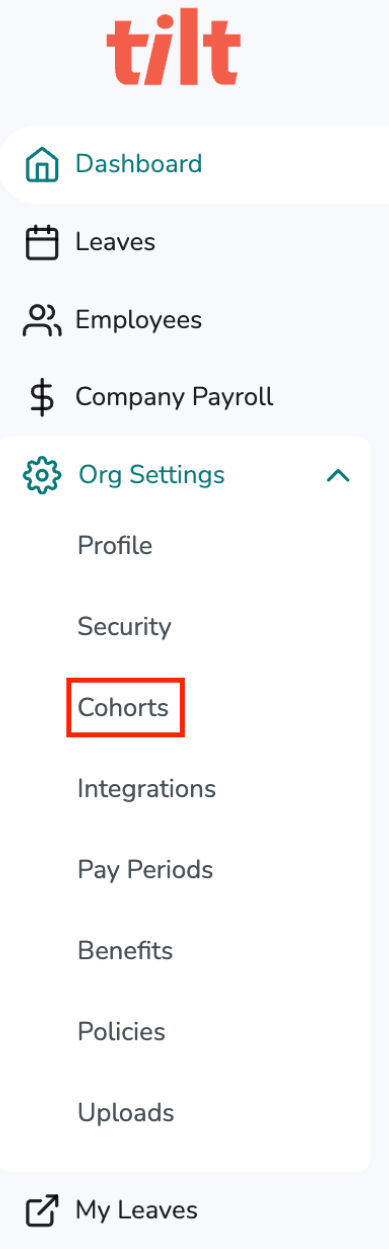
- Select the cohort you want to update.
- On the right side of the page, find the Members section.
- Search to select the employees you want to add.
- Click Save.
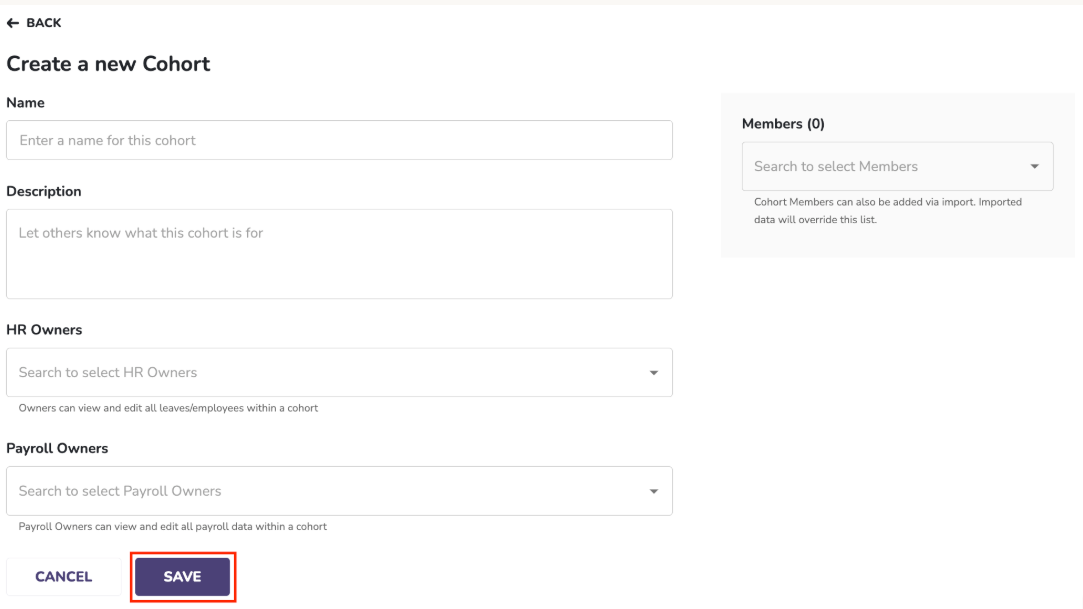
Method 2: Add members via Employee Demographics file upload
Use this method to add many members at once, or to keep your cohort assignments in sync with an external HR system.
- Log into Tilt as an HR Admin.
- Click Org Settings.
- Click Upload File.
- Download the Employee Demographics template from the template link.
- Populate the file with each employee's first name, last name, email address, and cohort name. Column headers must match Tilt's template exactly.
- Return to Upload File in Org Settings.
- Select Employee File as the file type.
- Attach the file. Optionally, select Test your file before uploading (no data will be saved) to check the file without saving.
- Click Upload.
What if it doesn't work
- If your file upload fails, check that column headers match Tilt's template exactly. See Understanding Errors in the Import Log.
- If the cohort name in your file doesn't match a cohort in Tilt, the assignment will fail. Verify the cohort exists and the name matches exactly.
- If an employee doesn't appear in the expected cohort after upload, confirm the upload was saved (not just tested).
- If you added members manually and they've disappeared, an Employee Demographics upload may have overwritten your changes.
Limits and exceptions
- Imported data overrides manually added members. If you add someone through the cohort UI and later upload an Employee Demographics file that doesn't include them, they'll be removed from the cohort. Keep your file and manual assignments in sync.
- Cohort names in the file must match existing cohort names exactly. Renaming a cohort without updating your file will break the match.
- Employees can be assigned to one cohort at a time.
- If your company uses SFTP or an integration to sync employee data, cohort assignments come from that source — updating them directly in Tilt may be overwritten on the next sync.
Related questions
- How do I create a cohort in Tilt?
- How do I add or update HR Users and Payroll Users on a cohort?
- Manually Import Employee Profile Data via CSV File
- Understanding Errors in the Import Log