
Quick answer
You can add or update an employee's leave dates from their Time Off Calendar in Tilt. Navigate to their leave from the Leaves tab in your HR dashboard, then open their calendar to add, edit, or delete dates on their behalf.
Who this applies to / Prerequisites
- You are an HR user at a Tilt customer.
- The employee has an active leave in Tilt.
- You need to add, update, or delete leave dates on their behalf.
Steps
Find the employee's Time Off Calendar:
- Log into Tilt as an HR user.
- Click Leaves in the left-hand navigation.
- On the Active Leave Plans page, use the search filters to locate the employee's leave.
- Click View Plan to open their leave.
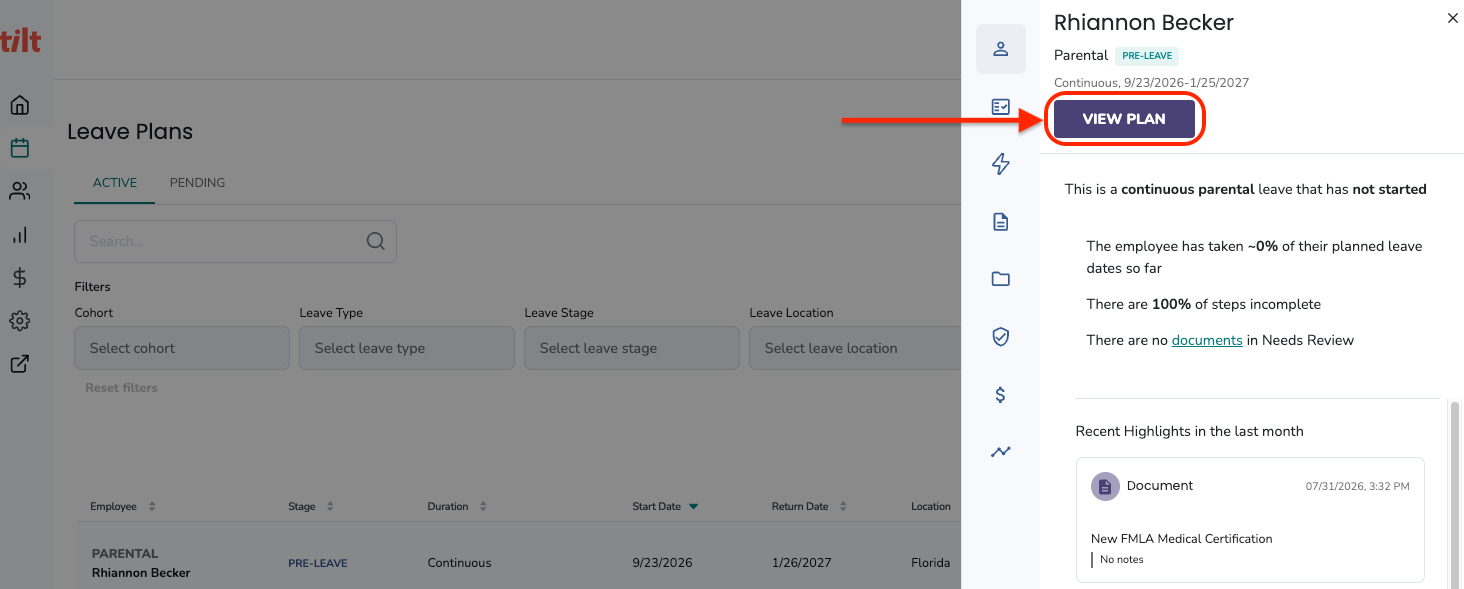
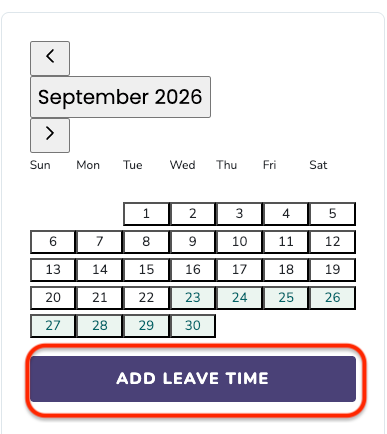
- The employee's calendar appears on the right-hand side of the leave plan page.
Add new leave time:
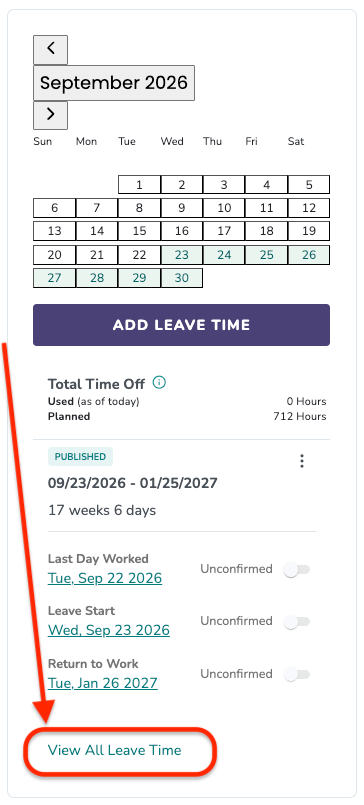
- Click Add Leave Time on the calendar.
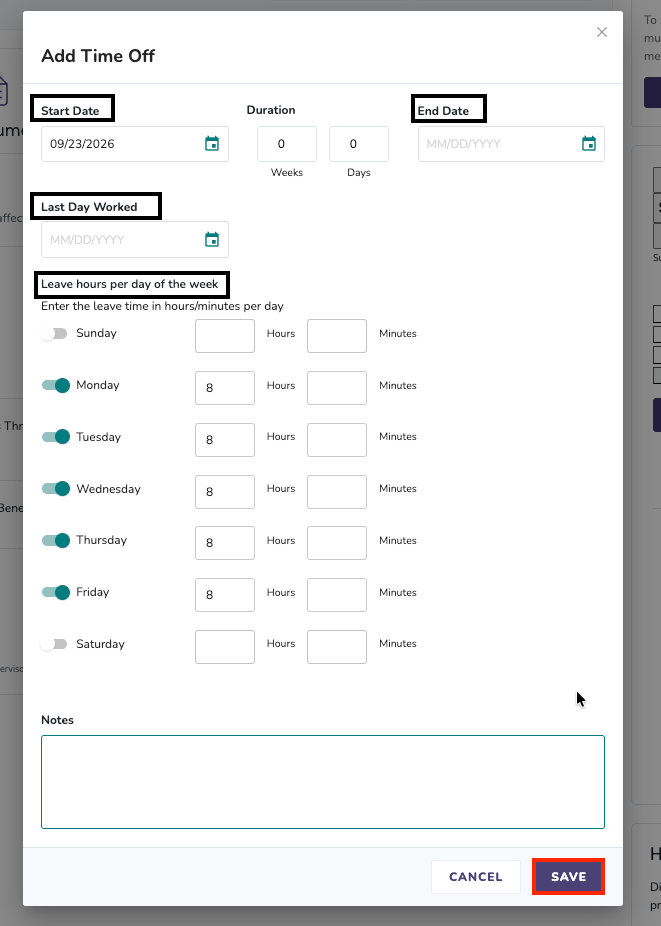
- In the Add Time Off pop-up, enter:
- Start Date and End Date (or use the Duration field). For a single day, enter the same date for both.
- Last Day Worked — the employee's last day actually working before this time off begins.
- Leave hours per day of the week — toggle on the days off and enter hours and minutes per day.
- Notes — explain what you're requesting so the record is clear.
- Click Save. The request will be sent to the Leave Specialist for review.
Update or delete existing leave time:
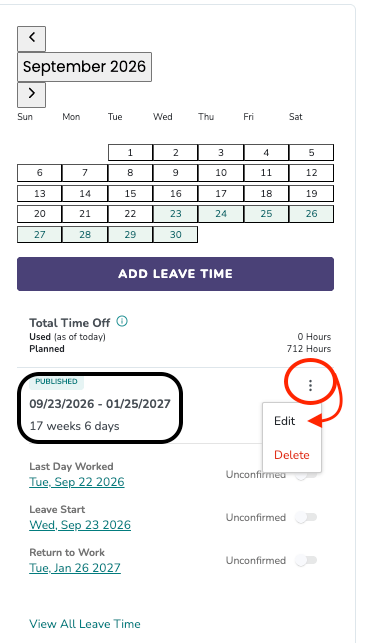
- Below the calendar, find the leave period you want to change.
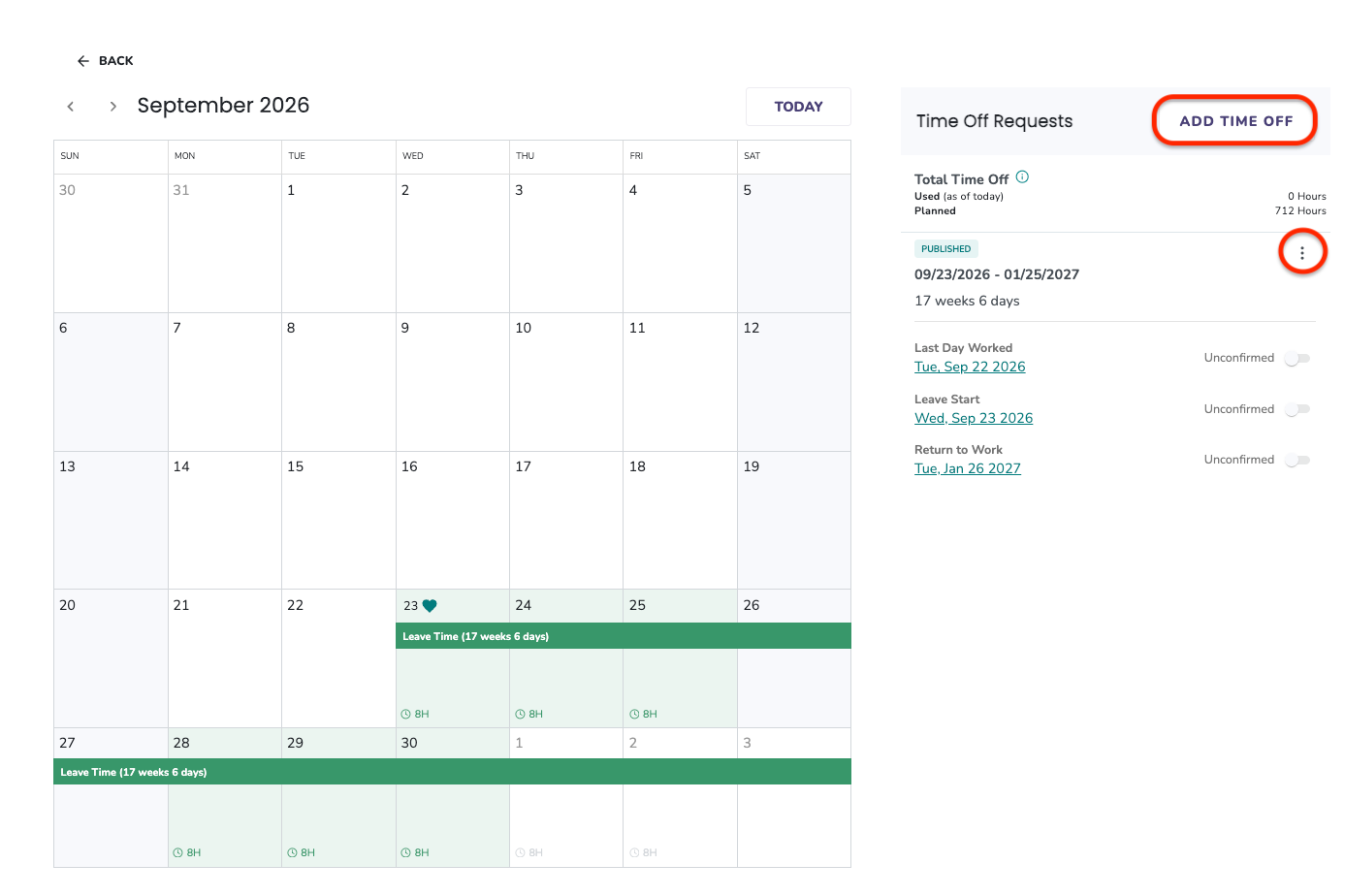
- Click the three-dot menu on that period.
- Click Edit to open the Edit Time Off pop-up with the existing details pre-filled, or click Delete to submit a removal request.
- For deletions, add a note explaining why you're requesting the removal.
- Click Save. The request will be sent to the Leave Specialist for review.
See all leave time in a full calendar view:
- Click View All Leave Time at the bottom of the calendar section.
- A full-month calendar opens showing all leave time and hours per day. From here you can also add, edit, or delete leave time using the same buttons and three-dot menu.
What if it doesn't work
- If you can't find the employee's leave, confirm the leave has been submitted.
- If you see a warning about requesting time outside the approved leave window, that's a normal heads-up — the change will still submit and be reviewed by the Leave Specialist. It doesn't block the save.
Limits and exceptions
- Time off blocks you add, edit, or delete as an HR user follow the same Pending → Published review flow as employee-submitted changes.
- Deletions require a note explaining the reason. The Leave Specialist reviews before applying.
- Each time off period for a leave plan appears as its own row in the leave data export. The export includes the leave start date, leave end date, time off start date, and time off end date. See Download Leave Data from Tilt.
- To view or edit another employee's leave time, you must have HR access. See Tilt User Permission Overview for details on who can do what.
Related questions
- How do I add or update my leave dates on the Time Off Calendar? (employee-facing)
- Download Leave Data from Tilt
- HR Dashboard
- Tilt User Permission Overview