
Quick answer
You can add or update leave dates on your Time Off Calendar from your Tilt leave plan. What you can do depends on your leave type — continuous leaves are typically entered as one continuous block from start to end, and intermittent leaves let you add specific blocks of time off across the leave window.
Who this applies to / Prerequisites
- You are an employee at a Tilt customer.
- You have an active leave in Tilt.
- Your leave plan has been published for you to review (you'll receive an email notification when it's ready).
Steps
Find your Time Off Calendar:
- Log into Tilt.
- Under My Leaves on your home screen, find the leave plan you want to add or update time for.
- Click on that leave plan to open it.
- Your calendar appears on the right-hand side of the leave plan page. If you're on a mobile device, scroll down to find it — the layout stacks vertically on smaller screens.
Add new leave time:
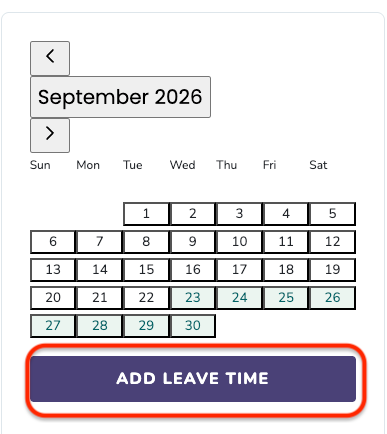
- Click Add Leave Time on the calendar.
- In the Add Time Off pop-up, enter:
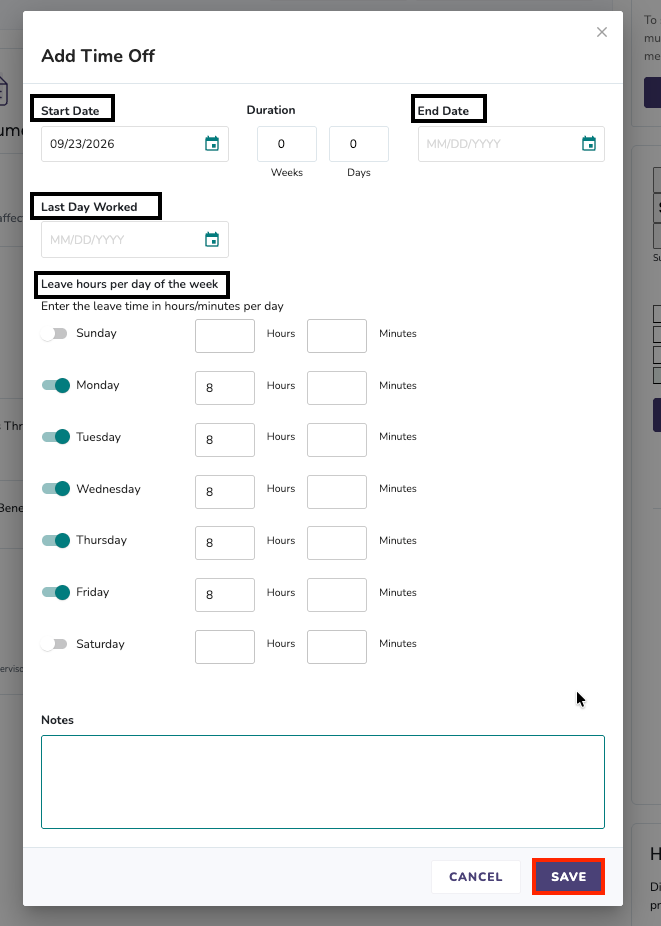
- Start Date and End Date (or use the Duration field to enter weeks and days). For a single day, enter the same date for both.
- Last Day Worked — your last day actually working before this time off begins.
- Leave hours per day of the week — toggle on the days you'll be off and enter the hours and minutes for each day.
- Notes — You can leave a note for your Leave Specialist with context about the time off being requested.
- Click Save.
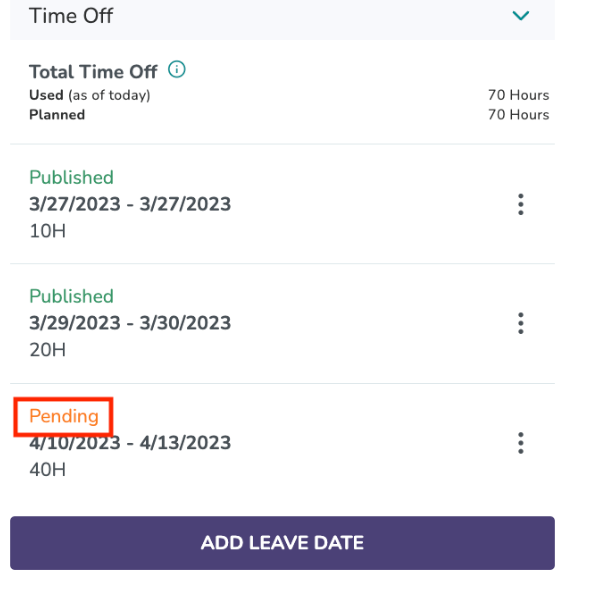
- Your request will show as Pending until your Leave Specialist reviews it. Once approved, it changes to Published on your calendar.
Update existing leave time:
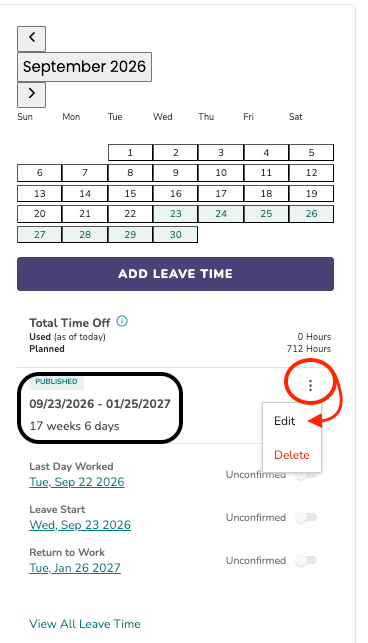
- Below your calendar, find the leave period you want to change.
- Click the three-dot menu on that period.
- Click Edit.
- The Edit Time Off pop-up opens with the existing details pre-filled.
- Update the dates, hours, or add a note explaining your change.
- Click Save. Your update will show as Pending until your Leave Specialist reviews it.
Delete leave time:
- Below your calendar, find the leave period you want to remove.
- Click the three-dot menu on that period.
- Click Delete.
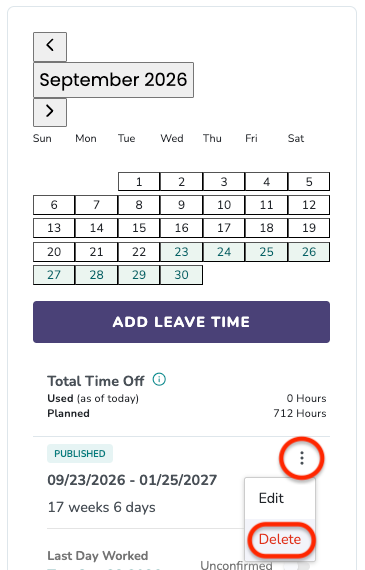
- Add a note explaining why you're requesting the deletion. Your Leave Specialist needs the context to review the request.
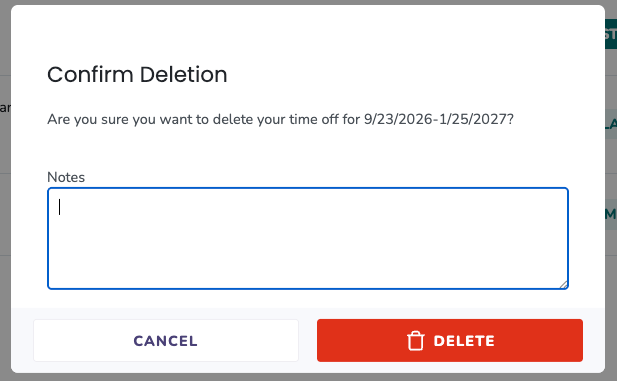
- Submit the deletion. The request will show as Pending until your Leave Specialist reviews it and applies the change on their end.
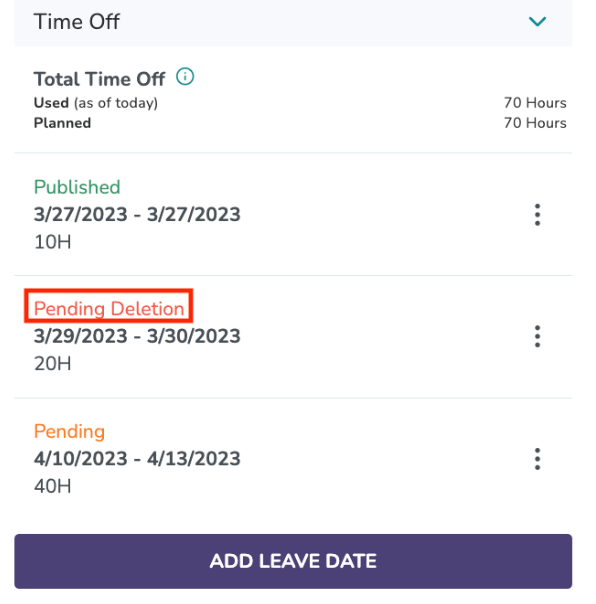
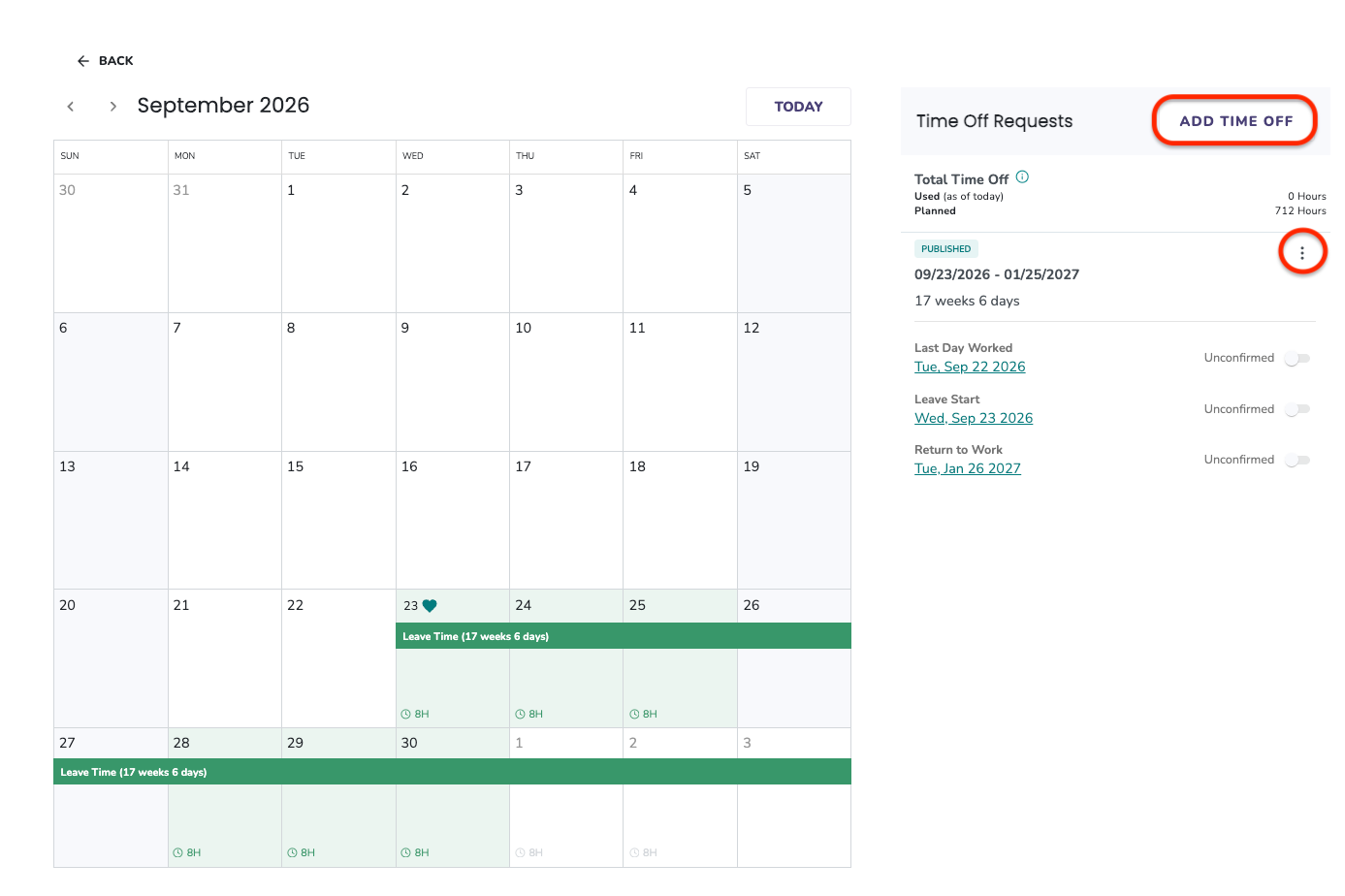
See all your leave time in a full calendar view:
- Click View All Leave Time at the bottom of the calendar section.
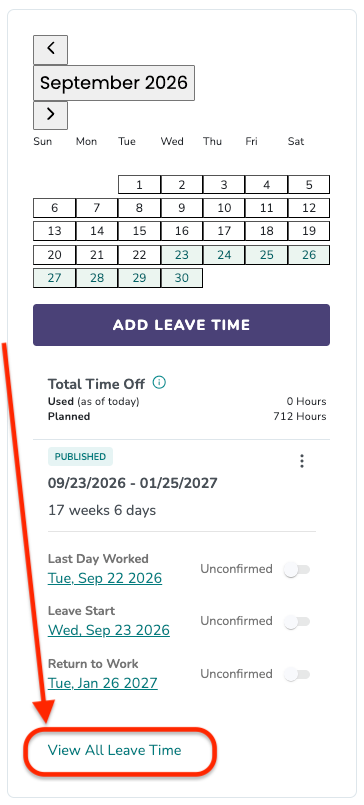
- A full-month calendar opens showing all your leave time and hours per day marked on each date.
- From this view, you can also click Add Time Off to add new leave time, or use the three-dot menu on any period to edit or delete it.
What if it doesn't work
If you see a warning that says you're requesting time outside your approved leave window:
This is not an error and it's not blocking you — it's a heads-up that the change you're requesting falls outside the dates originally published for your leave. Click Save to submit the change for review. Your Leave Specialist will review it and update your leave plan accordingly.
Other issues:
- If you don't see a leave plan under My Leaves, confirm your leave request has been submitted and is active. If it's still pending, contact your Leave Specialist about any changes that need to be made.
- If you're on your phone and can't find the calendar, scroll down. The calendar section stacks below your leave plan details on mobile.
- If you edit or delete a leave block while it's still Pending, only your latest edits will be sent for review.
Limits and exceptions
- All changes (add, edit, and delete) must be reviewed and approved by your Leave Specialist. Every submission goes through the same Pending → Published flow.
- Deletions require a note explaining why you're requesting the removal. Your Leave Specialist reviews these before applying the change.
- Requesting time outside your originally approved leave window may impact your leave and benefit eligibility. Your Leave Specialist will review any such changes and adjust your leave plan accordingly.
- If your leave is still in Waiting on HR or Under Review status (not yet published), you can't use this article. See How do I update the details on my pending leave request?
Related questions
- How do I add self-reported intermittent leave hours?
- How do I update the details on my pending leave request?
- Navigating Your Leave Plan