
Overview
Leave requests should be canceled only if there is no reason for Tilt to process the request — for example, if a request is being handled internally, was submitted in error, or the same request was submitted more than once.
This article will walk you through how to cancel a leave request from an employee.
Prerequisites
You must be an HR user in Tilt and have a pending leave in the Waiting on HR stage to cancel a leave request.
Leave Request Stages
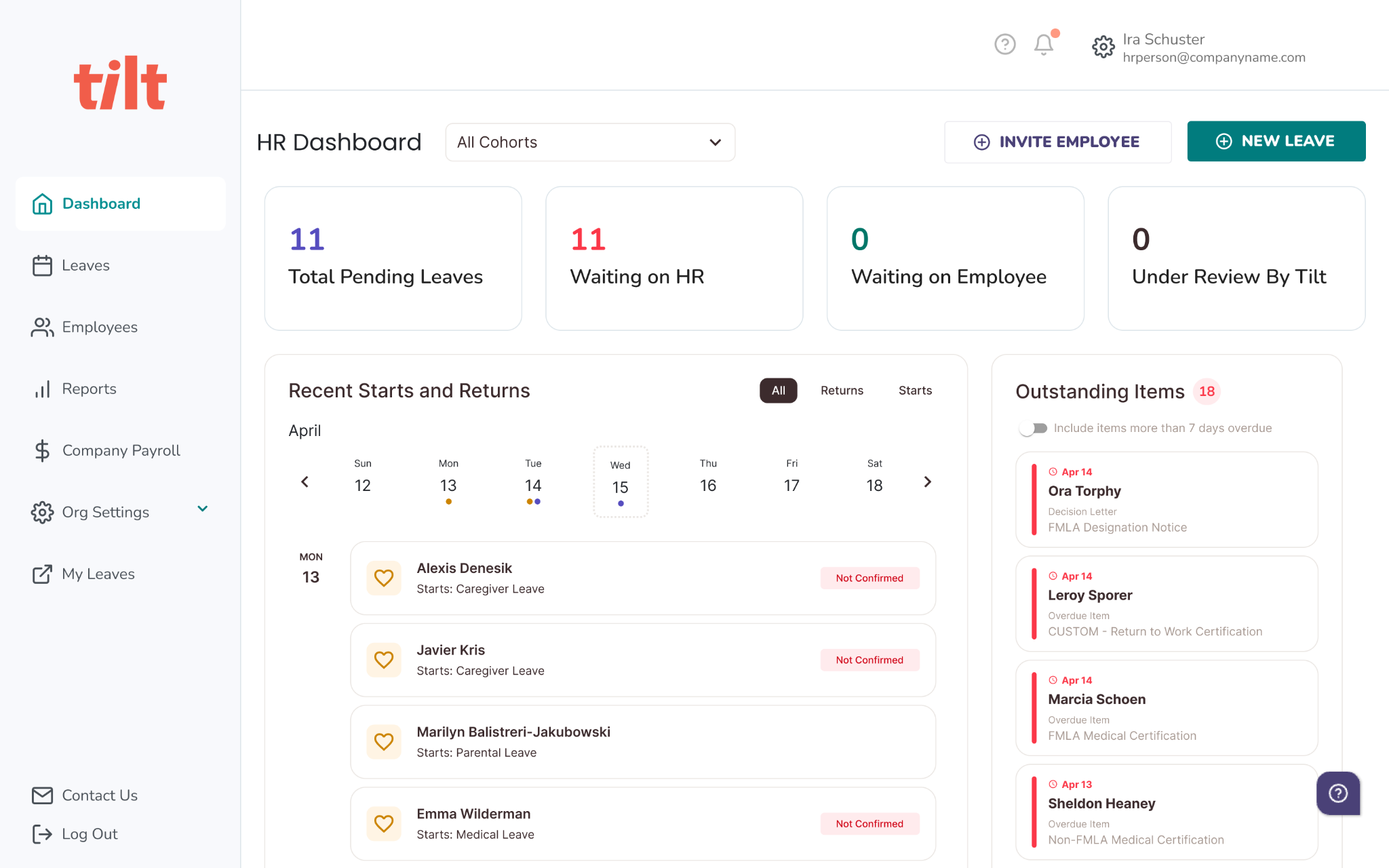
On the HR Dashboard, pending employee leaves are listed under the Pending Leaves section toward the bottom of the page. There are 3 stages a pending leave request can fall under:
- Waiting on HR
- These leaves must be submitted or canceled by an HR user.
- Waiting on Employee
- These leaves are waiting for the employee to complete their portion of the leave survey.
- Under Review
- Leaves in this stage have been submitted by an HR user and are in Tilt's plan building queue.
- The LSM will build the employee's leave plan within 1-5 business days. Leaves with start dates in the near future are escalated in the queue.
Cancel a Leave Request
⚠️ A leave request can only be canceled while it is in the Waiting on HR stage. Once a request moves to Waiting on Employee or Under Review, the Cancel option is no longer available to HR directly — see below for what to do in that case.
If you review the details of a leave request while it's in the Waiting on HR stage and determine that Tilt should not process it, click the Cancel Leave Request button in the top right corner of the leave review page or the bottom of the leave review page.
When canceling a leave, an open text field will appear where you can enter details about the reason for canceling. These details will be visible on the canceled request. We always recommend noting the reason when canceling a leave.
By clicking Cancel Leave Request, you acknowledge that: 1) you are directing Tilt to take no action on this leave request and 2) Tilt will not be responsible for the failure to evaluate the leave for the possible application of federal or state leave laws.
If a Leave Needs to Be Canceled Outside the Waiting on HR Stage
If a leave has already moved to Waiting on Employee or Under Review and needs to be canceled, HR cannot do this directly in Tilt. Reach out to your Leave Success Manager (LSM) or submit a support request so the Tilt team can manually cancel or remove the leave.
What if it doesn't work
- The Cancel Leave Request button isn't visible. Check the leave's stage under Pending Leaves. The Cancel option only appears while the request is in the Waiting on HR stage. If the leave has moved to Waiting on Employee or Under Review, reach out to your Tilt team to remove the request.
- A leave was canceled by mistake and needs to be reinstated. A canceled request can't be re-opened from the HR Dashboard. You will need to resubmit the leave request.
- The canceled leave is still showing in your HRIS. If your company uses an HRIS integration (e.g., Workday or Rippling), a cancellation in Tilt may not immediately update the connected system, and the employee may still appear as "on leave" there. If the leave status hasn't synced after the cancellation, submit a support request so the Tilt team can investigate and re-push the update.
Limits and exceptions
- Stage restriction: Only leaves in the Waiting on HR stage can be canceled directly by an HR user. All other stages require assistance from Tilt.
- Canceling is not deleting. A canceled request (and the reason entered at cancellation) remains visible on the HR Dashboard for reference. The employee's original submission details are retained, which is useful if the employee expects to take the leave at a later date.
- Cancellations can't be undone by HR.
- Duplicate requests: If the same leave was submitted more than once, cancel the duplicate and keep the request you want Tilt to process. If both have already moved past Waiting on HR, contact your LSM.
- Pay and benefits impacts: If a leave is canceled after leave time was already communicated to payroll (for example, an employee cancels a leave that was already built and paid against), pay adjustments are not always automatic. Work with your LSM or payroll team to confirm any corrections for closed pay periods.
- Compliance acknowledgment: Canceling directs Tilt to take no further action on the request, including evaluating it under federal or state leave laws. If there's any chance the absence still requires a compliance review (e.g., FMLA), don't cancel.
Related questions
- Submit a Leave Request
- Submit a Leave Request as an Employee
- Invite New User to Tilt
- Resend the Welcome Email to New Users