
Quick answer
When your HR/People team starts a leave request on your behalf, you'll receive an email inviting you to activate your account and complete your portion of the Leave Form. Most of the questions are already answered by HR; you just need to confirm a few details to send it back for review.
Who this applies to / Prerequisites
- You are an employee at a Tilt customer.
- Your HR team has initiated a leave request on your behalf.
Steps
- Log into Tilt.
- On your homepage, find your leave with a Waiting on Employee status and click it to open the Leave Form.
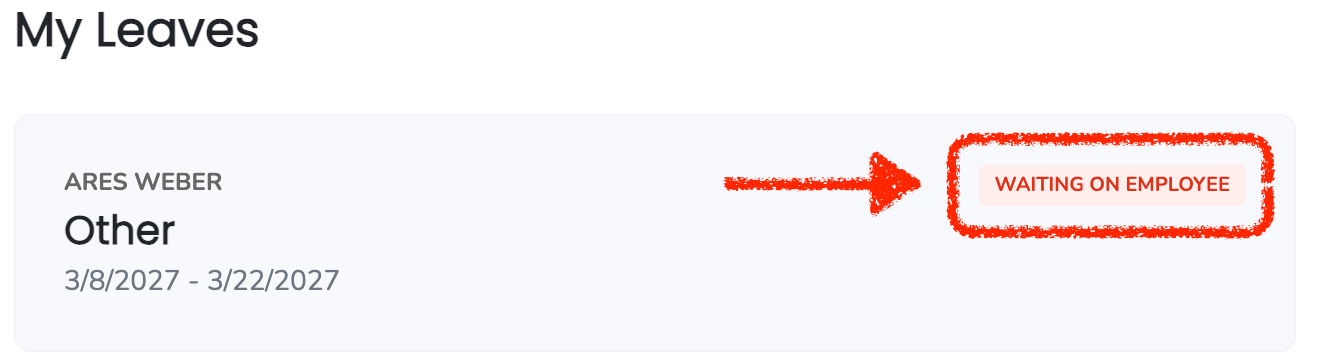
- Review the information your HR team already provided at the top of the form. Those fields are locked and can't be edited by you. If something looks wrong, contact your HR team to update it.
- Complete the remaining questions:
- Do you have more than one job?
- Leave Plan Duration - Continuous (all at once) or Intermittent (in blocks at a time).
- Leave Range - you can edit the expected date of leave and the expected return to work date your HR team entered.
- Personal email
- Preferred method of communication pre-leave — Email or Text, with details.
- Preferred method of communication during leave — Email or Text, with details.
- Any additional information about your leave request (open text field).
- Depending on your leave type, you may be asked additional questions. A couple of examples:
- Caregiver leave - confirm your relationship to the person you're caring for.
- Parental leave - confirm your due date. If your leave starts before your due date, confirm the reason for the early time.
- Click Submit to send the completed request back to your HR team.
A message will appear on your Dashboard to confirm your leave request has been sent for review.
What if it doesn't work
- If the pre-filled info your HR team entered looks wrong, you can't edit those fields from the Leave Form. Reach out to your HR team to update it.
- If you need to edit your leave request after submitting, please contact your leave support team directly.
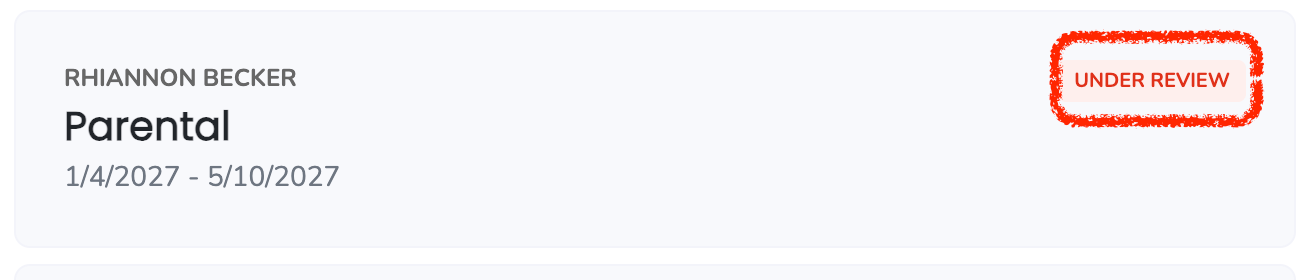
- If the status of your leave is Under Review, you can't make changes until Tilt publishes your leave plan.
- If you didn't receive the welcome email from Tilt and need to activate your account, see How do I activate my Tilt account?
Limits and exceptions
- Once you submit, your leave moves to Under Review. Your HR team has already provided their portion, so the request goes straight to the Tilt review stage.
- During Under Review, your request is assigned to a Leave Specialist who creates your custom leave plan. Please allow 5-7 business days for the Tilt review process. You'll be notified when your leave plan is ready.
Related questions
- How do I submit a leave request as an employee?
- How do I update the details on my pending leave request?
- How do I activate my Tilt account?