
Create new Workday leave types or edit your existing ones so each one maps 1-to-1 with a Tilt leave type, with minimal eligibility restrictions.
Who this applies to / Prerequisites
- Workday admins configuring leave types for the integration.
- You've already reviewed how many Workday leave types you can map to each Tilt leave type and confirmed your setup fits.
- Requires Workday admin access.
Steps
To create new Workday leave types:
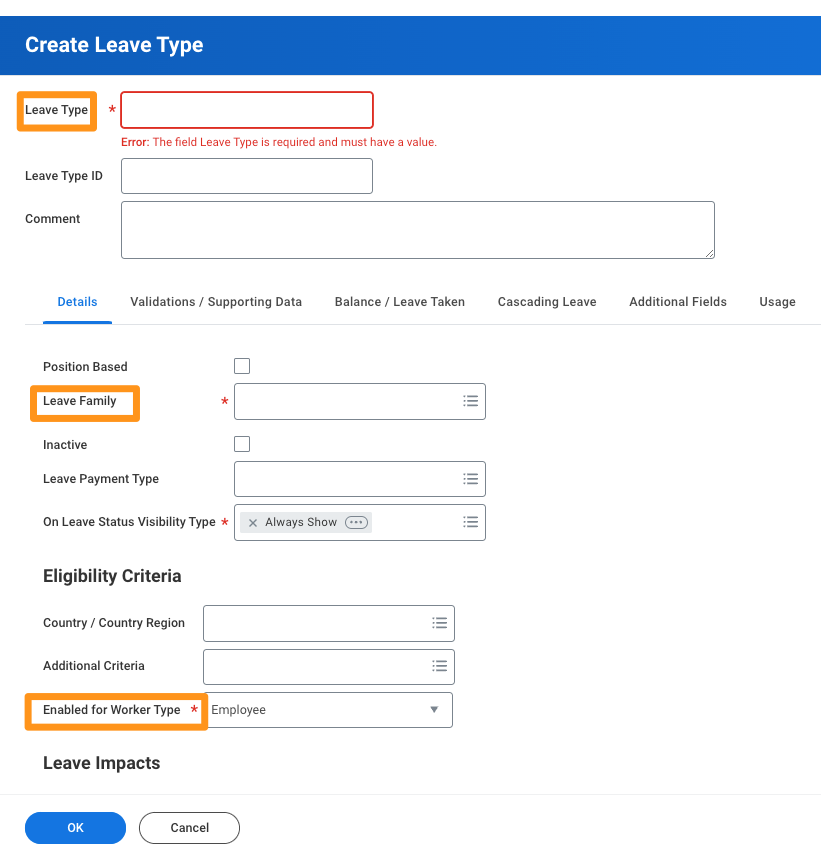
- In the Workday search bar, type Create Leave Type and select the task.

- Enter the required fields: Leave Type, Leave Family, and On Leave Status Visibility Type.
- In the Balance / Leave Taken tab, fill in the required fields:
- Set Unit of Time to Hours.
- Set Calendar Display to your preference.
- Set Days to include to your preference.
- Don't set or track a balance in Workday. Tilt is the source of truth for leave balances once the integration is enabled.
To edit your existing Workday leave types:
- In the Workday search bar, type Edit Leave Type.
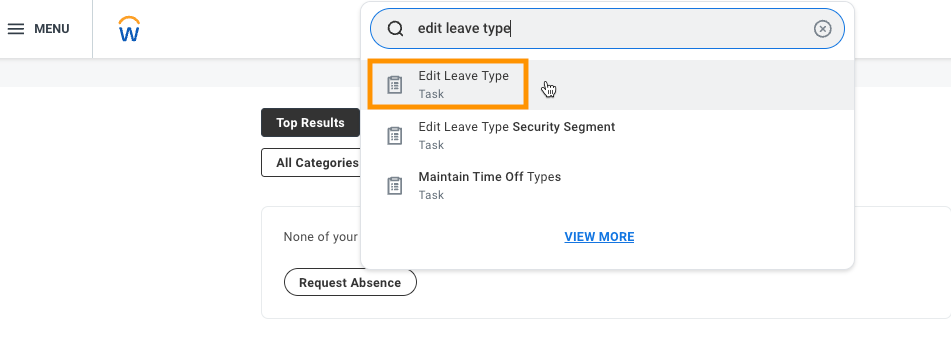
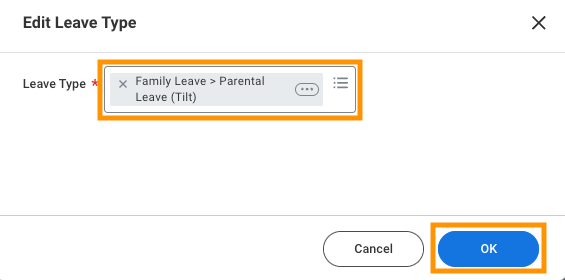
- Search for the leave type you want to edit and click OK.
- Remove validations and eligibility criteria from the leave type, except for Country/Country Region. You can restrict that to the US, or the US and Canada, depending on your Tilt contract.
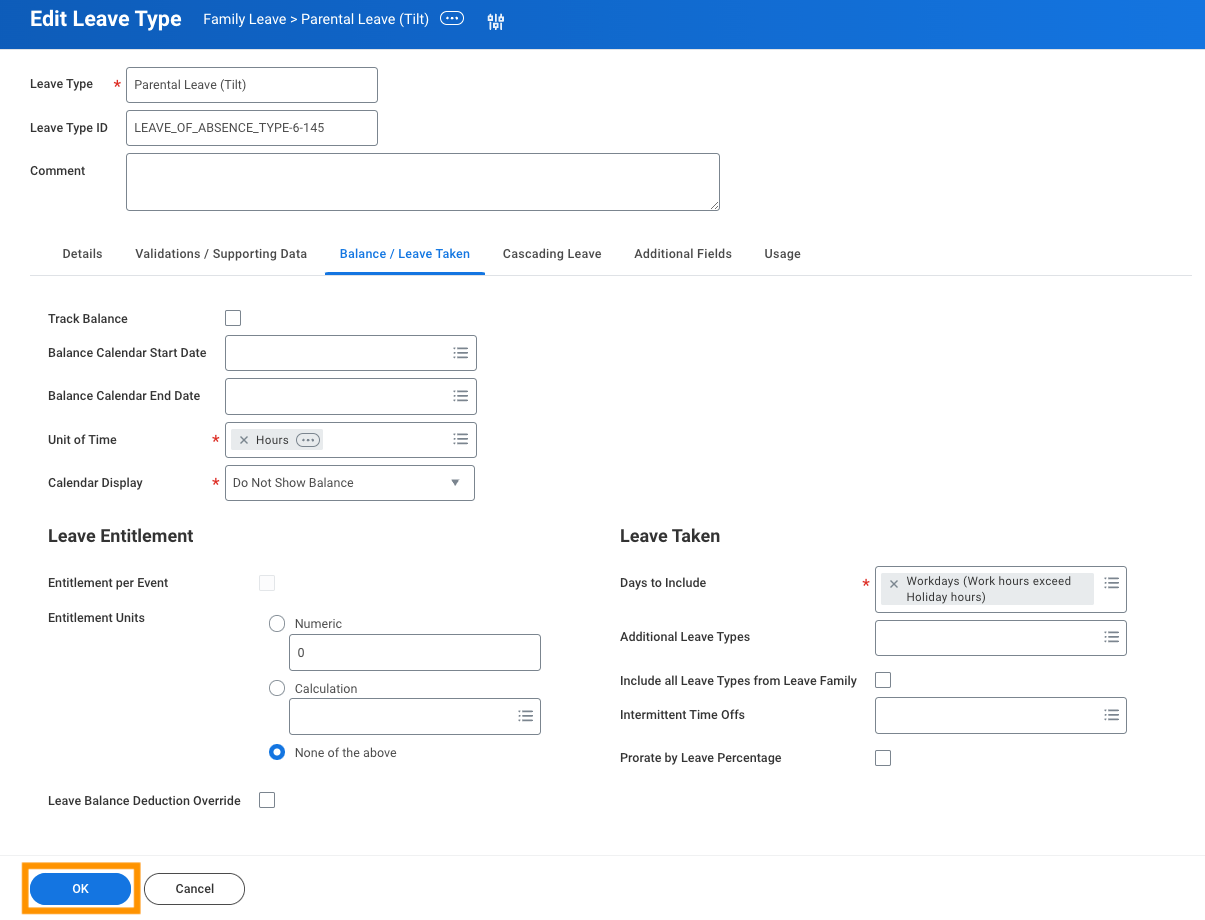
- Click OK to save your changes.
What if it doesn't work
- If Tilt can't put an employee on leave in Workday, check for leftover eligibility criteria or validations on the leave type and remove them.
- If leave balances look wrong in Workday, stop tracking balances there — Tilt manages leave balances once the integration is live.
- If you're unsure which leave types map to which Tilt leave types, revisit how many Workday leave types you can map to each Tilt leave type before editing further.
Limits and exceptions
- You can't keep strict eligibility criteria on Workday leave types used with this integration — it can block Tilt from placing employees on leave.
- The only validation you can keep is a Country/Country Region restriction, and only to the US or US and Canada (depending on your contract).
- You can't rely on Workday-tracked balances alongside this integration — Tilt is the source of truth for leave balances.
Related questions
- How many Workday leave types can I map to each Tilt leave type?
- How do I find the Workday integration ID for a leave type?
- How do I assign the Workday permissions needed for the Tilt integration?