
Quick answer
You can create a cohort two ways: manually in Tilt using the Add Cohort button under Cohorts (this lets you fill in the name, description, HR Users, Payroll Users, and Members all at once), or by uploading a CSV file (for bulk creation of multiple cohort names at once).
Who this applies to / Prerequisites
- You are an HR Admin at a Tilt customer.
- You want to create a new cohort to scope access for specific HR or Payroll users at your company.
Steps
Method 1: Create a cohort manually
- Log into Tilt as an HR Admin.
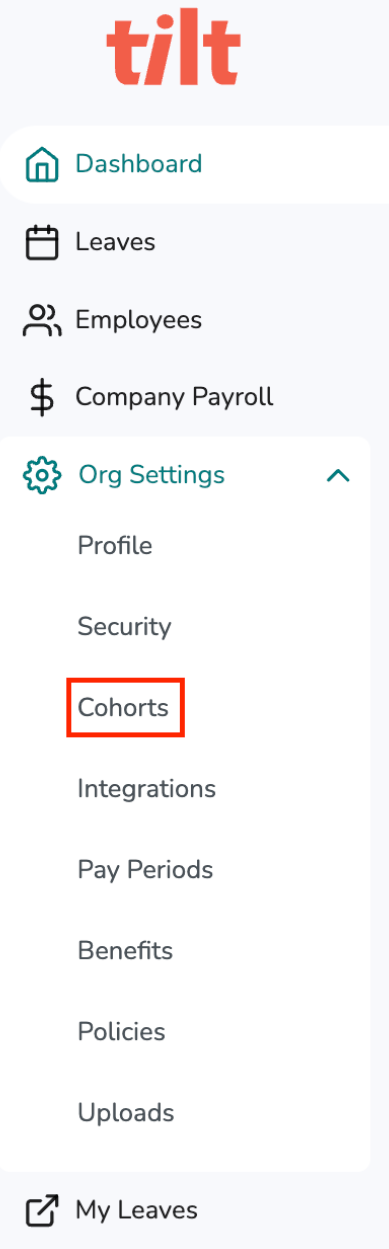
- Click Org Settings in the left-hand navigation.
- Click Cohorts.
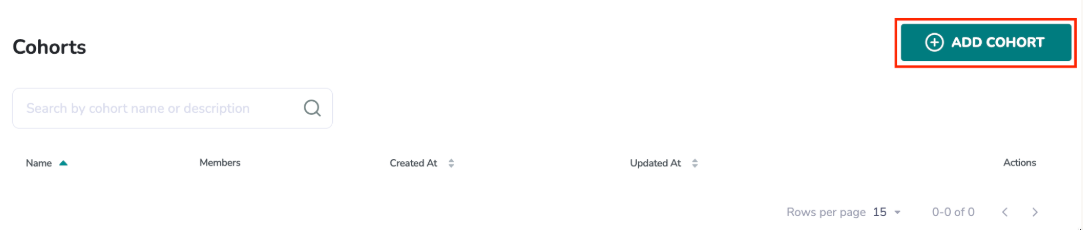
- Click Add Cohort.
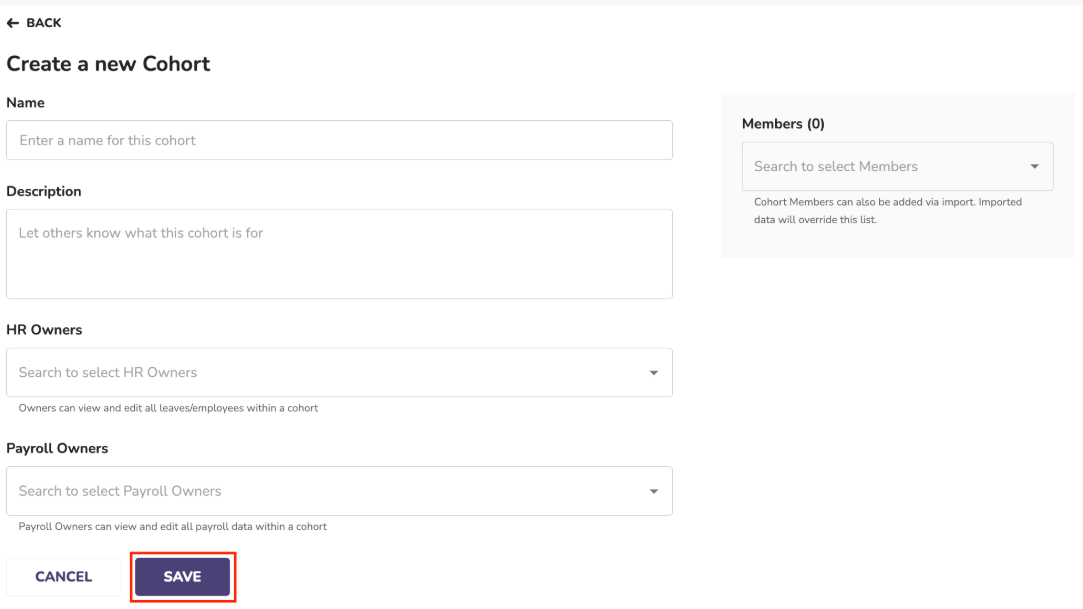
- Enter a Name for the cohort.
- Enter a Description so others know what this cohort is for.
- Under HR Owners, search to select the HR users who should have visibility to leaves and employees within this cohort.
- Under Payroll Owners, search to select the Payroll users who should have visibility to payroll data within this cohort.
- Under Members (right side of the page), search to select the employees you want to include in this cohort.
- Click Save.
Method 2: Create cohorts via CSV file upload
Use this method when you want to set up multiple cohorts at once.
- Log into Tilt as an HR Admin.
- Click Org Settings.
- Click the Uploads tab.
- Download the Cohort Import template.
- Populate the template with each cohort's name and description. Column headers must match Tilt's template exactly.
- Return to the Uploads tab in Org Settings.
- Click Upload File
- Select Cohort Import as the file type.
- Attach the file. Optionally, select Test your file before uploading (no data will be saved) to check the file without saving.
- Click Upload.
- After the cohorts are created, add HR Users, Payroll Users, and Members using either the cohort UI or the Employee Demographics file.
What if it doesn't work
- If the Cohorts option isn't available, confirm you're logged in as an HR Admin. Only HR Admins can create cohorts.
- If your file upload fails, check that column headers exactly match Tilt's template. See Understanding Errors in the Import Log.
- If someone you added as an HR User or Payroll User still seems to see everything at your company, they likely have HR Admin or Payroll Admin access. Admin access overrides cohort scoping. See How do I add or update HR Users and Payroll Users on a cohort in Tilt?
Limits and exceptions
- Only HR Admins can create cohorts.
- Once created, the cohort's Name is used to match records in file uploads and file feeds. Renaming a cohort later can break those matches — plan the name carefully.
- The Cohort Import file only creates the cohort's name and description. HR Users, Payroll Users, and Members are added separately, either in the cohort UI or through the Employee Demographics file.
- If your company uses the Workday integration, complete the integration before finalizing your cohorts.
- To edit a cohort's name, description, or assignments later: open the cohort from Org Settings → Cohorts, update the fields, and click Save.
- Cohort deletion is not self-serve. Contact Tilt Support to permanently remove a cohort from your Tilt account.
Related questions
- How do I add members to a cohort in Tilt?
- How do I add or update HR Users and Payroll Users on a cohort?
- What is a cohort in Tilt, and what does it control?
- Understanding Errors in the Import Log