
You create a security group in Workday, add the Tilt ISU to it, and use that group to control what the integration can access.
Who this applies to / Prerequisites
- Workday admins setting up the Tilt integration.
- You've already created the Integration System User (ISU) for Tilt (see the previous article).
Steps
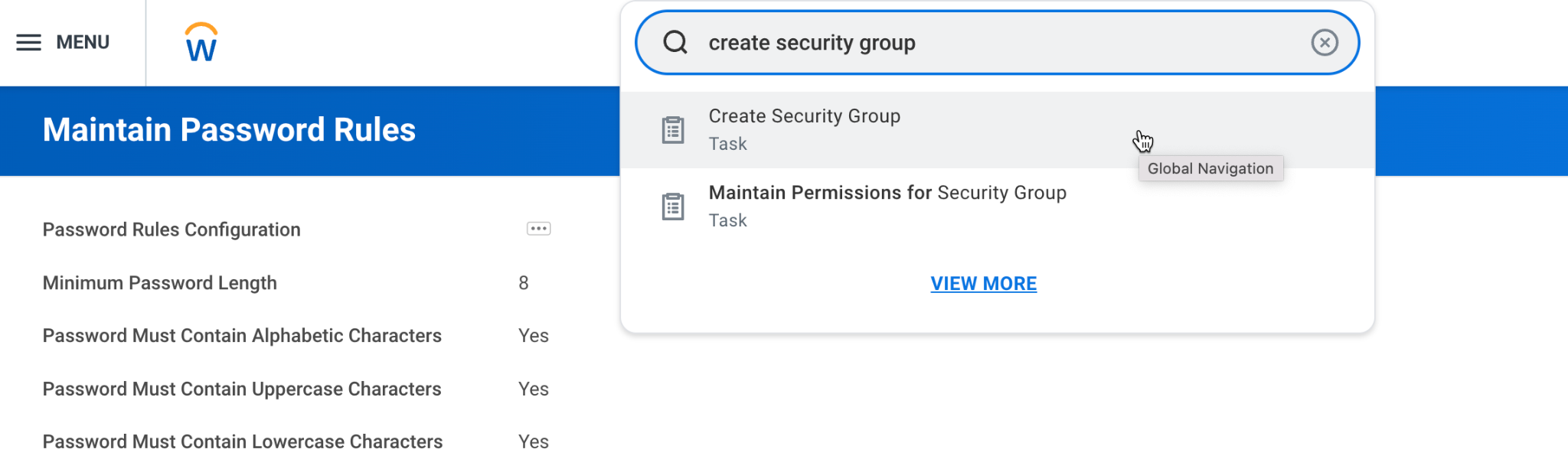
- Type Create Security Group in the top search bar and select the task from the dropdown.
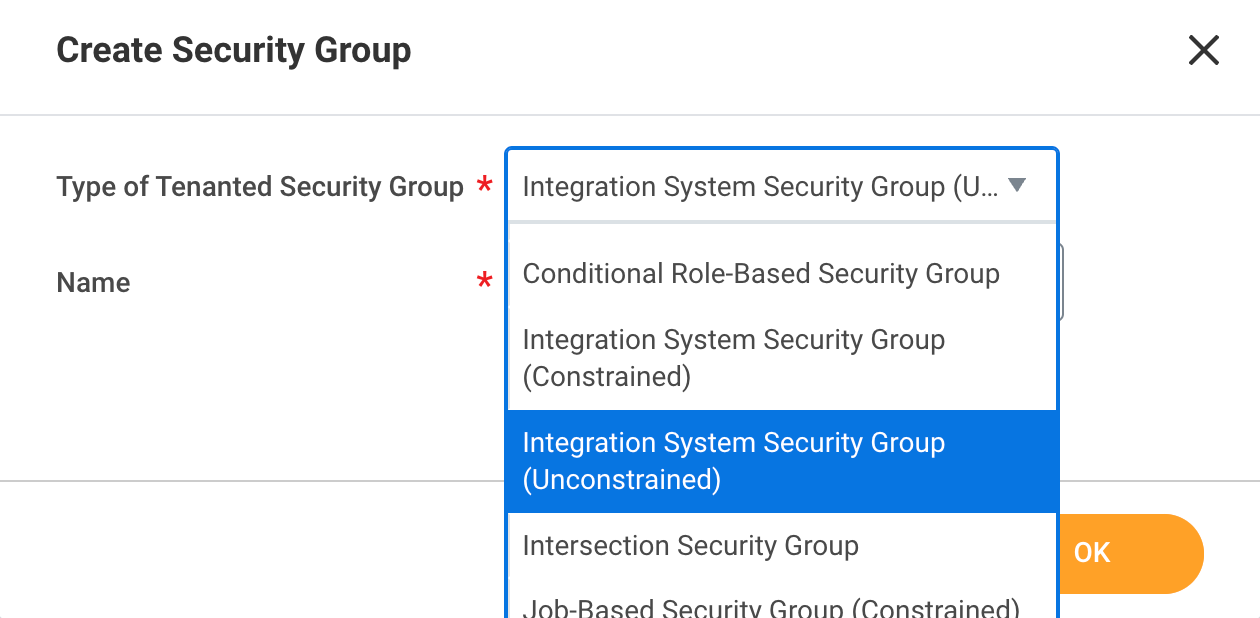
- On the Security Group page, in the Type of Tenanted Security Group field, select Integration System Security Group (Unconstrained).
- Add a name for the group and click OK.
- On the Integration System Security Group (Unconstrained) page, add the ISU you created earlier in the Integration System Users section, then click OK.
What if it doesn't work
- If you need the ISU limited to specific business units or countries, use a constrained security group instead of unconstrained — see Workday's own documentation for constraining ISUs, since the exact steps depend on your Workday setup.
- If you choose a constrained group, you'll need to make an additional adjustment when setting permissions — see "What permissions does Tilt's Integration System User need in Workday?"
Limits and exceptions
- Use an unconstrained security group unless you have a specific reason to limit access — for example, if you have multiple business units and only one should have access to Tilt, or if you have employees in a country (like Canada) that won't use Tilt.
- Constraining the group means you must separately restrict the Worker Data: Workers security policy to only the relevant business or country — this isn't automatic.
Related questions
- How do I create an Integration System User (ISU) in Workday for Tilt?
- What permissions does Tilt's Integration System User need in Workday?