
Overview
Cohorts are groups used to scope limited-access HR and Payroll users to specific sets of employees. You create and manage them on the Cohorts page under Org Settings. You can add a cohort manually by clicking Add Cohorts, giving it a name and description, and saving. You can also add employees to cohorts via a file upload. The upload file must contain only four columns: employee first name, employee last name, email address, and the cohort they should be in.
Who this applies to / Prerequisites- You must be an HR user to manage all Org Settings.
- Your company must have completed (or be actively in) Tilt implementation.
Cohorts
The Cohorts page is where you can create and manage cohorts — groups used to scope limited-access HR and Payroll users to specific sets of employees.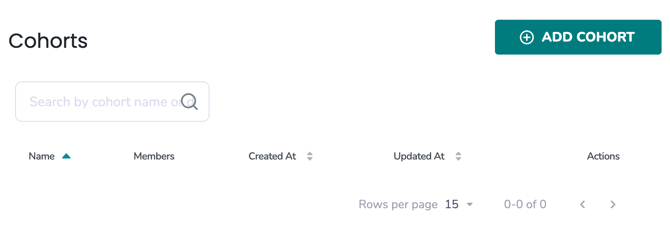
- Click Org Settings, then Cohorts.
- Click Add Cohorts.
- Give the cohort a name and description, then save.
- Once added, use the search bar on the Cohorts page to find any cohort.
Once cohorts are added, you can use the search bar on the Cohorts page to find them.
Steps to add Cohorts with a file- Download this cohort template
- Populate the cohort's name and the cohort's description column
- Click Org Settings, then Uploads
- Attach File
- Select “Test your file before uploading (no data will be saved)” if you would like to test the data prior to saving it on the Tilt Dashboard
- Click on Upload
- Download this employee template
- Populate employees’ first name, last name, email address, and their cohort
- The headers must match the templates headers.
- Click Org Settings, then Uploads
- Select Employee Profile Import
- Attach File
- Select “Test your file before uploading (no data will be saved)” if you would like to test the data prior to saving it on the Tilt Dashboard
- Click on Upload
What is the difference between HR Admin and HR Owner access?
Tilt has different HR access types, including HR Admin and HR Owner. HR Owner is a broader access level than HR Admin. You can grant a colleague HR Owner access so they have full HR access across your organization, rather than access scoped to specific cohorts.
How do I set a user's HR access type?- Open the user management area of your Tilt dashboard.
- Select the user whose access you want to set.
- Assign the access type: HR Owner for full organization-wide HR access, or HR Admin for standard HR access that can be scoped with cohorts.
- I can't find a cohort I created: Use the search bar on the Cohorts page to locate it by name.
- My file upload didn't assign employees correctly: Confirm the file contains only the four required columns. The employee first name, employee last name, email address, and the cohort they should be in. Extra or missing columns can cause the upload to fail.
- My cohort assignments aren't updating from my integration: Cohort assignments cannot be maintained through an integration. Integrated customers must add and maintain cohorts via file upload.
- A limited-access HR user can see too many or too few employees: Check whether they are set as HR Owner (full access) versus scoped to specific cohorts. Adjust their access type or cohort assignments accordingly.
- If none of these apply, contact your Customer Success Manager or use the Contact Us option in your Tilt dashboard.
- Cohorts are used to scope limited-access HR and Payroll users to specific sets of employees.
- The cohort file upload must contain only four columns: employee first name, employee last name, email address, and the cohort they should be in.
- Integrated customers can add cohorts, but cohorts must be maintained via file upload. Cohorts cannot be created or maintained through the integration.
- HR Owner is a broader access level than HR Admin.
- Org Settings: General Overview
- Org Settings Overview: Profile
- Org Settings Overview: Security
- Org Settings Overview: Integrations
- Org settings Overview: Pay Periods
- Org Settings Overview: Benefits
- Org Settings Overview: Polices
- Org Settings Overview: Uploads
- Org Settings Overview: Exports