
Quick answer
You can deactivate an employee's Tilt account from the Employees page in your HR dashboard. Deactivating removes their access to Tilt while keeping their data on file.
If your company uses an HR integration or SFTP file sync, employees are deactivated automatically when they fall off the file — no manual action needed.
Who this applies to / Prerequisites
- You are an HR admin user at a Tilt customer.
- You need to remove an employee's access to Tilt (they've left the company, they no longer need access, etc.).
Steps
- Log into Tilt as an HR admin.
- Click Employees in the left-hand navigation.
- Find the employee using the search bar at the top of the page, or scroll through the list.
- Click the three-stacked-dots icon at the right end of the employee's row.
- Click Deactivate.
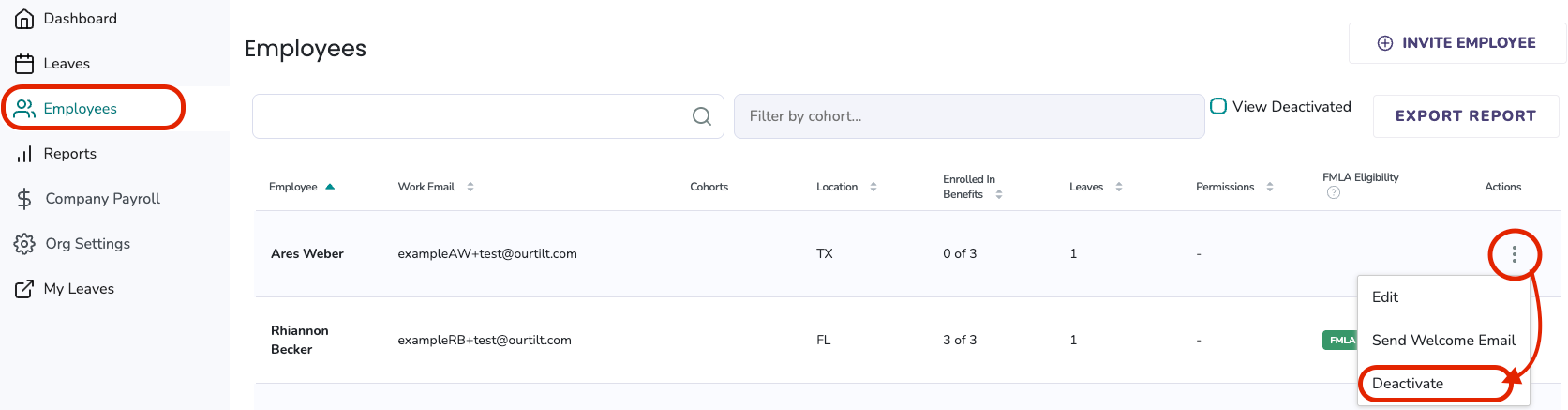
- Confirm you want to deactivate the user. You'll see a confirmation banner at the top of the page.
What if it doesn't work
- If you don't see the three-dot menu, confirm you're logged in as an HR admin (not a standard HR user).
- If the employee doesn't appear in your Employees list, they may already be deactivated.
- If the employee is currently on an active or pending leave, contact your Leave Specialist before deactivating. Deactivation removes their access to leave communications and their leave plan.
- If you deactivate an employee manually but they reappear as active, check your SFTP or HR integration. Automated syncs may be reactivating them because they're still in your source file. Remove them from the file (or update their status in your HR system) to keep the deactivation in place.
Limits and exceptions
- Deactivation removes the employee's ability to log into Tilt. It does not delete their data.
- Deactivation is reversible. See How do I reactivate a previously deactivated employee's account in Tilt?
- Deactivating an employee who has an active leave in progress can disrupt their leave plan. Coordinate with your Leave Specialist first.
- Deactivated users don't appear in the default Employees list. Toggle View Deactivated at the top of the page to see them.
- If your company uses an HR integration or SFTP file sync, employees are automatically deactivated in Tilt when they fall off the source file. You don't need to manually deactivate them in these cases.
Related questions
- How do I reactivate a previously deactivated employee's account in Tilt?
- How to Add a User Within Tilt
- Update User Details as an HR User
- Tilt User Permission Overview