
Disabling third-party earning updates blocks Tilt from writing to Rippling payroll at all, for every pay period going forward, not just one pay run.
Who this applies to / Prerequisites
- Companies that use Rippling as their payroll provider through the Tilt integration
- Payroll team members with administrative access to Rippling Payroll
- Teams that handle payroll manually, or that have payroll configurations too complex or variable for automatic Tilt updates to stay accurate
Steps
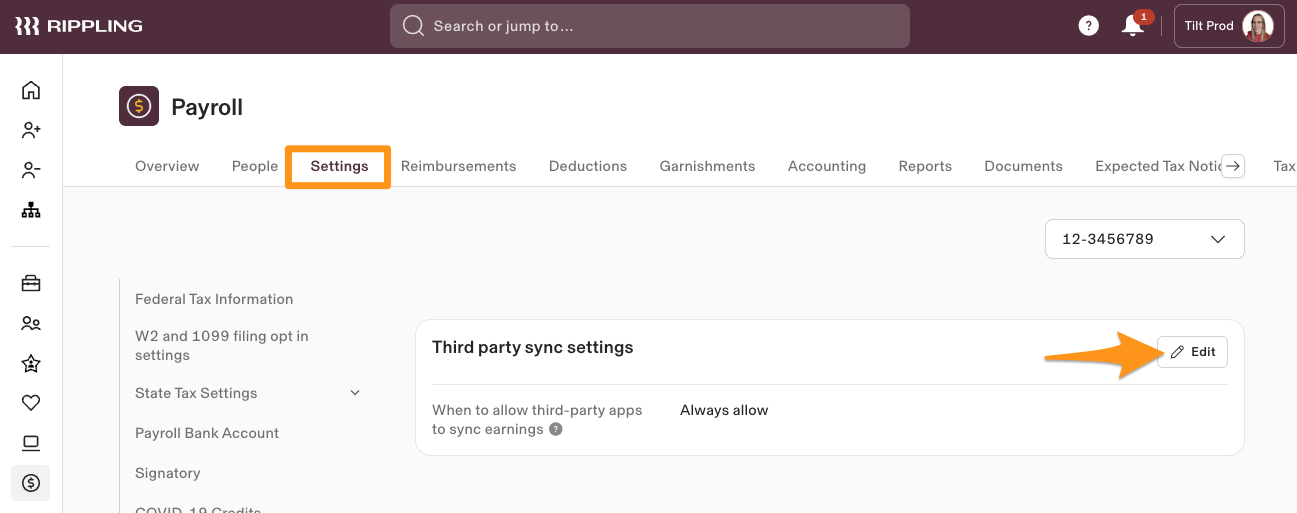
- In Rippling's left navigation panel, click Payroll, then click Payroll again to expand it.
- Click Settings.
- Click Third party sync settings, then click Edit.
- Select Never allow, then click Save.
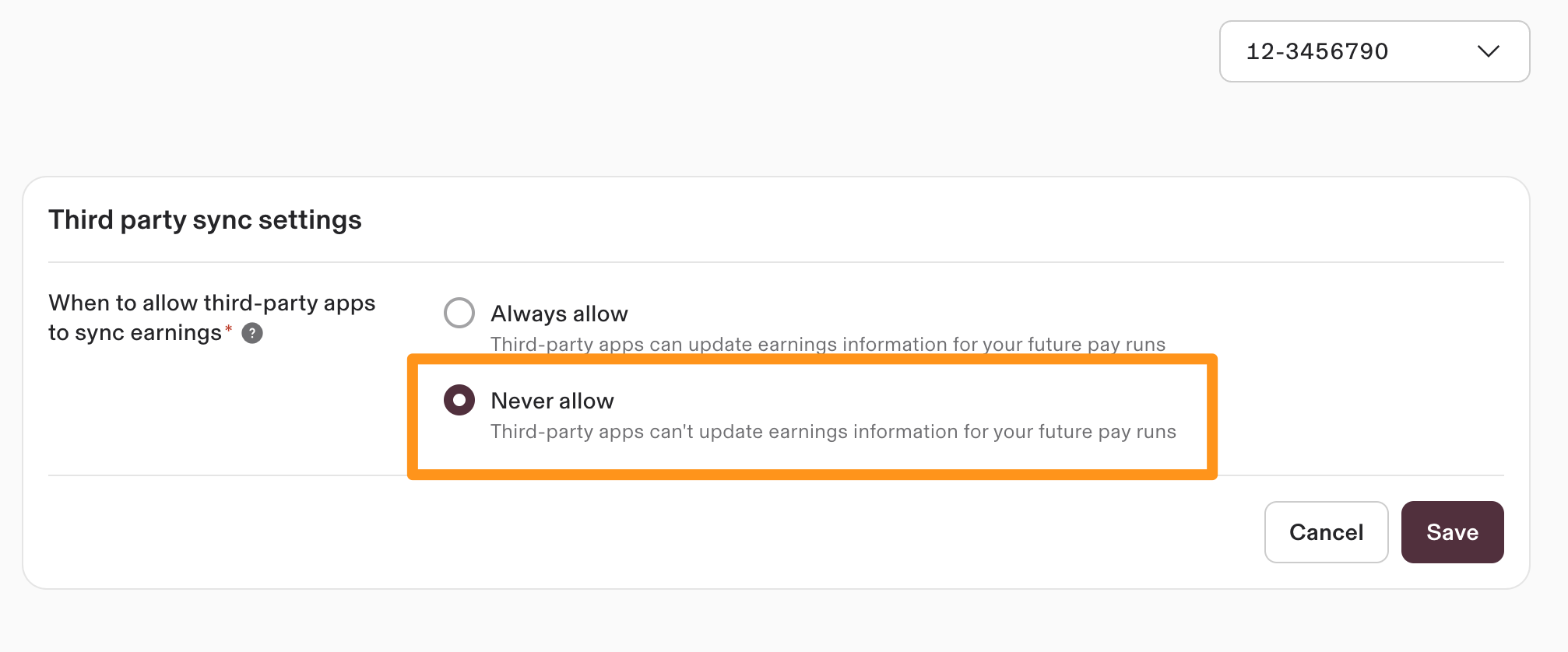
- Repeat these steps for every pay schedule you have in Rippling. This setting doesn't apply across all schedules at once — you have to turn it off on each one.
What if it doesn't work
- If Tilt still appears to be pushing updates, confirm you selected Never allow specifically, not another sync option, and that you clicked Save.
- If you have more than one pay schedule in Rippling, check that you repeated the steps on each one — this setting is per pay schedule, not company-wide.
- If you're unsure whether this is set correctly across all your pay schedules, contact Tilt Support to confirm.
Limits and exceptions
- Once this is on, Tilt will never post leave earnings to Rippling for that pay schedule. There's no partial version of this setting.
- Employee salary still increases or decreases based on the leave time Tilt pushes to Rippling, even with earning updates disabled. Disabling this setting stops Tilt from writing earnings — it doesn't stop leave time from syncing.
- You're responsible for checking that the pay amount in Rippling matches the pay amount in Tilt before closing each pay period, or for confirming you agree with any difference between the two systems before closing.
- Use Tilt's payroll report to calculate leave pay for each pay period yourself. Tilt can't post any leave payments to Rippling once this is on.
- This setting is separate from locking a single pay run. It shuts off updates for every future pay period, not just one. If you only want a temporary pause on one pay run, see How do I lock a pay run in Rippling? instead.
Related questions
- How do I lock a pay run in Rippling?