
Quick answer
You can download a payroll report from the Company Payroll page in Tilt. Reports are available for closed pay periods, and you can choose which columns to include before downloading the CSV.
Who this applies to / Prerequisites
- You are an HR or Payroll user at a Tilt customer.
- At least one employee had an active leave during the pay period. Reports are only generated when there's leave data to summarize.
Steps
Navigate to the Company Payroll page:
- Log into Tilt as an HR or Payroll user.
- Click Company Payroll -> Pay Periods in the left-hand navigation.
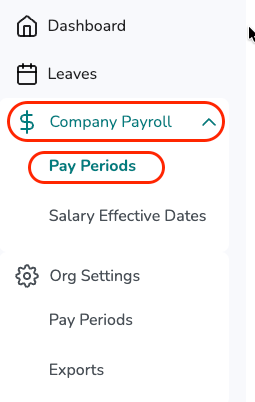
To download a current payroll report:
- Click the Download icon on the current pay period card.
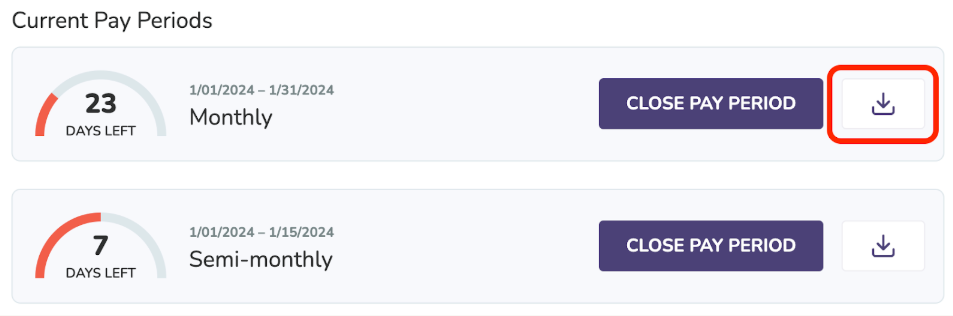
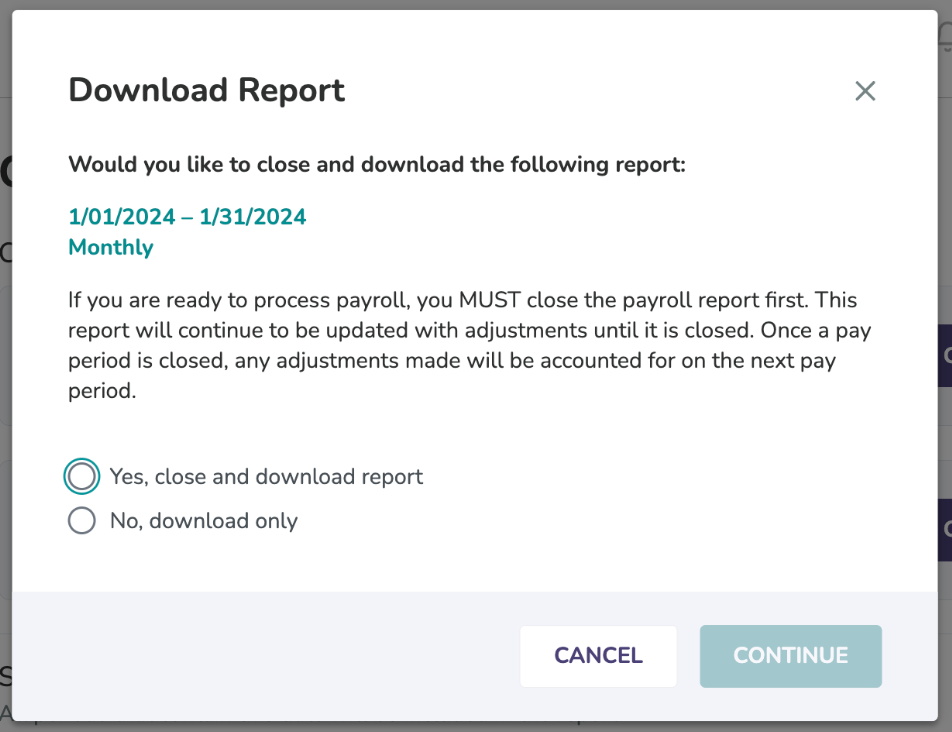
- Choose one of the two options:
- Close and download the payroll report — if you're downloading to process your company's payroll, choose this option so that the period can be closed. Confirm with Yes, close and download report.
- Simply download the payroll report — Choose this option if you want the report without closing the period.
- Select the columns you want in the report:
- Check Select All to include every column.
- Check individual items to select specific columns.
- Check Clear All to reset to only the required columns.
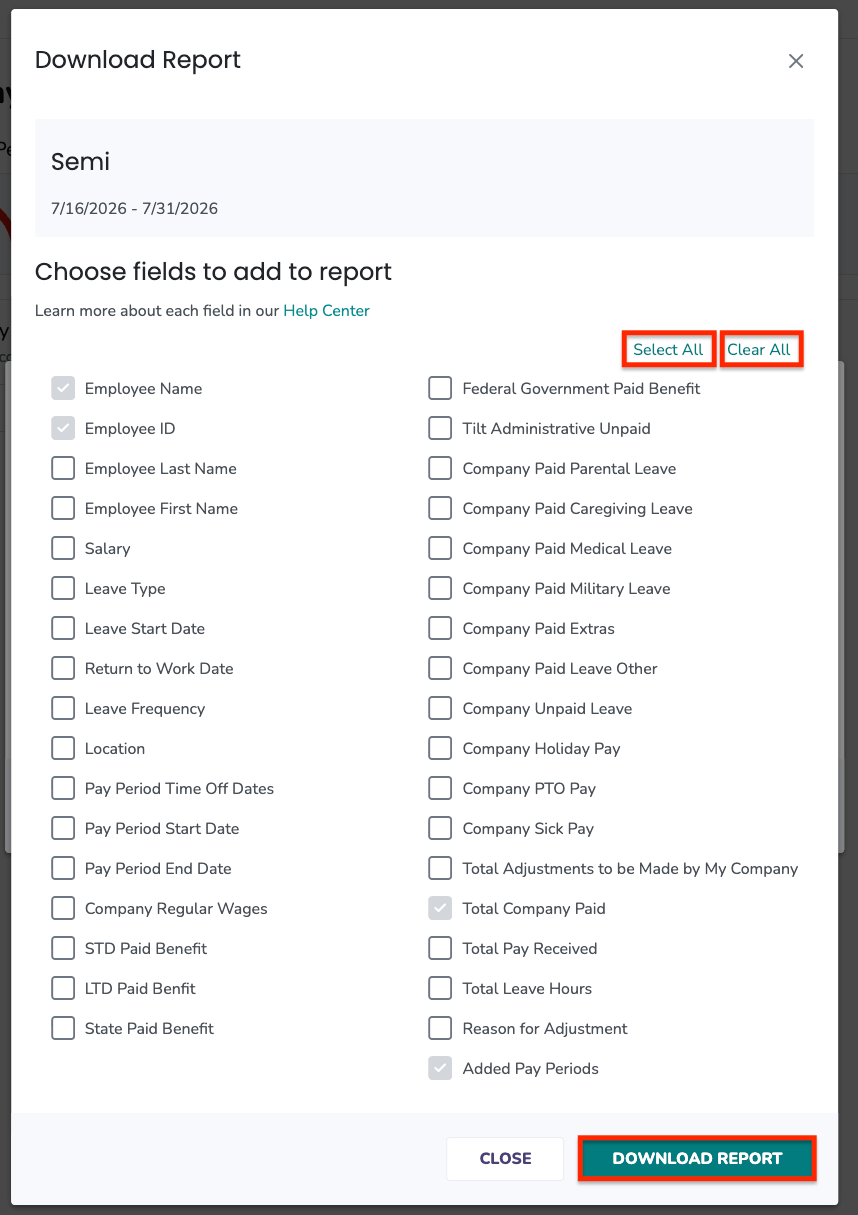
- Click Download Report. The report downloads as a CSV file.
To download a past payroll report:
- Select a date within the pay period you're searching for.
- Click Search Reports.

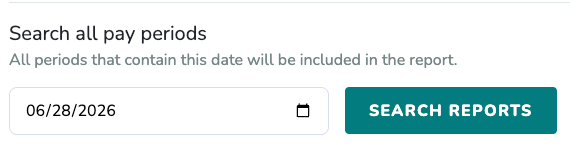
- If you have more than one pay schedule, Tilt shows a separate report for each schedule with leave activity during the selected date range.
- Click the arrow icon next to the pay schedule title to expand and preview the report data.
- Click the Download icon in the top right corner of the data table.

- Select the columns you want to include (same options as above).
- Click Download Report to download as CSV.
What if it doesn't work
- If a column you selected doesn't appear on the downloaded CSV, there may be no data for that column during this pay period.
- If you don't have the Company Payroll option in your left navigation, contact your HR team so they can review your Tilt access.
Limits and exceptions
- Only closed pay periods can be downloaded as past reports.
- For each paid item column you select (like Company Regular Wages, State Paid Benefits, Company Paid Medical), a summary of the data will be included.
- Your column selections are saved for the next payroll report you download. This is saved only for you, not company-wide.
- If you don't have any employees on leave during a pay period, no payroll report will be generated for that period.
Related questions
- How do I close a pay period in Tilt?
- How do I add a new pay period schedule in Tilt?
- Payroll Report Overview
- Understand a Payroll Report
- Navigating Tilt's Company Payroll Page