
Quick answer
You can request a leave data export from the Leaves tab in your HR dashboard. Reports are processed in the background and are delivered to the Exports tab under Org Settings, with a bell notification when it is ready.
Who this applies to / Prerequisites
- You are an HR user at a Tilt customer.
- At least one leave of absence has been entered into Tilt.
Steps
Request a leave data export:
- Log into Tilt as an HR user.
- Click Leaves in the left-hand navigation.
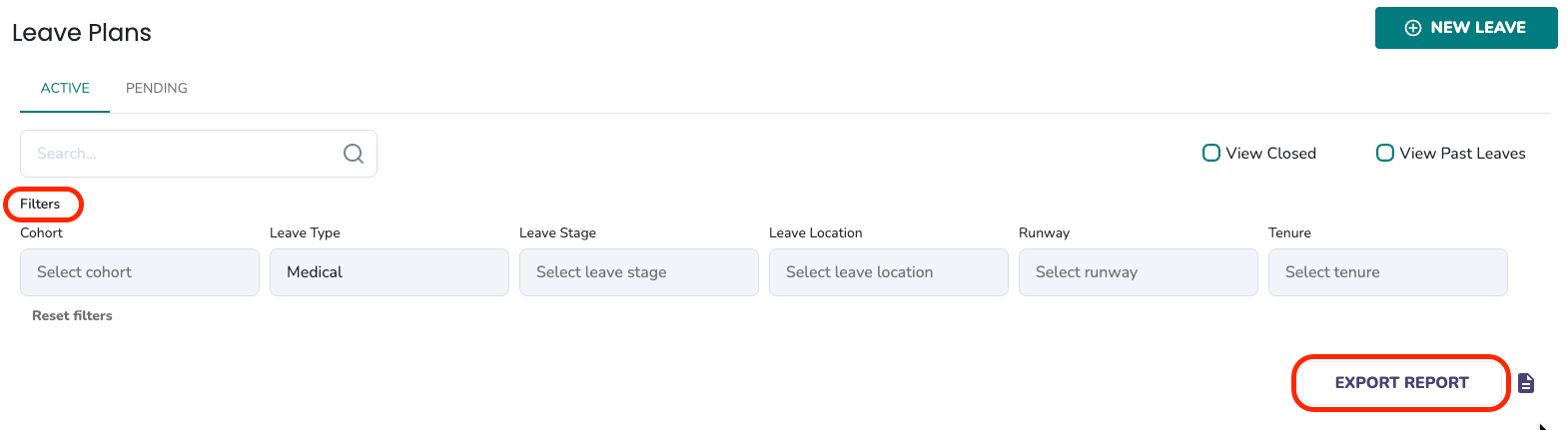
- Apply any search filters you want the export to respect (the export will include only the leaves matching your applied filters).
- Click Export Report. The report starts processing in the background — you can continue navigating Tilt while it works.
Retrieve your completed export:
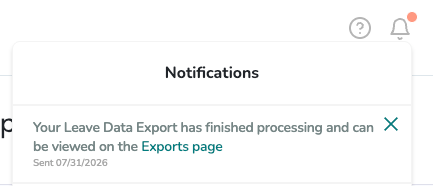
- When your report is ready, you'll see a notification in the bell icon at the top right of the screen.
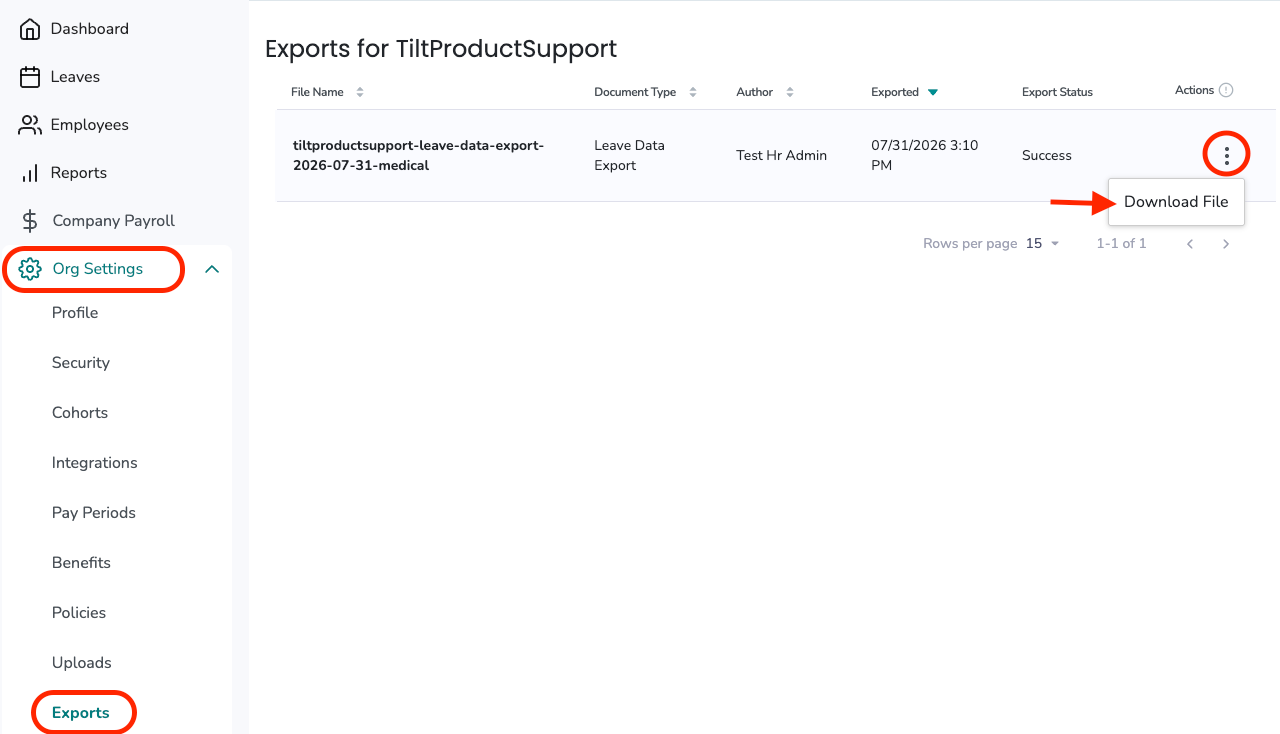
- Click Org Settings in the left-hand navigation.
- Click Exports.
- Find your completed report in the list and download it as a CSV.
Export closed leaves:
- From the Active Leave Plans page, check the View Closed checkbox first.

- Follow the same request steps above. Your export will contain closed leave data instead of active, and it'll come through the same background-and-bell-notification flow.
What if it doesn't work
- If you don't see a bell notification after some time, check the Exports area directly — the report may already be ready.
- If your export appears empty, check the filters you applied before clicking Export Report. Filters affect what's included.
- If you don't see the Exports option under Org Settings, confirm your Tilt permissions with your HR team.
Limits and exceptions
- Filters affect the export. Any search or filter applied to the Leaves page before clicking Export Report narrows the export accordingly. To export all leaves, clear all filters before requesting.
- HR Admin users can download all leave data across the company. HR users with limited cohort access can only see and download data for their assigned cohort(s).
- Reports process in the background — you don't have to wait on the page. You can navigate freely, and Tilt will notify you via the bell icon when the report is ready.
- Active and archived leaves are exported separately — you'll need to run the export twice (once with View Archived off, once with it on) to get both.
Related questions
- Leave Data Report Overview
- How do I check document status across my company's active leave plans?
- HR Dashboard