
Quick answer
If an import (or test) had errors, you can download a log that shows what failed row by row. On the Uploads page under Org Settings, click the kebab menu (the three vertical dots) on the upload row, then click Download Import Log. Fix the errors listed, then run the upload again.
Who this applies to / Prerequisites- You must be an HR user in Tilt.
- You must have already run an upload or a test upload that appears as a row on the Uploads page.
- From your HR Dashboard, go to the Uploads page (under Org Settings in the left navigation bar).
- Click the kebab menu (the three vertical dots) on the upload row.
- Click Download Import Log.
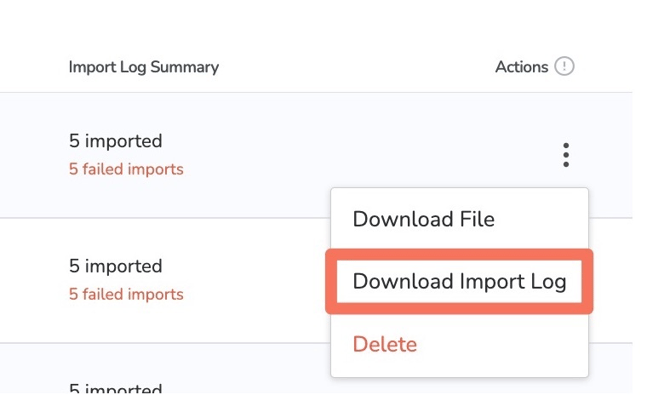
- Open the log and review the errors it lists. To understand what each error means, see Understanding Errors in the Import Log.
- Once you've resolved the errors in your file, run the upload again.
- There's no Download Import Log option on the row: Confirm the upload has finished processing. The log is available once the row is no longer waiting to process.
- The log lists errors you don't understand: See Understanding Errors in the Import Log for a breakdown of each error type and how to fix it.
- You fixed the file but the same errors return: Re-check that column headers match the template exactly (including asterisks) and that all dates use YYYY-MM-DD.
- The import log is per upload. Download the log for the specific row you want to review.
- Downloading the log does not re-run the import. After fixing errors, you must upload the file again.
- How do I upload my import file in Tilt?
- How do I test my import file before uploading it in Tilt?
- What do the errors in my Tilt import log mean?
- How do I build my employee profile data file for Tilt?
- How do I build my employee pay history file for Tilt?