
Quick answer
Leave Planner is an opt-in feature that gives your employees a self-serve way to explore their leave options before submitting a request. You enable it from Org Settings → Policies in your HR dashboard. Once on, employees see Leave Planner as an option every time they log into Tilt.
Who this applies to / Prerequisites
- You are an HR user at a Tilt customer.
- Your company's policies are already set up in Tilt.
- You want to give employees a self-serve leave planning experience before they submit a request.
Steps
Navigate to Policies:
- Log into Tilt as an HR user.
- Click Org Settings in the left-hand sidebar.
- Click Policies.
Review Policy Display Details:
- Locate the section called Policy Display Details.
- Click to expand this section. You'll see every company policy in Tilt — company-paid benefits, company-provided time off, and more.
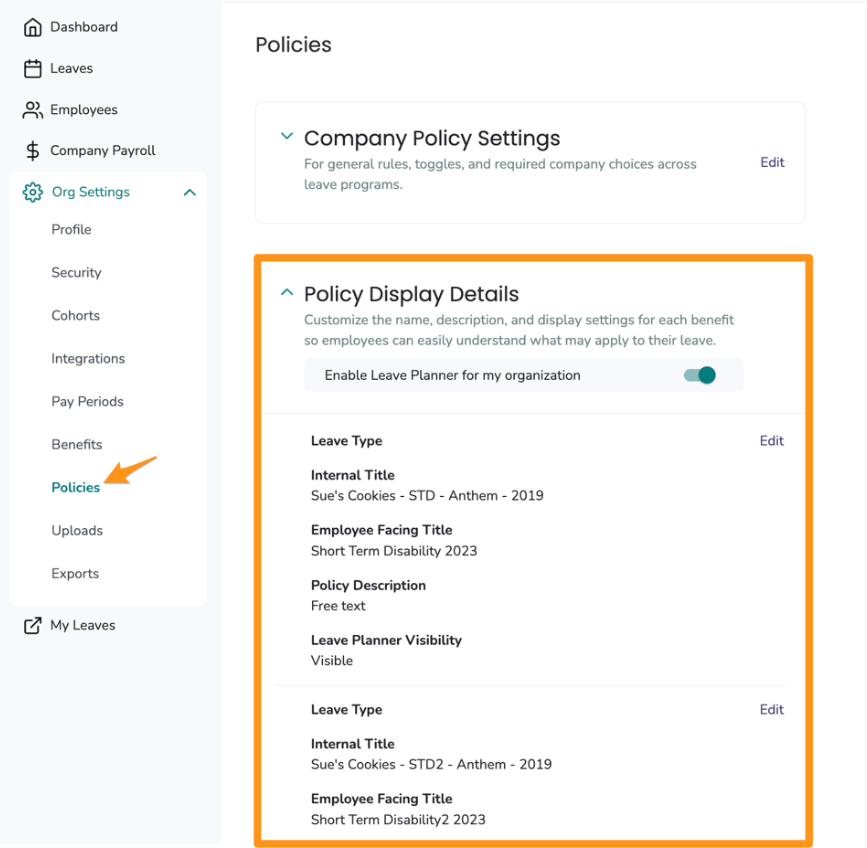
Edit or hide policies as needed:
- Click Edit next to any policy you want to update.
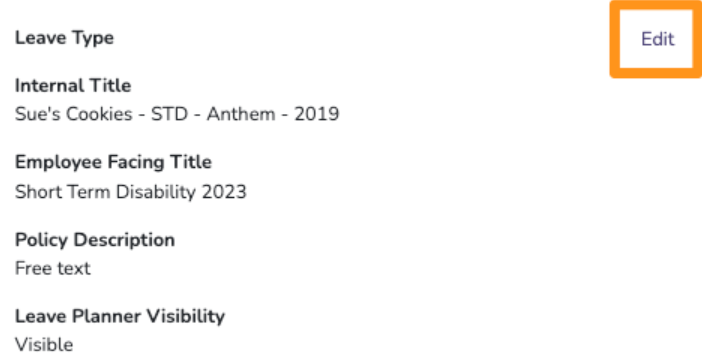
- Edit the employee-facing title and description as needed. These changes will appear in both the Leave Planner and the Leave Map.
- If a policy shouldn't appear for employees (for example, an outdated policy), you can hide it. Hidden policies will not appear in Leave Planner, but they will continue to be added to Tilt pay calculations and Leave Maps.
Enable Leave Planner:
- Conduct a final review of all your policies and settings.
- Once you're satisfied, click the toggle next to Enable Leave Planner for my organization.
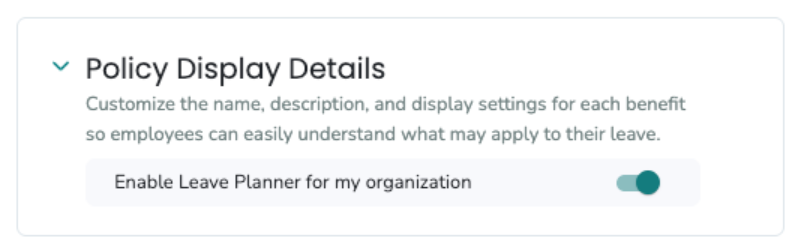
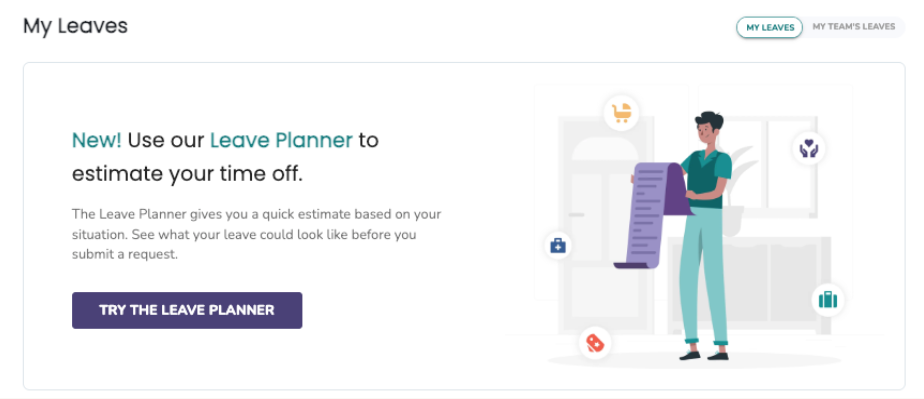
- Employees will now see the Leave Planner functionality every time they log into Tilt.
What if it doesn't work
- If you don't see the Org Settings or Policies option, confirm you have HR access. Regular users and Payroll users don't see these settings.
- If a policy you want to edit isn't in the list, contact your Customer Success Manager or Implementation Guide — it may need to be added to your Tilt setup first.
- If the toggle doesn't save, refresh the page and try again.
Limits and exceptions
- Hidden policies still apply to Tilt's pay calculations and Leave Maps — hiding only affects what employees see in Leave Planner.
- Edits to policy titles and descriptions appear in both Leave Planner and Leave Map at once — you can't customize them separately.
- Once enabled, employees will see Leave Planner as an option in Tilt. They must complete a set of intake questions before viewing their leave options.
- In the employee experience, benefits are color-coded — blue benefits are likely eligible based on the info provided, and yellow benefits are potential (may require more information for full eligibility). Employees can toggle potential benefits on and off to see how they impact their plan.
- If an employee is ready to submit a leave after exploring in Leave Planner, they can click Request a Leave to start the leave request process.
Related questions
- HR Dashboard
- How do I check document status across my company's active leave plans?
- Tilt User Permission Overview