
Quick answer
You can enable 2FA enforcement through your company settings in Tilt under the Security tab. Once enforced, every user will be prompted to set up 2FA at their next login using an Authenticator App or SMS text codes.
Who this applies to / Prerequisites
- You are an HR admin at a Tilt customer.
- You want to require 2FA for all users at your company.
- Your users have mobile phone numbers on file in Tilt (required for SMS-based 2FA).
Steps
- Log into Tilt as an HR admin.
- Click Org Settings in the left-hand navigation.
- Click Security.
- Toggle on Two Factor Authentication.
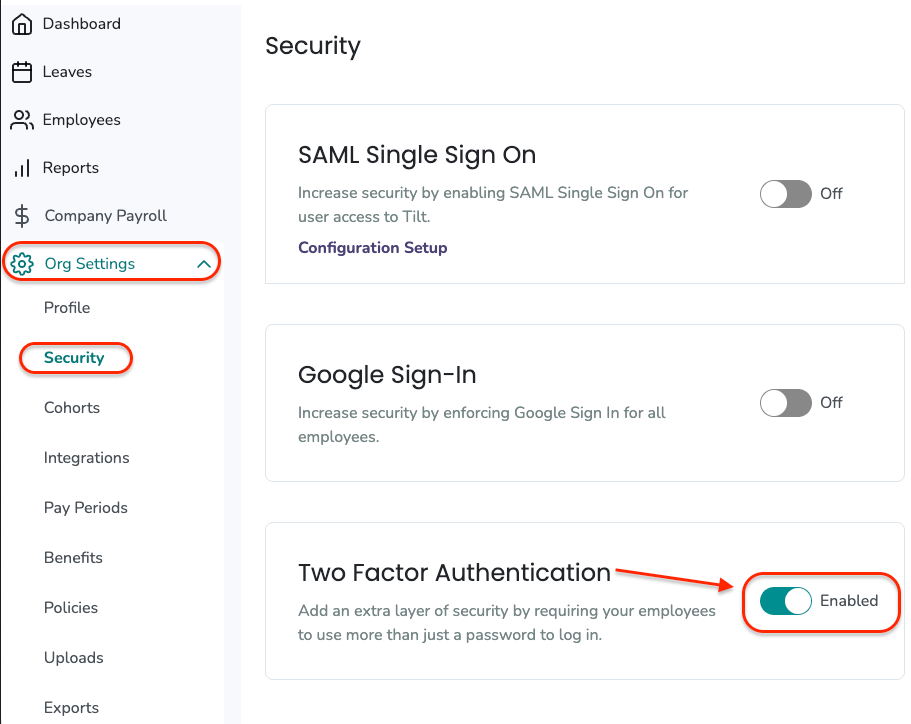
- Communicate the change to your users so they know to set up 2FA at their next login.
What if it doesn't work
- If an employee can't log in because their phone number is wrong, update it in Tilt (or in the HR system that syncs to Tilt).
- If an employee's 2FA needs to be reset, they must contact Tilt Support with the message "reset my 2FA."
Limits and exceptions
- Do NOT enforce 2FA if you're also enforcing Google SSO. Google handles 2FA at the SSO layer, making Tilt's 2FA redundant. See Can I enforce both Google SSO and 2FA at the same time on Tilt?
- 2FA requires a mobile phone number for SMS codes. Landline numbers will not work.
- If Tilt gets an employee's phone number from an SFTP file or HR integration, updating the number in Tilt directly will be overwritten on the next sync. Update the number in your source HR system instead.
- Tilt cannot forward 2FA codes to a different phone number than what's on file.
Related questions
- How do I set up 2-Factor Authentication (2FA) on Tilt? (employee-facing)
- How do I reset my 2FA on Tilt?
- Which login method should I choose for my company's Tilt account?