
Quick answer
You can extend a pay period schedule from Org Settings → Pay Periods. This mainly applies to custom pay schedules, where you manually entered pay period dates.
Standard and integrated schedules extend automatically — you don't need to update them in Tilt.
Who this applies to / Prerequisites
- You are an HR or Payroll user at a Tilt customer.
- You have a custom pay period schedule (or a bi-weekly/weekly schedule with a previously-set end date).
- You need to add more pay periods so the schedule keeps running.
Steps
Navigate to the Pay Periods page:
- Log into Tilt as an HR or Payroll user.
- Click Org Settings in the left-hand navigation.
- Click the Pay Periods tab.
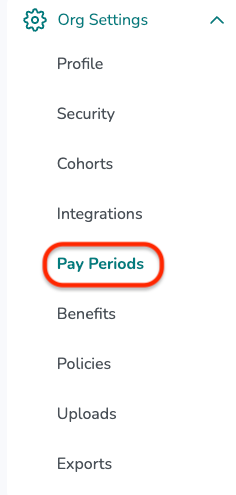
- Locate the pay period schedule you want to extend.
- Click Edit within the pay schedule details card.
To extend a custom monthly or semi-monthly schedule:
- Scroll to the bottom of the current pay period list.
- Click Add 12 Pay Periods (for a custom monthly schedule) or Add 24 Pay Periods (for a custom semi-monthly schedule). Tilt will generate the additional rows for you to review or adjust.
- Confirm or edit the dates as needed.
- Click Submit.
To extend a bi-weekly or weekly schedule with a previously-set end date:
- Update the end date field with the new later date, or remove the end date entirely to let Tilt auto-generate future pay periods.
- Click Submit.
What if it doesn't work
- If you don't see the Add 12 Pay Periods or Add 24 Pay Periods buttons, your schedule is a standard (not custom) schedule. Standard schedules auto-generate pay periods into future calendar years and don't need manual extension.
- If your pay schedule syncs from Rippling or Workday, you can't extend it in Tilt. Make changes in your HRIS instead — Tilt will sync them automatically.
- If you can't find the Edit button on the schedule card, confirm you have HR or Payroll access.
Limits and exceptions
- Standard pay schedules auto-generate pay periods into future calendar years. You don't need to manually extend them.
- Custom pay schedules (where you manually entered dates for each pay period) require HR or Payroll to add more pay periods each year using the Add 12 Pay Periods or Add 24 Pay Periods button.
- Integrated pay schedules (Rippling, Workday) sync automatically from your HRIS. Don't update them in Tilt — update the source system instead.
- Tilt will send you a notification when a custom pay schedule has 3 months or less of pay periods remaining, prompting you to add more.
- To make major changes to a schedule (like changing its frequency), add a new schedule and phase out the old one rather than editing in place.
Related questions
- How do I add a new pay period schedule in Tilt?
- How do I add an end date to a pay period schedule in Tilt?
- How do I close a pay period in Tilt?
- Navigating Tilt's Company Payroll Page