
Open the leave type in Workday and copy its Workday ID from the Integration IDs panel — you'll need this ID when you map leave types in Tilt.
Who this applies to / Prerequisites
- Workday admins gathering IDs for Tilt setup.
- You've already created or edited the Workday leave types you plan to use.
Steps
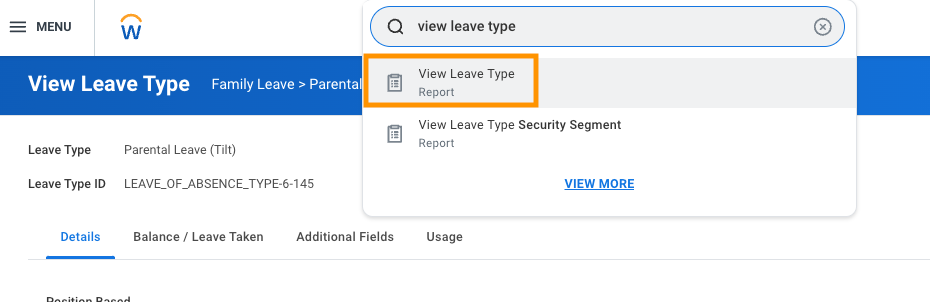
- In the Workday search bar, type View Leave Type and select the task.
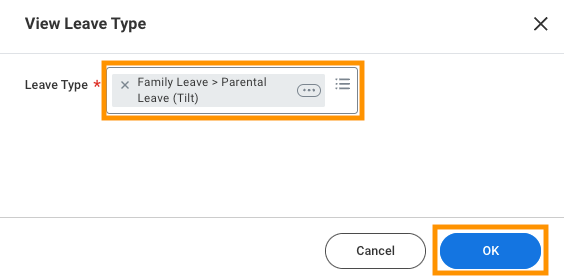
- Search for the relevant leave type and click OK.
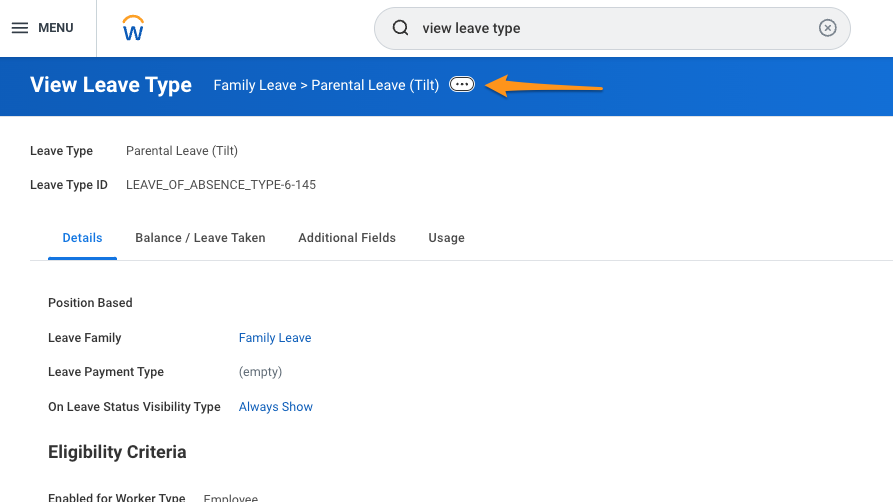
- Next to the leave type name, click the three dot menu.
- In the menu, click Integration IDs in the left-hand navigation panel.
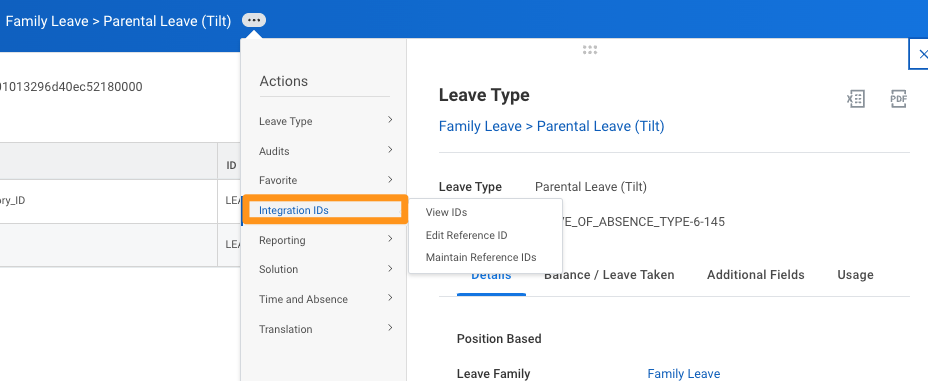
- Copy the Workday ID at the top of the page.
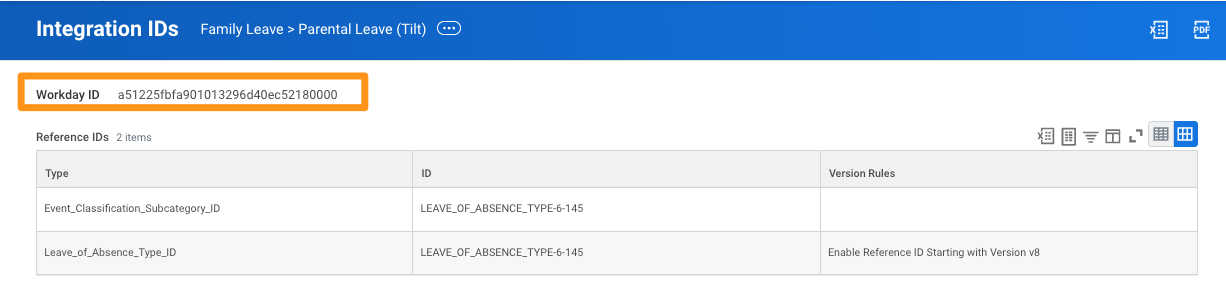
- Repeat for every leave type you're providing to Tilt until you have a complete list of IDs.
What if it doesn't work
- If you don't see a three-dot menu next to the leave type name, confirm you're on the leave type's detail page, not the search results list.
- If Integration IDs isn't in the left-hand navigation, confirm your Workday role has permission to view integration configuration.
- If no Workday ID appears, the leave type may not have an integration ID assigned yet — check with your Workday administrator.
Limits and exceptions
- You can provide Tilt with one Workday ID per Tilt leave type, or reuse the same Workday ID across multiple Tilt leave types.
- This step only retrieves the ID — it doesn't map anything in Tilt yet. You'll enter these IDs later when mapping leave types.
Related questions
- How do I find the Workday integration ID for a time off type?
- How do I configure my Workday leave types for the Tilt integration?
- How do I map my Tilt leave types to Workday?