
Add the time off type to its Time Off Plan in Workday, then copy its Workday ID — you'll need this ID when you map leave types in Tilt.
Who this applies to / Prerequisites
- Workday admins gathering IDs for Tilt setup.
- Applies to leave time of one day or less, which Tilt pushes to a time off type rather than a leave type.
Steps
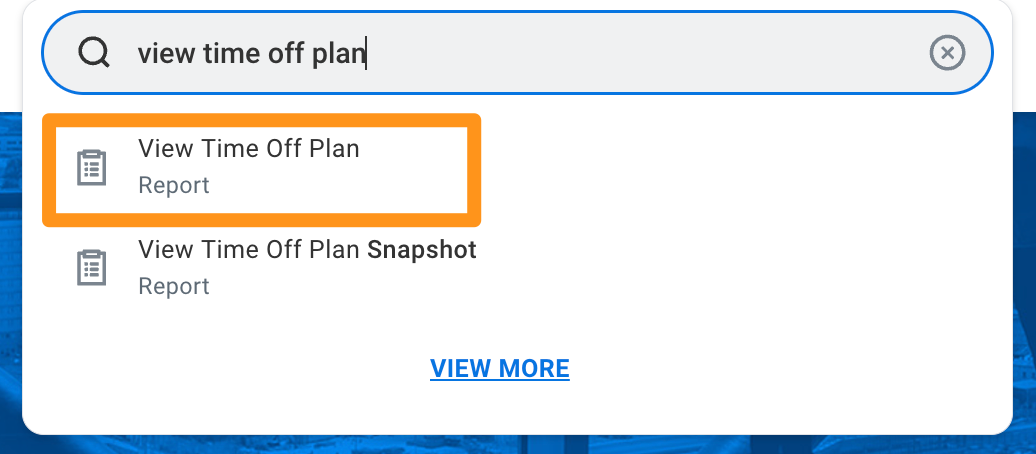
- In the Workday search bar, type View Time Off Plan and select the task.
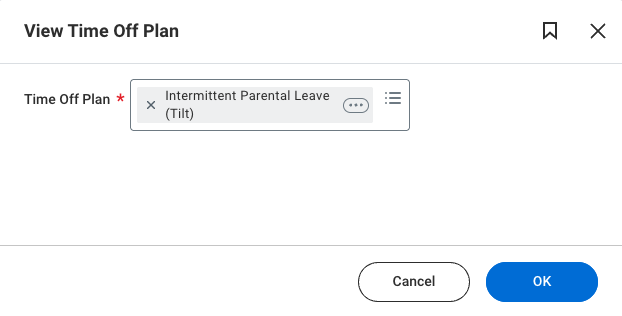
- Search for the relevant Time Off Plan and click OK.
- Add the Time Off Type to the Time Off Plan and view the integration ID for that Time Off Type.
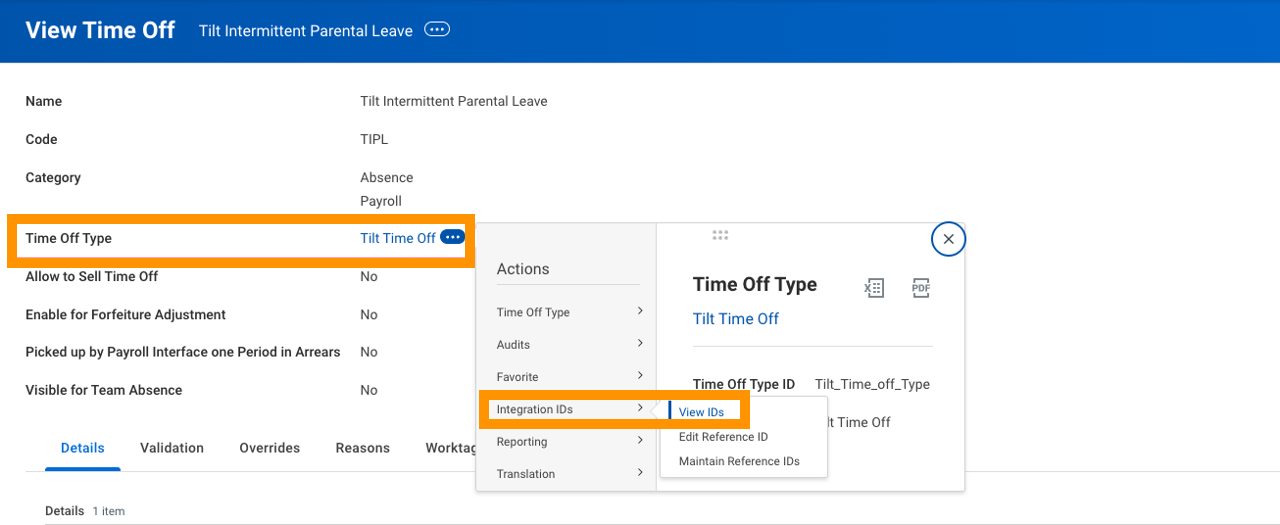
- Copy the Workday ID at the top of the page.

- Repeat for every Time Off Plan you're providing to Tilt until you have a complete list of IDs.
What if it doesn't work
- If you don't see an integration ID after adding the Time Off Type, confirm the type was saved to the Time Off Plan first.
- If you're unsure which Time Off Plan to use, check which plan applies to the employees whose time off Tilt will manage.
Limits and exceptions
- Tilt pushes any leave time of one day or less to the time off type you provide — longer leave blocks push to the leave type instead, unless you set a different threshold (see mapping your leave types).
- You can provide Tilt with one Workday ID per Tilt leave type, or reuse the same Workday ID across multiple Tilt leave types.
- This step only retrieves the ID — it doesn't map anything in Tilt yet.
Related questions
- How do I find the Workday integration ID for a leave type?
- How do I map my Tilt leave types to Workday?
- How do I turn on the leave data push in Tilt?