
Overview
As an HR user, you have the ability to enable HR or Payroll permissions for any user in Tilt. Once an employee has been invited to Tilt, whether through the Invite Employee button, the New Leave workflow, or their custom activation link, you can update their user type at any time from the Employee tab. This article can also be used as a guide to updating HR or Payroll permissions for an existing user.
Before You Begin
The user must first be invited to Tilt. If you haven't invited them yet, follow the steps in [Invite New Users to Tilt] using any of the three available workflows.
Add HR or Payroll Permissions to a User
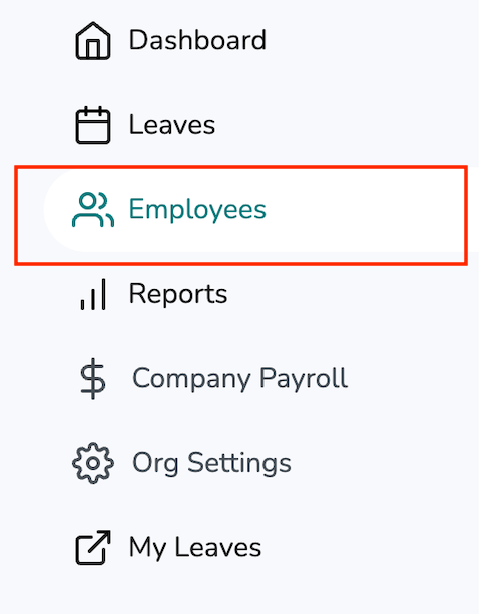
- Navigate to the Employee Tab and search for the employee in the table.
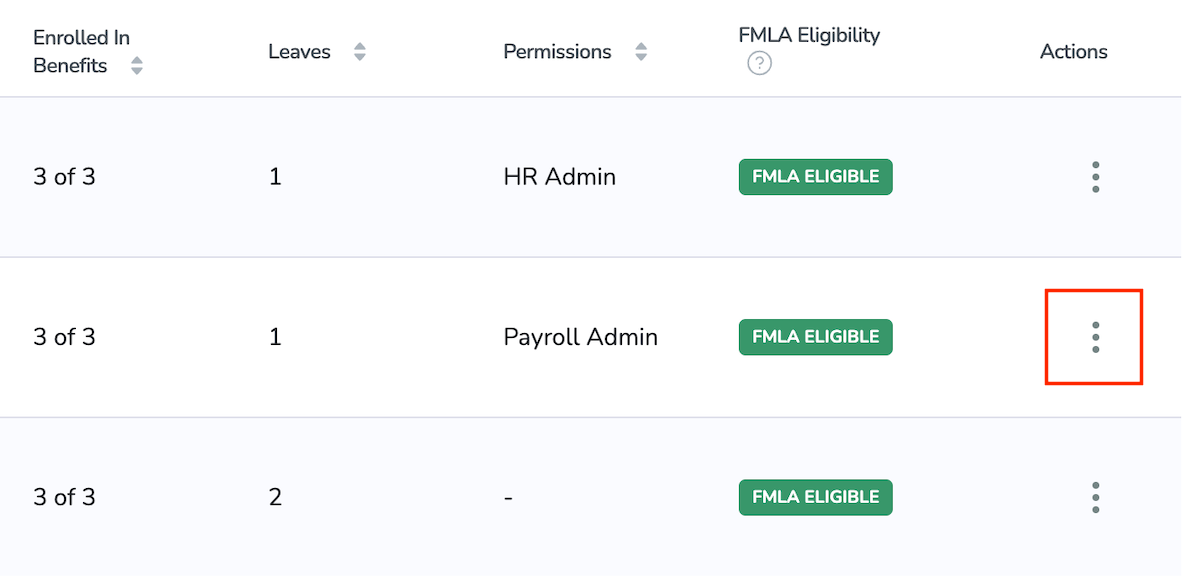
- Click on the ellipsis icon on the far right side of the table to expand the action buttons and then click Edit.
- Enable HR Employee permissions or Payroll Employee permissions by checking the box next to the desired permission set. Then click Save.
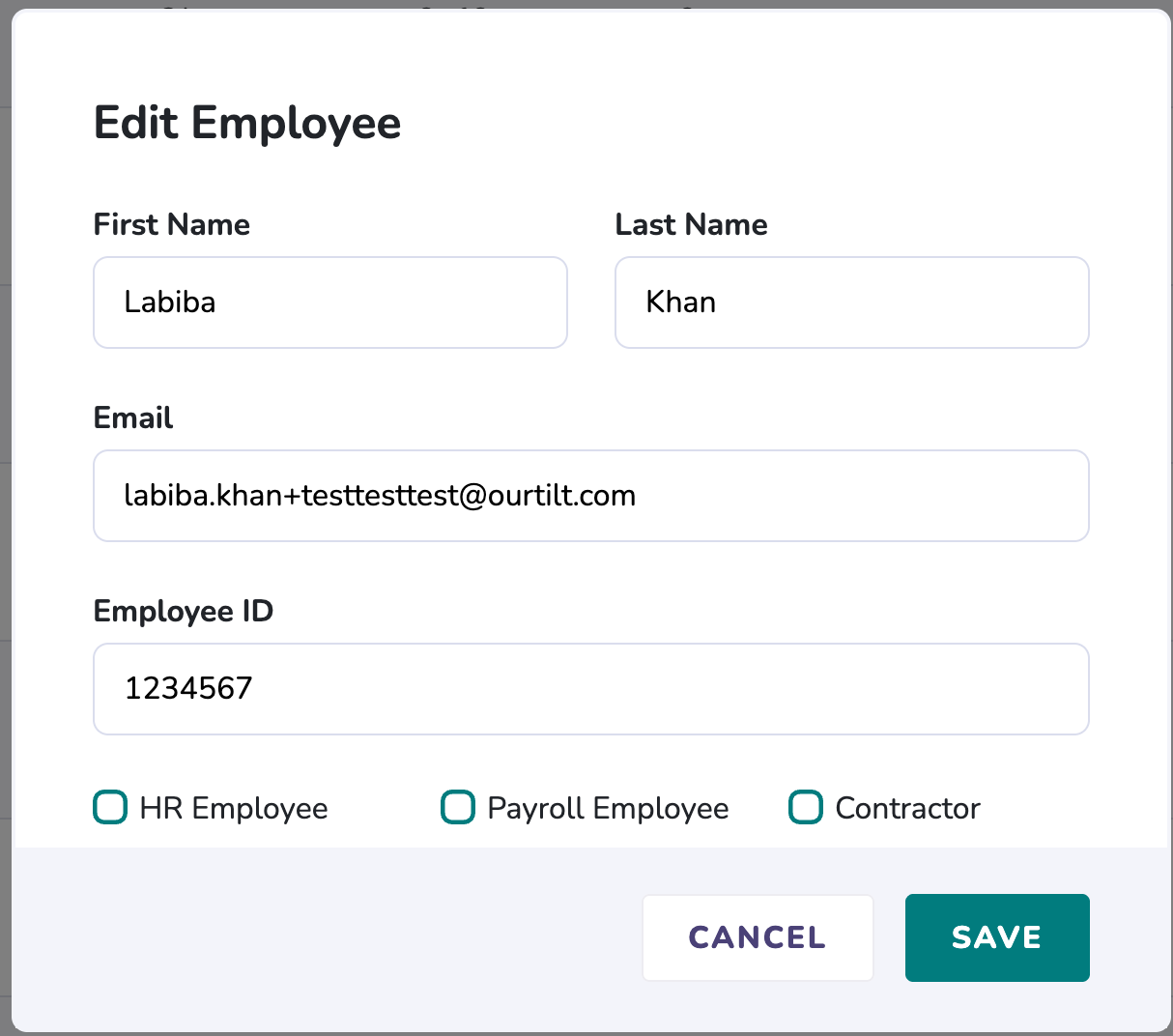
The user's permissions will update immediately, giving them access to the HR or Payroll features associated with their new user type.
Cohorts: HR Admin vs. HR User
Checking the HR Employee box grants the user HR Admin access, which applies across the entire company.
If you instead want the user to have HR Owner access, where they only have HR permissions over specific cohorts rather than the whole company then do not check the HR Employee box. Instead, add them as a HR Owner on the relevant cohort(s) as a non-admin user. This grants HR User permission scoped to those cohorts only.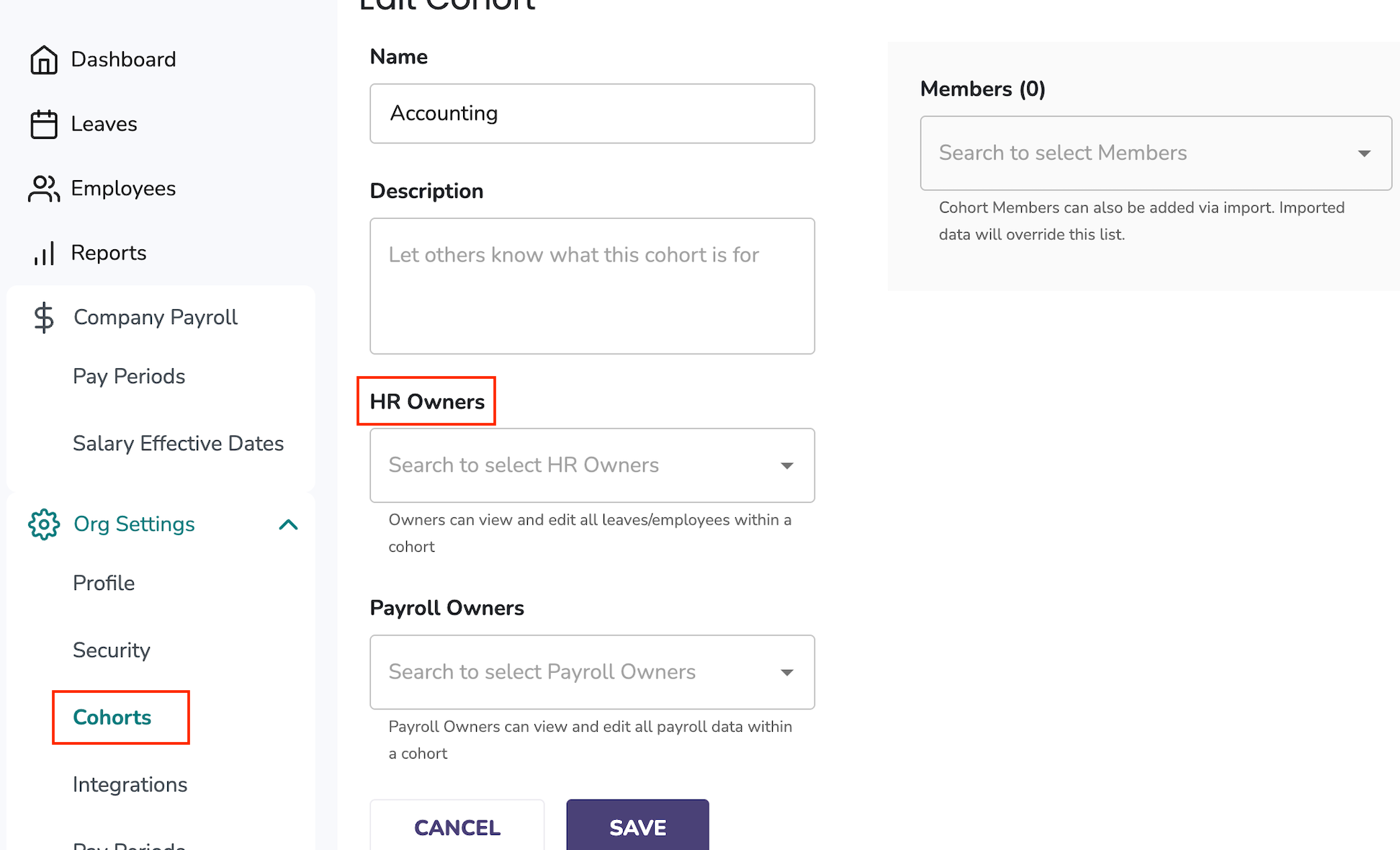
In short:
- HR User = company-wide HR Admin
- HR Owner (non-admin) = cohort-scoped HR User.
What if it doesn't work
- I can't find the employee in the Employee tab: The user hasn't been invited to Tilt yet, or their invite hasn't been activated. Invite them first using any of the three workflows in [Invite New Users to Tilt], then update their permissions.
- The permissions were saved, but the user sees "You don't have permission to view this page": The user's session may still be using their old permission level. Have them fully log out of Tilt and log back in. If the error persists after a fresh login, contact Tilt support — permissions occasionally need to be refreshed on the backend.
- The user logs in through an SSO tile (Okta, Rippling, etc.) and lands on a permission error: Have them go directly to your company's Tilt URL (yourcompany.hellotilt.com) and log in there. If direct login works but the SSO tile doesn't, contact support.
- The HR Dashboard doesn't appear in the user's menu after enabling permissions: Have them log out and back in first. If it still doesn't appear, contact Tilt support to investigate.
Limits and exceptions
- A user's details must be in Tilt before permissions can be changed. You cannot assign HR or Payroll permissions to someone whose details are not in Tilt.
- Permissions apply per company. If your organization has multiple companies in Tilt, enabling HR or Payroll permissions in one company does not grant access to the others. Permissions must be set in each company separately.
- Removing permissions works the same way: uncheck the box and click Save. Access is removed immediately.
- HR and Payroll permissions can only be updated by an existing HR user. Employees cannot change their own user type.
Related questions
- Invite New Users to Tilt
- Resend the Welcome Email to New Users