
Quick answer
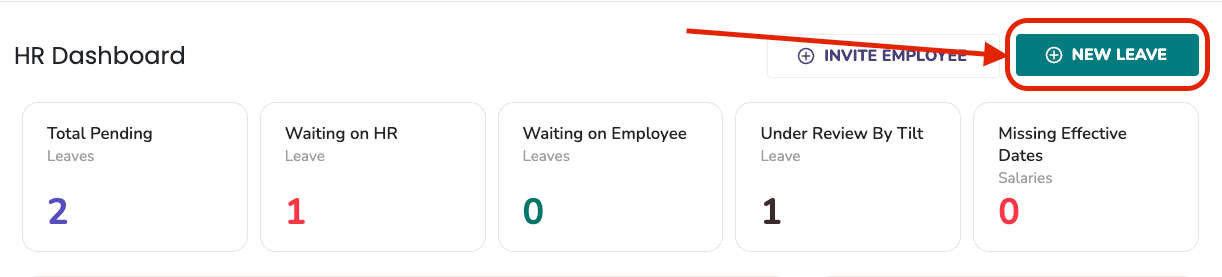
Click New Leave in the top-right corner of your HR dashboard, complete the leave survey with your employee's info, and click Submit Leave.
Who this applies to / Prerequisites
- You have HR user access in Tilt.
- You need to submit a leave request on behalf of an employee.
Steps
- Log into Tilt as an HR user.
- Click New Leave in the top-right corner of your HR dashboard.
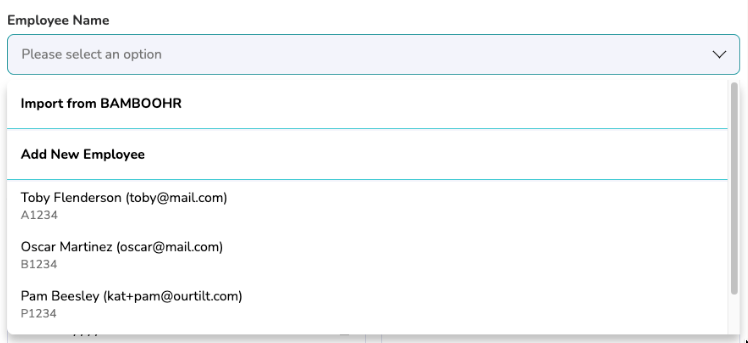
- In the Employee Name field, either select an existing employee from the dropdown or click Add New Employee to create a new profile. Selecting Add New Employee triggers a welcome email to that employee when the leave is submitted.
- Complete the leave survey. For the full list of questions in the survey, see What information do I need to complete a leave request in Tilt?
- Additional fields will appear based on leave type, work schedule, and state — see Limits and exceptions.
- Click Submit Leave to complete the HR portion of the request.
What if it doesn't work
- If the Pay Schedule dropdown is empty, add your company's Pay Periods to Tilt first. See How do I add a New Pay Period Schedule?
- If your company uses SFTP or integration, typing the employee's name will auto-populate most fields.
- If a required field is missing information at submit time, the form will show a red Required warning below that field. Scroll through the form to find and complete every field marked with a red asterisk (*).
Limits and exceptions
- Parental leave shows extra fields: whether the employee is the one who is pregnant, type of birth, and expected due date or date of adoption.
- Caregiving leave shows an extra field for which family member the employee is caring for.
- Set Schedule vs. Unpredictable Schedule: if the employee has a set weekly schedule, follow-up hours fields appear. If their schedule is unpredictable and changes weekly, the form skips those fields.
- State-specific earnings field: if the employee lives in Colorado, Connecticut, Massachusetts, New Jersey, Oregon, or Washington State, an additional field appears asking about their earnings for the state's required base period.
- The employee can adjust many fields (like Leave Plan Duration and dates) when they complete their portion of the survey.
Related questions
- What information do I need to complete a leave request in Tilt?
- What happens after I submit an employee's leave request to Tilt?
- What happens if my employee doesn't complete their portion of the leave request?
- Invite New Users to Tilt