
Locking a pay run stops Tilt from making any further updates to that specific pay run in Rippling. Any Tilt changes that would have gone to the locked pay run get carried over as adjustments to the next pay run instead.
Who this applies to / Prerequisites
- Companies that use Rippling as their payroll provider through the Tilt integration
- Payroll team members with administrative access to Rippling Payroll
- Users with Tilt Payroll permissions in Tilt
- Doesn't apply to companies on other payroll platforms
Steps
- In Rippling's left navigation panel, click Payroll, then click Payroll again to expand it.
- Click Select Pay Period and choose the pay run you want to lock.
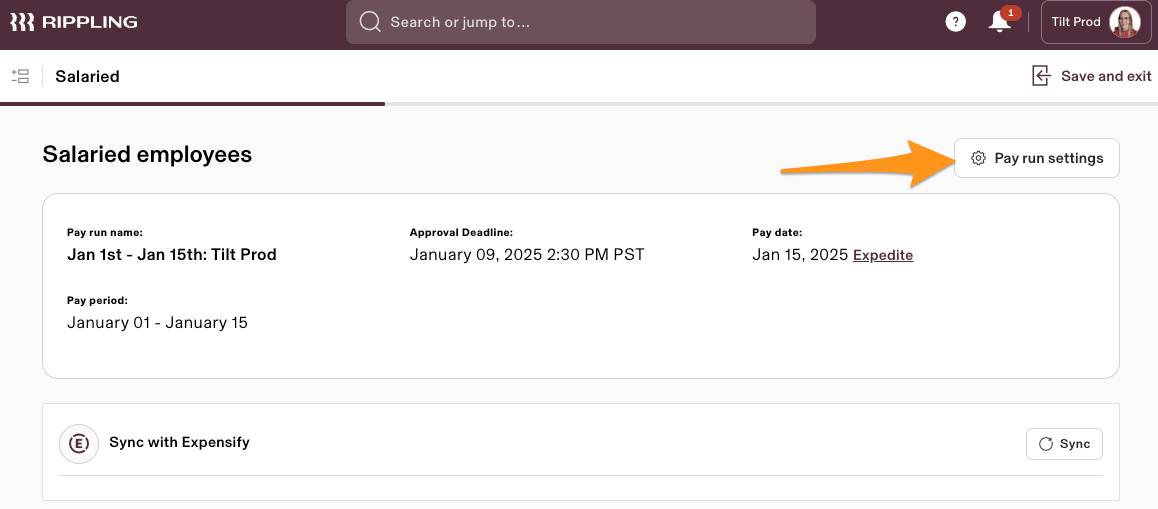
- Click Pay run setting in the upper-right corner.
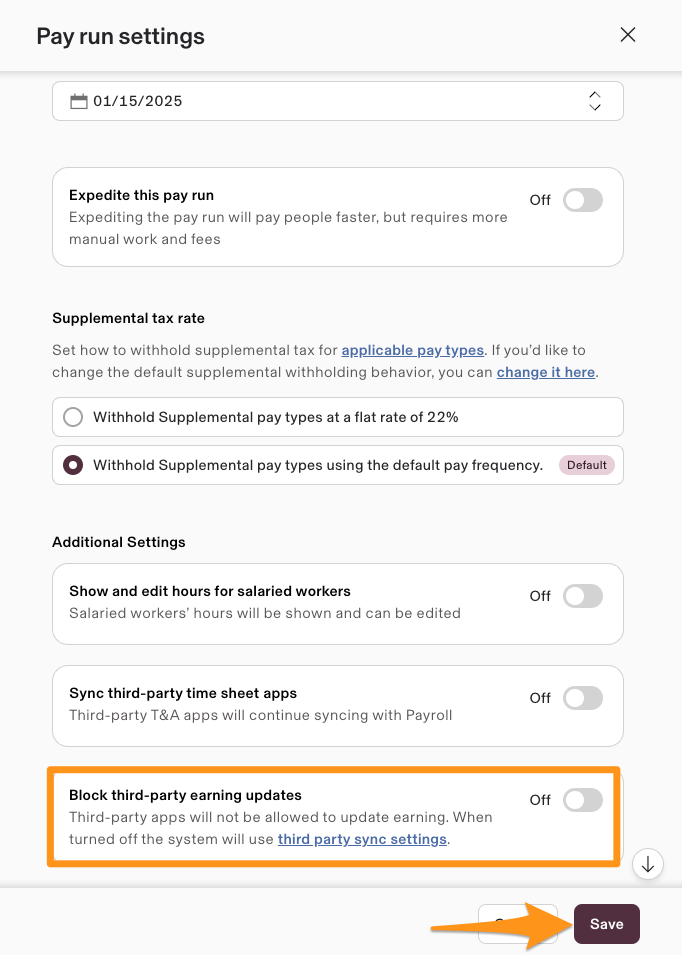
- Click the Block third-party earning updates toggle, then click Save.
- The pay run is now locked. Tilt can no longer write updates to it.
What if it doesn't work
- If Tilt is still updating the pay run, confirm you clicked Save after toggling Block third-party earning updates — the toggle doesn't take effect until you save it.
- If you locked the wrong pay period, check that you selected the correct one in Select Pay Period before locking — locking applies only to the pay run you had selected.
- If you're not sure whether a pay run locked correctly, contact Tilt Support to confirm the pay period's sync status.
Limits and exceptions
- Locking only affects the one pay run you selected. It doesn't lock future pay runs — you need to repeat these steps each time you want to lock a new one.
- Once Tilt gets an error showing the pay run is locked, Tilt closes that Tilt pay period permanently. Tilt will never write to that pay period again, even if you unlock it later in Rippling.
- Don't make manual changes in Rippling to match Tilt changes made after the lock. Tilt already carries those changes over as an adjustment to the next pay run — matching them manually in Rippling will double them up.
- Locking a pay run doesn't stop Tilt from syncing to Rippling going forward. It only pauses updates to that one pay run. To block Tilt from writing to payroll entirely, see How do I disable third-party earning updates in Rippling?.
- This setting works best as a late-period review buffer. Locking a pay run early in the pay period means more of Tilt's updates get pushed into the next pay run as adjustments than you probably want.
Related questions
- How do I disable third-party earning updates in Rippling?