
Quick answer
Your leave plan in Tilt is where you'll find everything you need to manage your leave — the tasks you need to complete, documents to upload, your time off calendar, benefit balances, and estimated pay during your leave. You access it from the My Leaves section on your Tilt home screen.
Who this applies to / Prerequisites
- You are an employee at a Tilt customer.
- You have a published leave plan in Tilt (Tilt sends you an email notification when your plan is ready to view).
Steps
Open your leave plan:
- Log into Tilt.
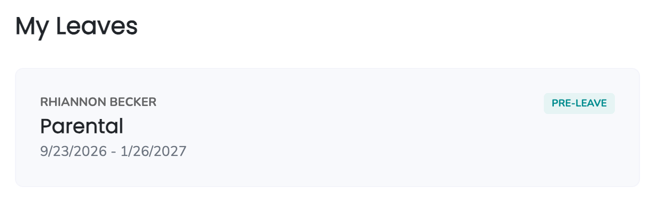
- On your home screen, find your leave under My Leaves.
- Click on the leave card to open your customized plan.
Understand what's on your leave plan:
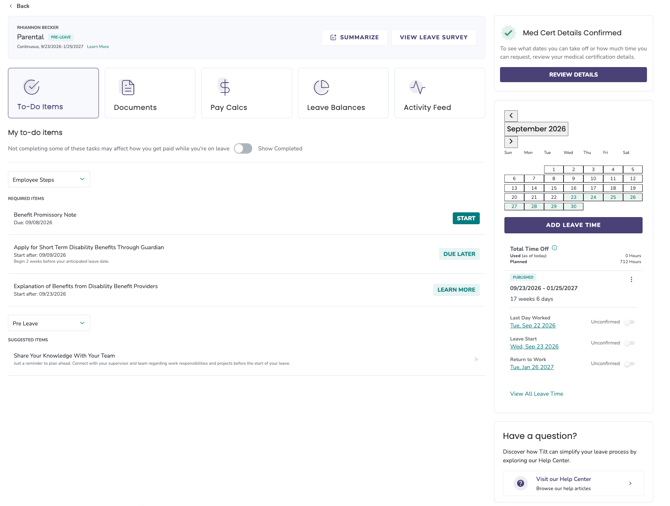
Your leave plan is organized into these sections:
- To-Do Items — the actions you need to take before, during, and after your leave. Organized into Required Items and Suggested Items. See How do I find and complete my To-Do Items in Tilt?
- Documents — documents you need to upload, review, or complete to support your leave. See How do I upload a document to my leave in Tilt?
- Pay Calcs — an estimate of your gross pay during each pay period of your leave. See What is my Pay Calculation and how do I read it?
- Leave Balances — a timeline view of your leave (Leave Map) plus a breakdown of how much of each benefit is included in your leave. See How do I understand my Leave Balances in Tilt?
- Time Off Calendar — shown on the right side of your leave plan (or below on mobile). Use it to add or update your leave time. See How do I add or update my leave dates on the Time Off Calendar?
- UPDATE LEAVE SURVEY — the button at the top of your leave plan. Click it to update the details on your leave form at any point after your plan is published.
Mark items complete as you go:
- As you go through your leave plan, mark To-Do Items as complete once you've reviewed or acted on them.
- To see completed items again, toggle the Show Completed filter on the To-Do Items page.

What if it doesn't work
- If you don't see a leave plan under My Leaves, confirm your leave request has been submitted, and your plan has been published. If it's still pending, see How do I update the details on my pending leave request?
- If a section of your leave plan is empty or looks incomplete, contact your Leave Specialist. Your customized plan may still be in progress.
Limits and exceptions
- Every leave plan is customized based on your specific situation. The benefits, documents, and to-do items you see are unique to your leave.
- To change your leave dates, use the Time Off Calendar on your leave plan. Don't try to edit them from another section.
- To update your leave form details (like your contact info or leave preferences), click UPDATE LEAVE SURVEY at the top of your leave plan.
- Pay Calc amounts are estimates based on gross wages. Your actual pay may look different based on taxes, deductions, and any benefit decisions made by third parties like disability carriers or state agencies.
Related questions
- How do I find and complete my To-Do Items in Tilt?
- How do I upload a document to my leave in Tilt?
- How do I understand my Leave Balances in Tilt?
- How do I add or update my leave dates on the Time Off Calendar?
- What is my Pay Calculation and how do I read it?