
Quick answer
You can preview a completed document under the Documents section of your leave plan.
Who this applies to / Prerequisites
- You are an employee at a Tilt customer.
- You have an active leave plan in Tilt.
- You've uploaded at least one file for a document requirement, and it now appears in the Completed section.
Steps
Method 1: three-dot menu
- Log into Tilt and open your leave plan from My Leaves.
- Click Documents.
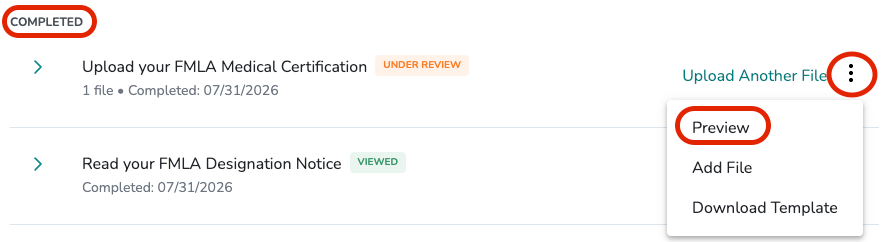
- Scroll to the Completed section.
- Find the document you want to preview.
- Click the three-dot icon on the right side of the document.
- Click Preview. The document opens in a new window.
Method 2: expand and click the file
- In the Completed section, find the document.
- Click the > arrow next to the document name to expand its details.
- Scroll to the Uploaded section at the bottom of the expanded card.
- Click the file name. The document opens in a new window.
What if it doesn't work
- If Preview doesn't appear in the three-dot menu, confirm the document is in the Completed section.
- If the document doesn't open, check that your browser isn't blocking pop-ups.
- If you've uploaded multiple files, the Uploaded section shows all of them. Click any file to preview it.
Limits and exceptions
- Preview opens the file in a new browser window.
- Preview is only available for documents in the Completed section. Documents still awaiting your action don't have a preview option.
Related questions
- How do I upload a document to my leave in Tilt?
- How do I download a document template in Tilt?