
You register an API (Application Programming Interface) client in Workday, which generates the Client ID, Client Secret, and Refresh Token you'll enter into Tilt to complete the connection.
Who this applies to / Prerequisites
- Workday admins setting up the Tilt integration.
- You've completed the ISU, security group, permissions, and authentication policy setup (see the previous articles).
- See Workday's own article, "Register API Clients for Integrations," for background on this Workday feature.
Steps
- Type Register API Client for Integrations in the top search bar and select the task from the dropdown.
- Enter a Client Name.
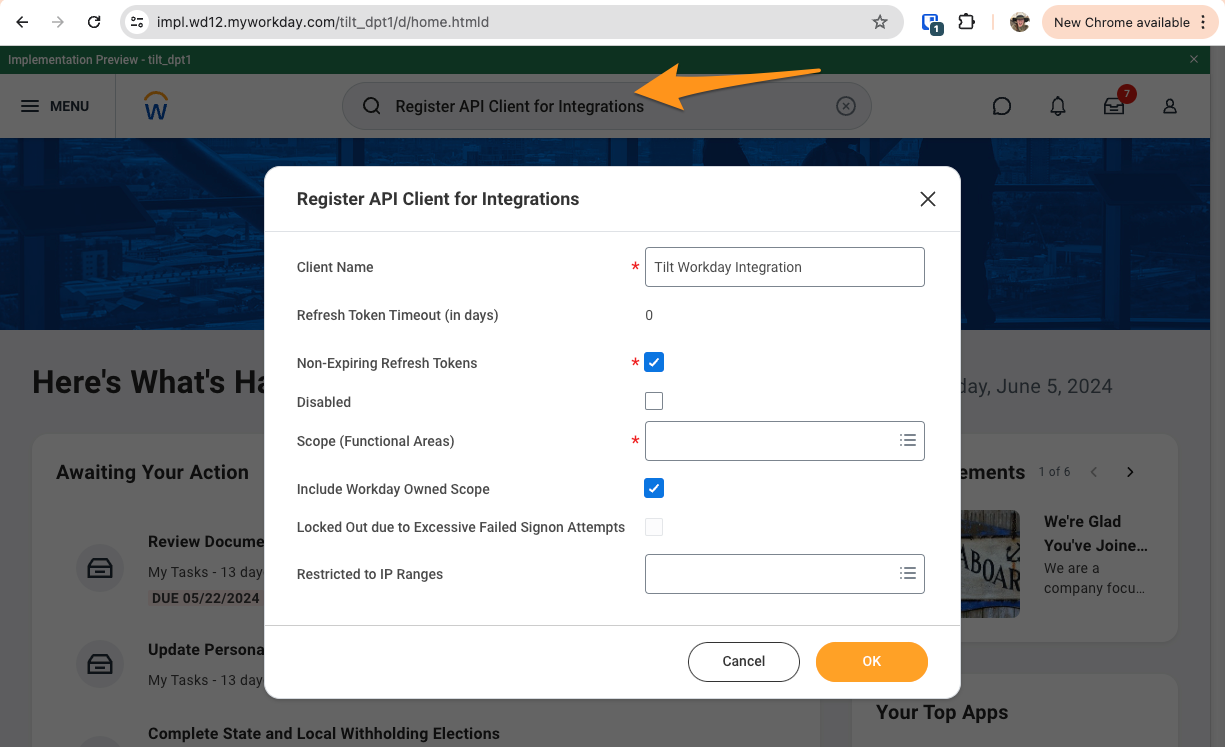
- Check Non-Expiring Refresh Tokens.
- Under Required Scopes (Functional Areas), select: Staffing, Benefits, Core Compensation, System, Time Off and Leave, Core Payroll, Project Tracking, and Tenant Non-Configurable.
- Check Include Workday Owned Scope.
- Click OK.
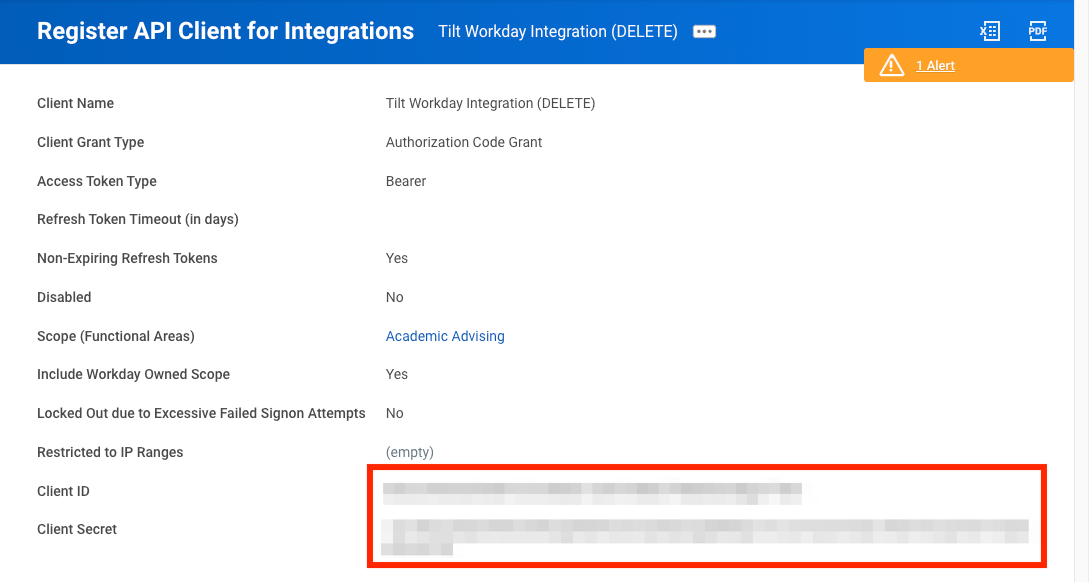
- On the resulting details page, copy the Client ID and Client Secret somewhere secure — you'll enter these into Tilt. You won't be able to view the Client Secret again once you leave this page, though you can generate a new one later if needed.
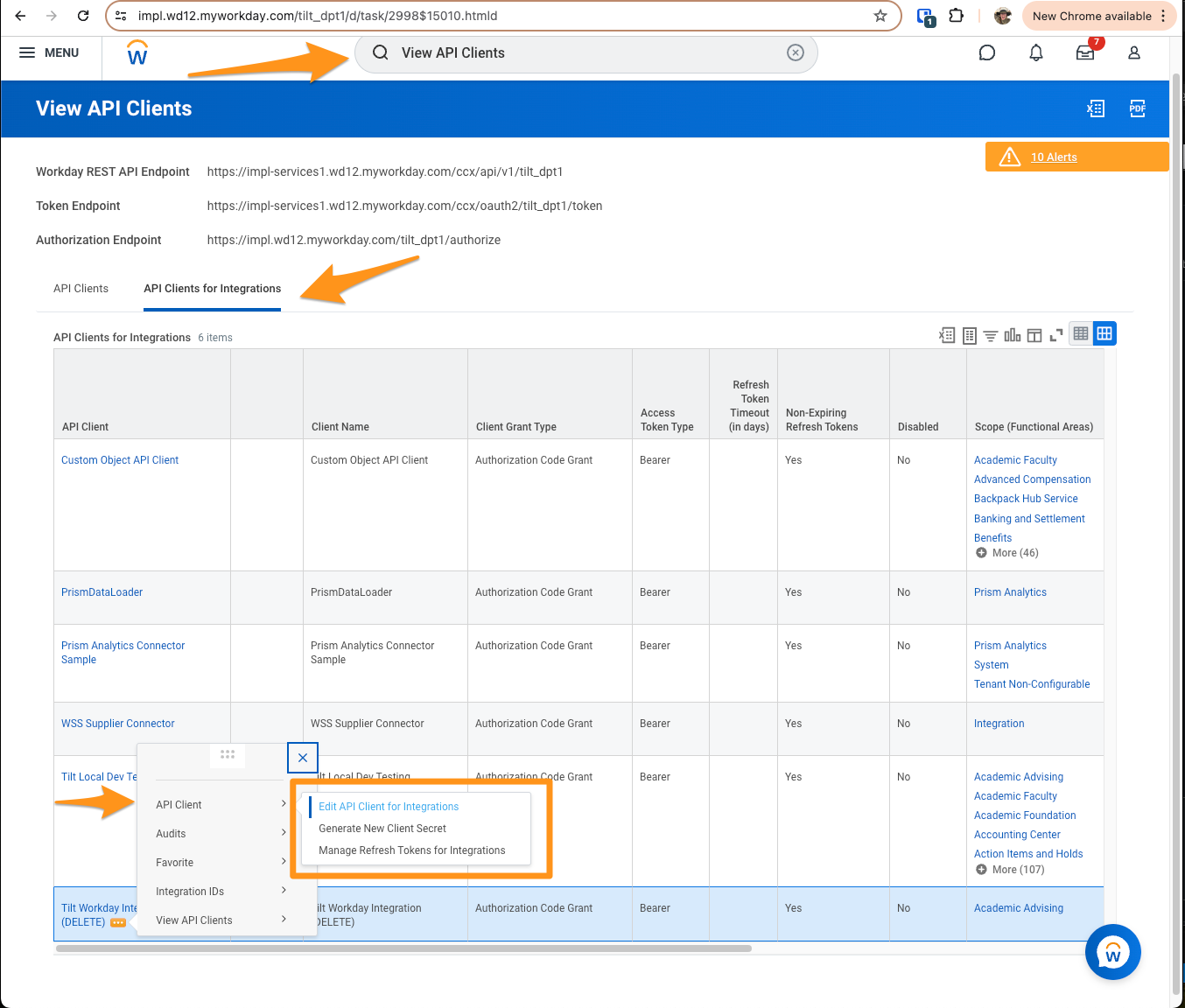
- Search for View API Clients in the top search bar and go to the API Clients for Integrations tab.
- Select the three-dot menu next to your client, then choose API Client, then Manage Refresh Tokens for Integrations.
- In the pop-up, select the ISU you created for Tilt in the Workday Account field, then click OK.
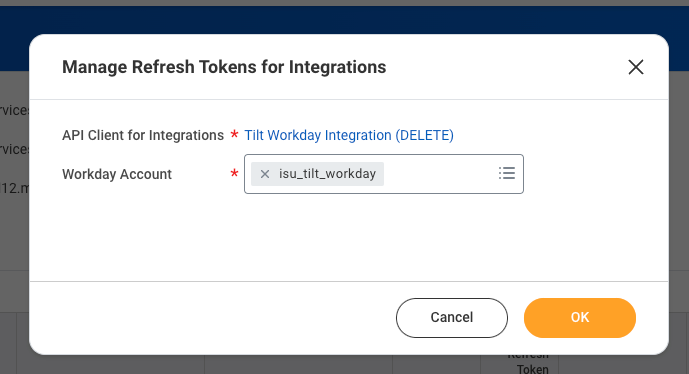
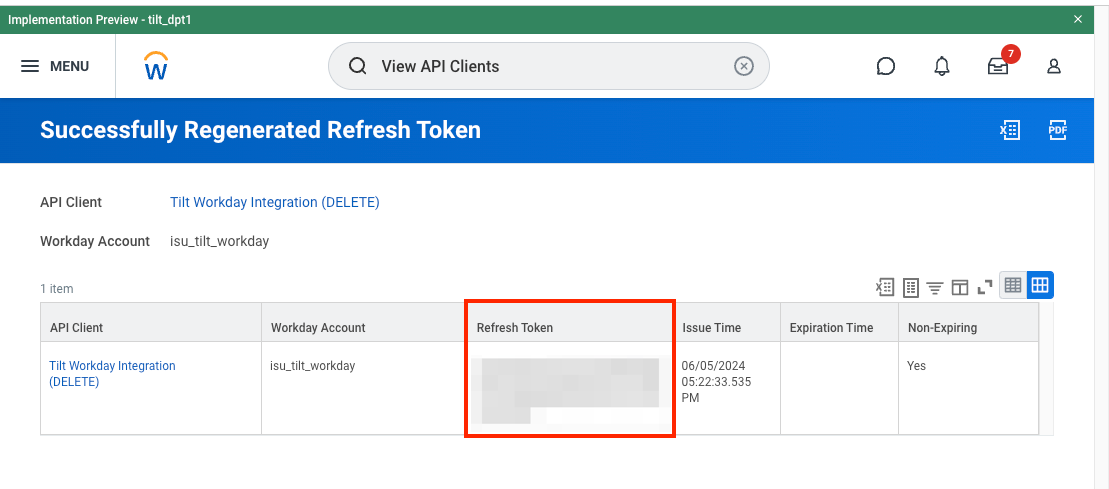
- Select Generate New Refresh Token, click OK, then copy the Refresh Token value — you'll also enter this into Tilt.
What if it doesn't work
- If you lose the Client Secret after leaving the details page, generate a new one from the same API client — you don't need to re-register the whole client.
- If the refresh token doesn't seem to work in Tilt, confirm you selected the correct ISU (not a different Workday account) when generating it in step 10.
Limits and exceptions
- Tilt doesn't use all of the scopes listed in step 4 — select all of them anyway, since Workday requires the full set to be granted even though Tilt only uses a subset.
- You can only view the Client Secret once, immediately after creation. Save it securely right away.
- Refresh tokens can be regenerated at any time if lost or compromised, but doing so invalidates the previous token.
Related questions
- How do I set the authentication policy for Tilt's security group in Workday?
- How do I connect Workday to Tilt?