
Overview
The Activity Log on your HR Dashboard is a running record of leave activity across your company. Each entry shows what happened, who did it, and a date and timestamp. Filter it by All, Documents, Leave Updates, or Notes, and set the timeframe to Today or Last 7 Days.
Who this applies to / Prerequisites- You have an HR user role in Tilt.
- You are viewing the Dashboard tab after signing.
Review the Activity Log
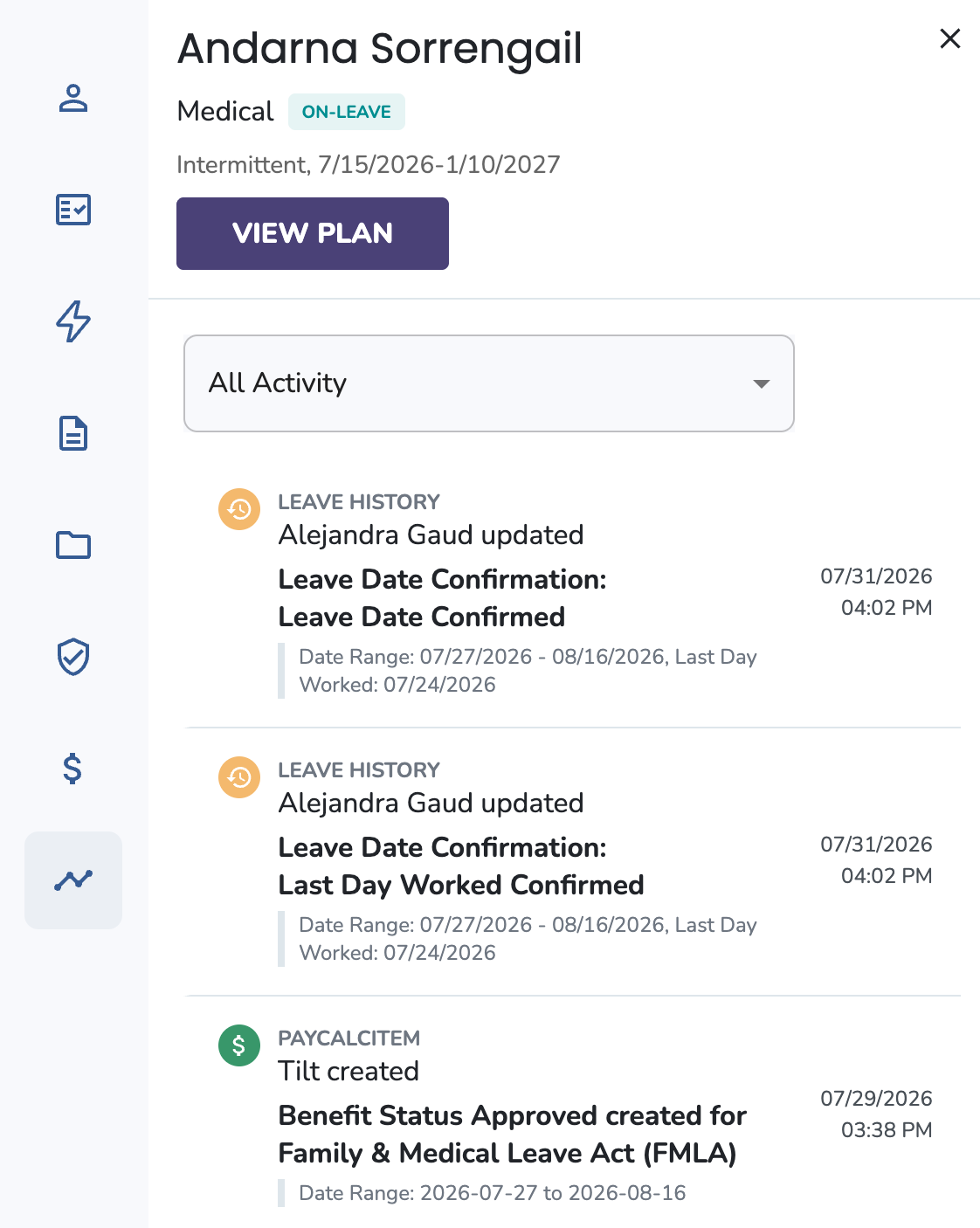
The Activity Log you may recognize from the leave view is now available directly on your HR Dashboard, giving you a running record of leave activity across your company. Each entry shows what happened, who did it, and a date and timestamp. For example, a leave request being submitted on an employee's behalf, or Tilt requesting a Return to Work Certification from an employee.
Filter the log by activity type:
- All — every activity type in one view
- Documents — document activity only, such as Tilt requesting an ADA form or creating an FMLA Medical Certification or Notice of Eligibility and Rights & Responsibilities
- Leave Updates — leave request activity, such as a leave request being created or submitted
- Notes — notes your LSM has shared with your HR team
Then set the timeframe with the Today and Last 7 Days buttons in the top-right of the section.
What if it doesn't work- You can’t find an older activity entry: The Dashboard Activity Log only shows Today or the Last 7 Days. For the full history of a specific leave, open that employee’s leave to view its complete activity feed.
- Notes aren’t showing up: Notes appear in the Activity Log only when your LSM has shared them with your HR team.
- The Dashboard Activity Log shows Today or the Last 7 Days only. For a leave’s full history, open that employee’s leave.
- Notes appear only when your LSM has shared them with your HR team.
- Submit a Leave Request
- Cancel a Leave Request
- Invite New Users to Tilt
- Resend the Welcome Email to New Users
- Update HR or Payroll Permissions for a User