
You need to add Tilt's security group to a Workday authentication rule that allows username-and-password sign-in, either an existing rule or a new one.
Who this applies to / Prerequisites
- Workday admins setting up the Tilt integration.
- You've already created the security group (see "How do I create a security group and assign the ISU in Workday?").
Steps
- Check whether you already have an Authentication Rule set to Username Password or Any. If so, add the Tilt security group to that existing rule and skip to step 7.
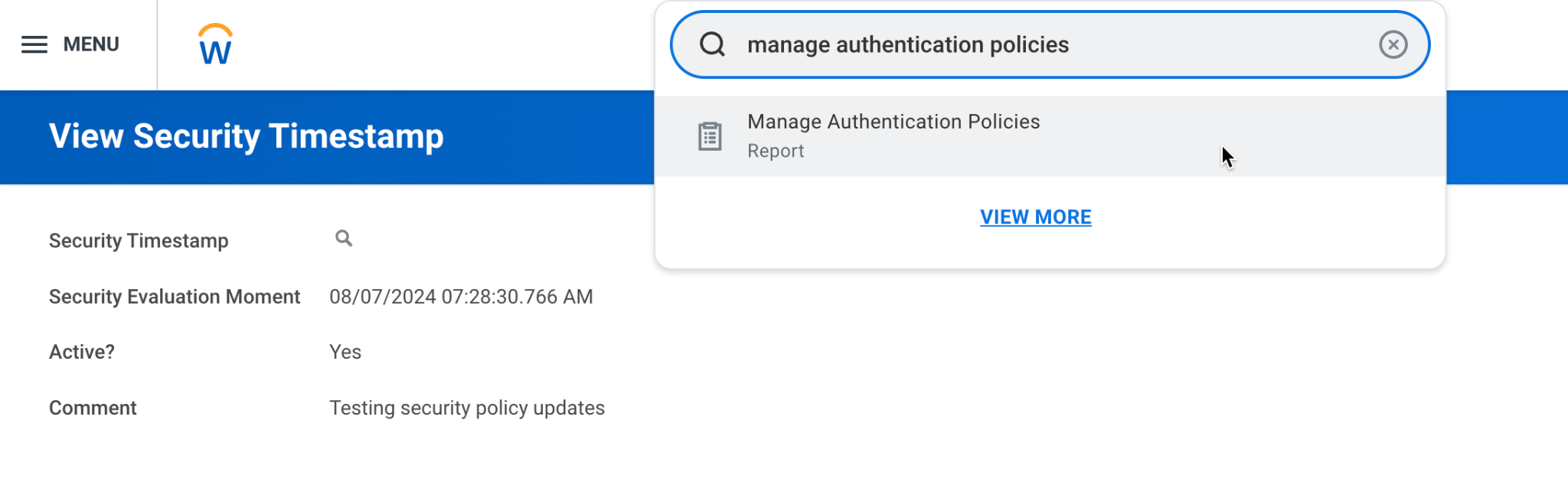
- If not, type Manage Authentication Policies in the top search bar and select the report from the dropdown.
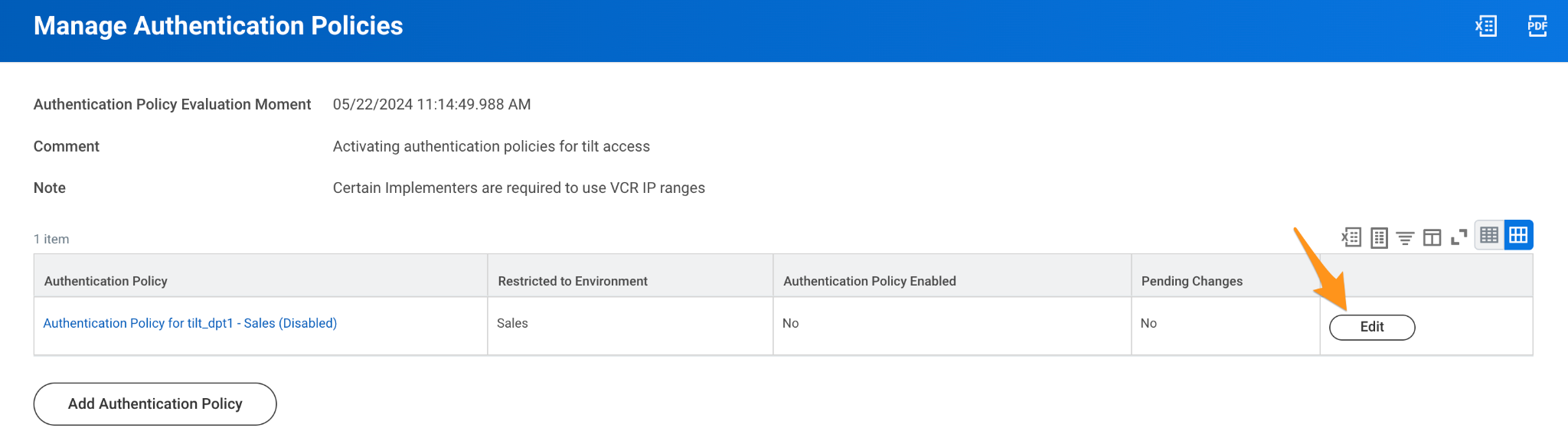
- Click Edit on the authentication policy.
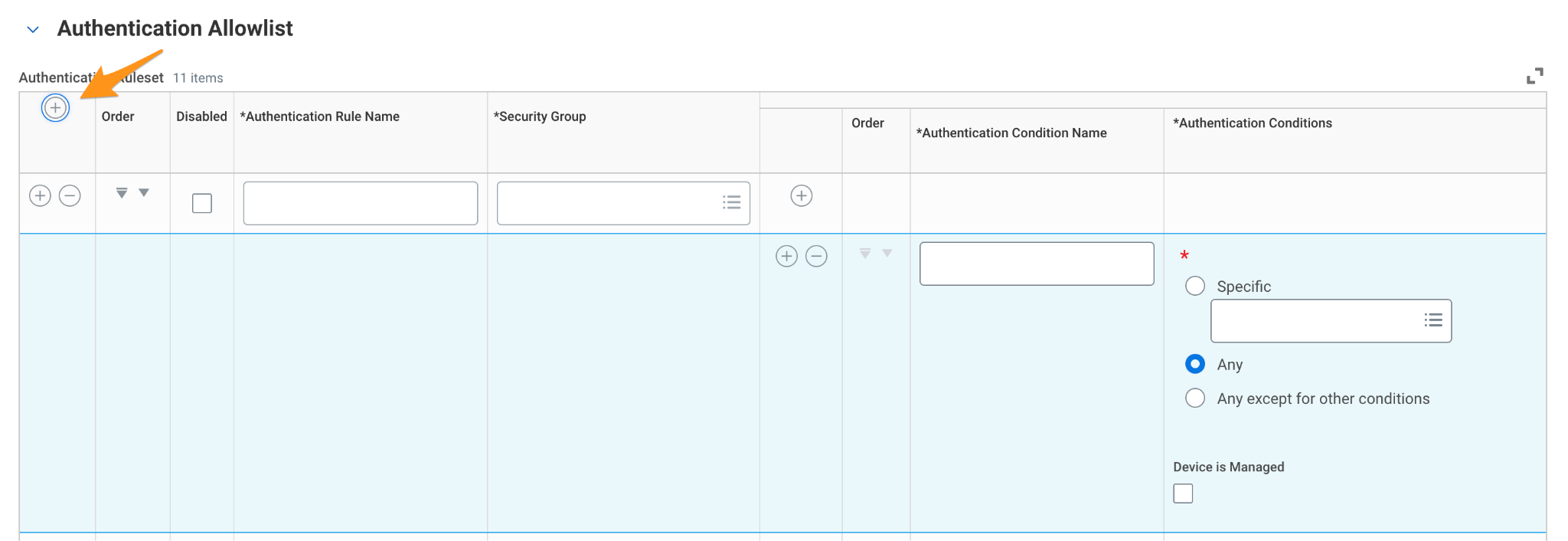
- Click the plus button in the Authentication Ruleset to add a new authentication rule.
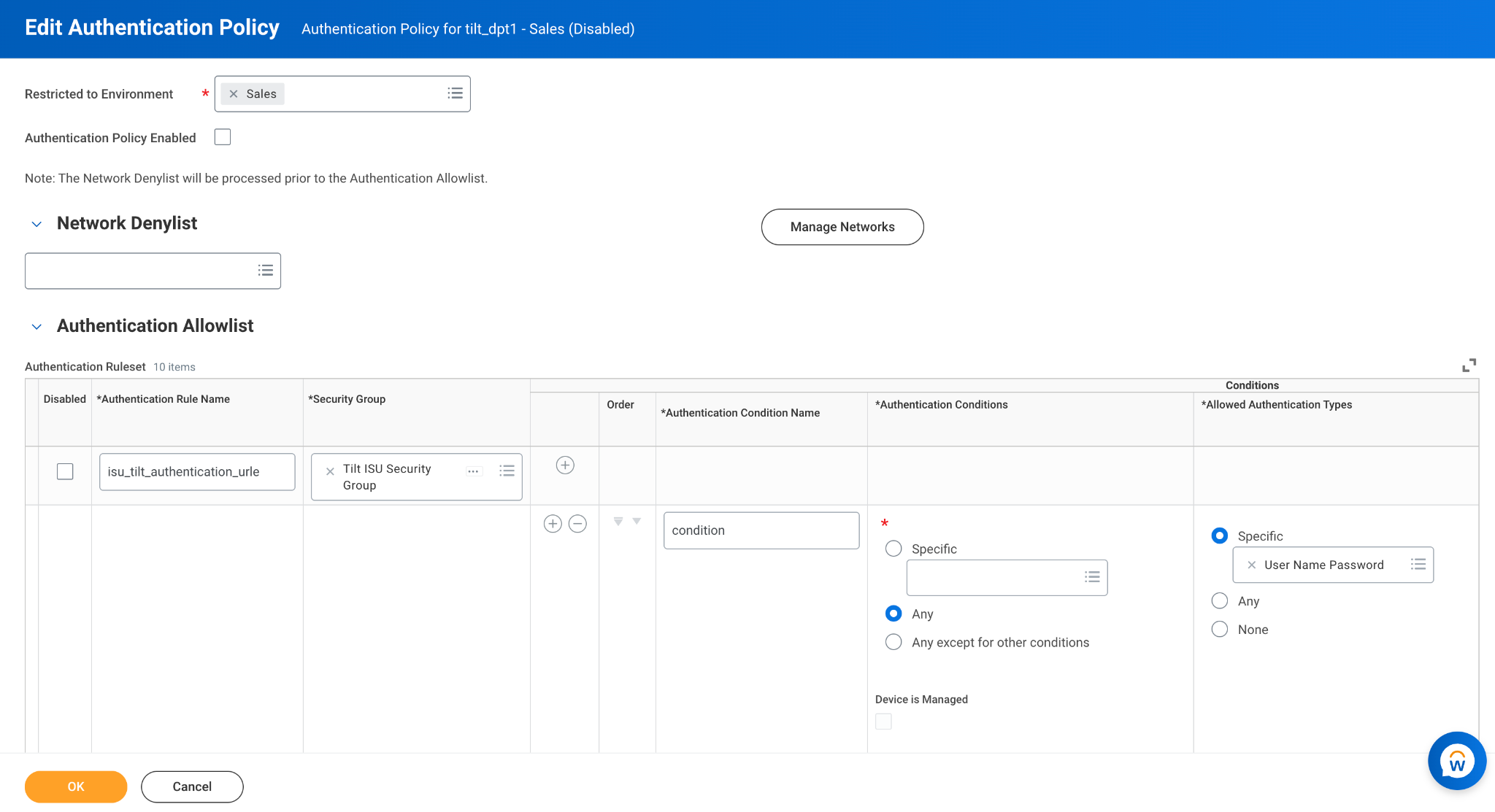
- Create a name for the policy and add the security group you created earlier.
- Set Authentication Conditions to Any, and set Allowed Authentication Types to User Name Password or Any, then click OK.
- Type Activate All Pending Authentication Policy Changes in the top search bar and select the task from the dropdown.
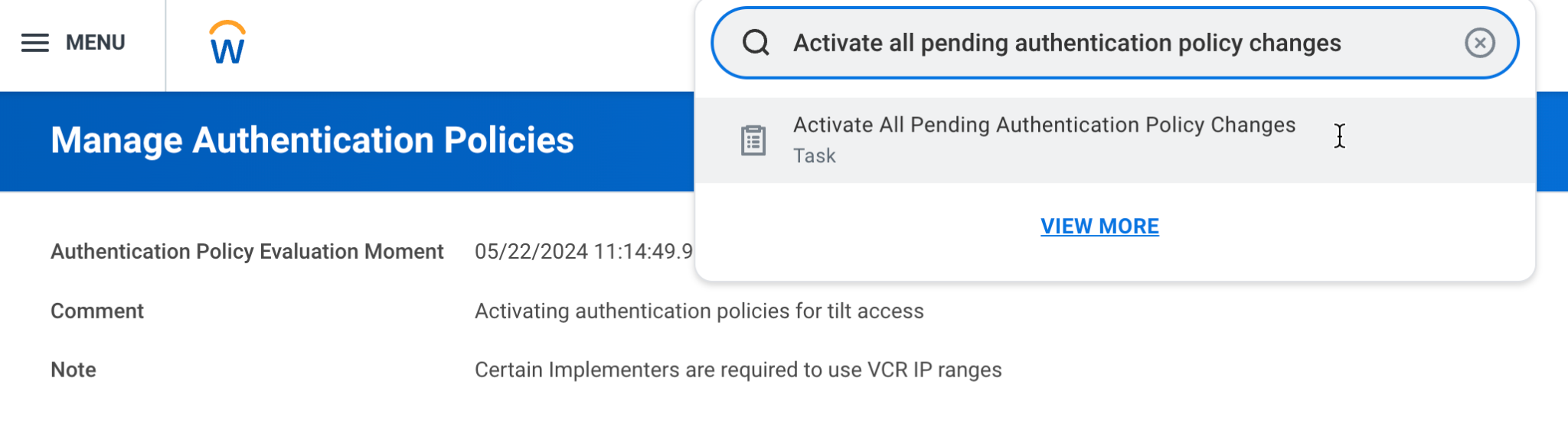
- Click Confirm to save the authentication policy.
What if it doesn't work
- If the connection later fails with an authentication error, confirm this policy was fully activated in step 7 — like security policy changes, authentication changes don't take effect until activated.
Limits and exceptions
- Tilt requires username-and-password authentication specifically. Authentication types that don't include this option won't work for this integration.
Related questions
- How do I create a security group and assign the ISU in Workday?
- How do I register an API client for Tilt in Workday?