
You turn on SFTP in your Tilt org settings, collect the host, port, and login credentials Tilt gives you, then hand those off to your IT team to connect your HR system.
Who this applies to / Prerequisites
- HR users with access to Tilt's org settings
- IT partners or HRIS administrators who'll configure the connection on your company's side
- Complete a manual import of employee profile data first — it uses the same template as SFTP and helps you catch formatting issues early. See "How do I manually import employee profile data?"
- Decide which application your IT team will use to run the file transfer
Steps
- Log in to Tilt as an HR user.
- Click Org Settings in the left navigation panel.
- Click the Integrations tab.
- Toggle on SFTP Configuration.

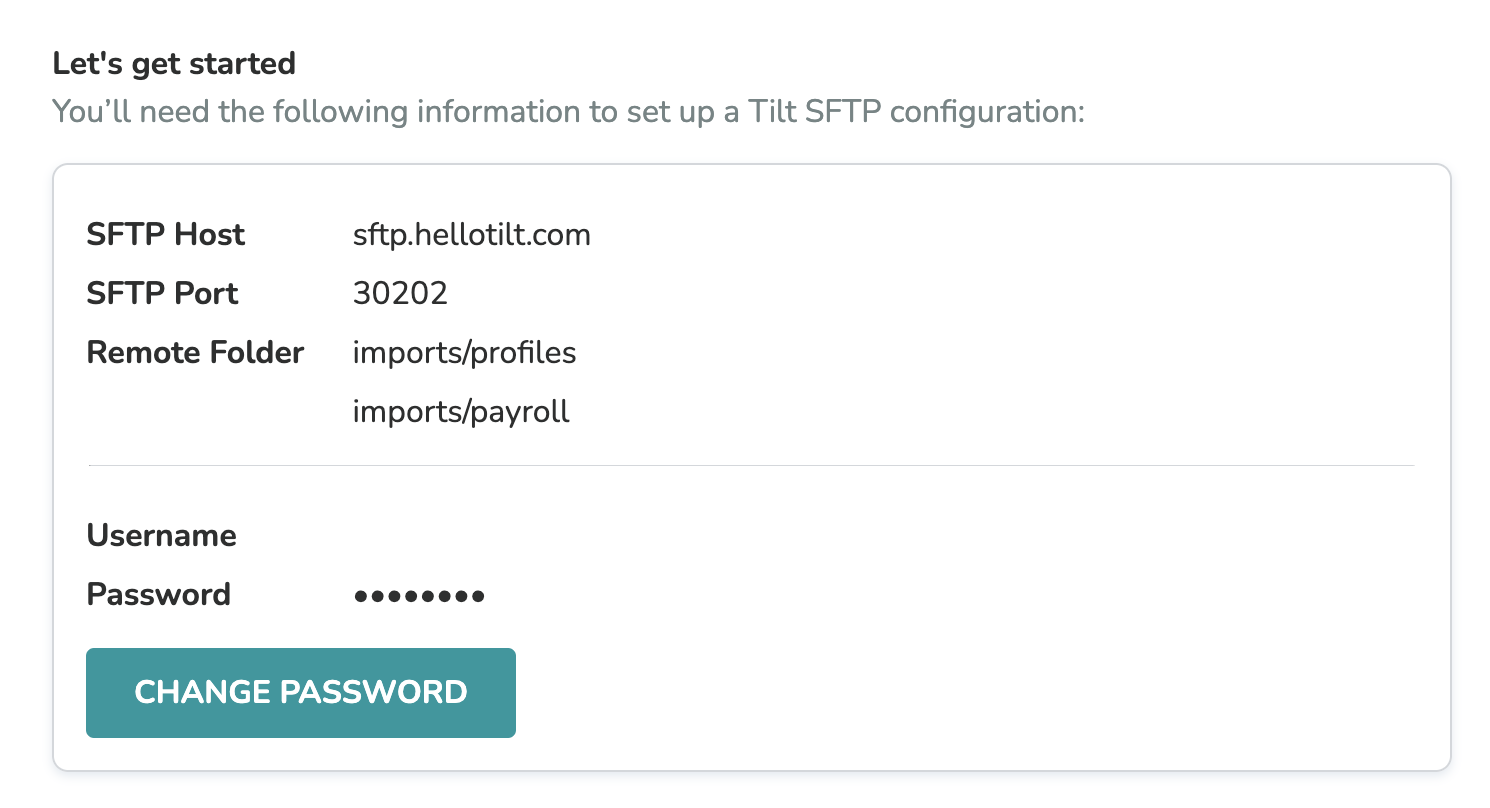
- Note the connection details Tilt displays: SFTP Host (sftp.hellotilt.com), SFTP Port (30202 or 22), and the remote folders (imports/profiles and imports/payroll).
- Note your Username — it's unique to your environment and shown in the app.
- https://www.loom.com/share/3804952c5aa944ce85d99605c5534bfa
- When prompted, create a password. This is the password your IT team enters into your file transfer application.
- Save the password somewhere secure your whole team can access, if more than one person handles the transferred data.
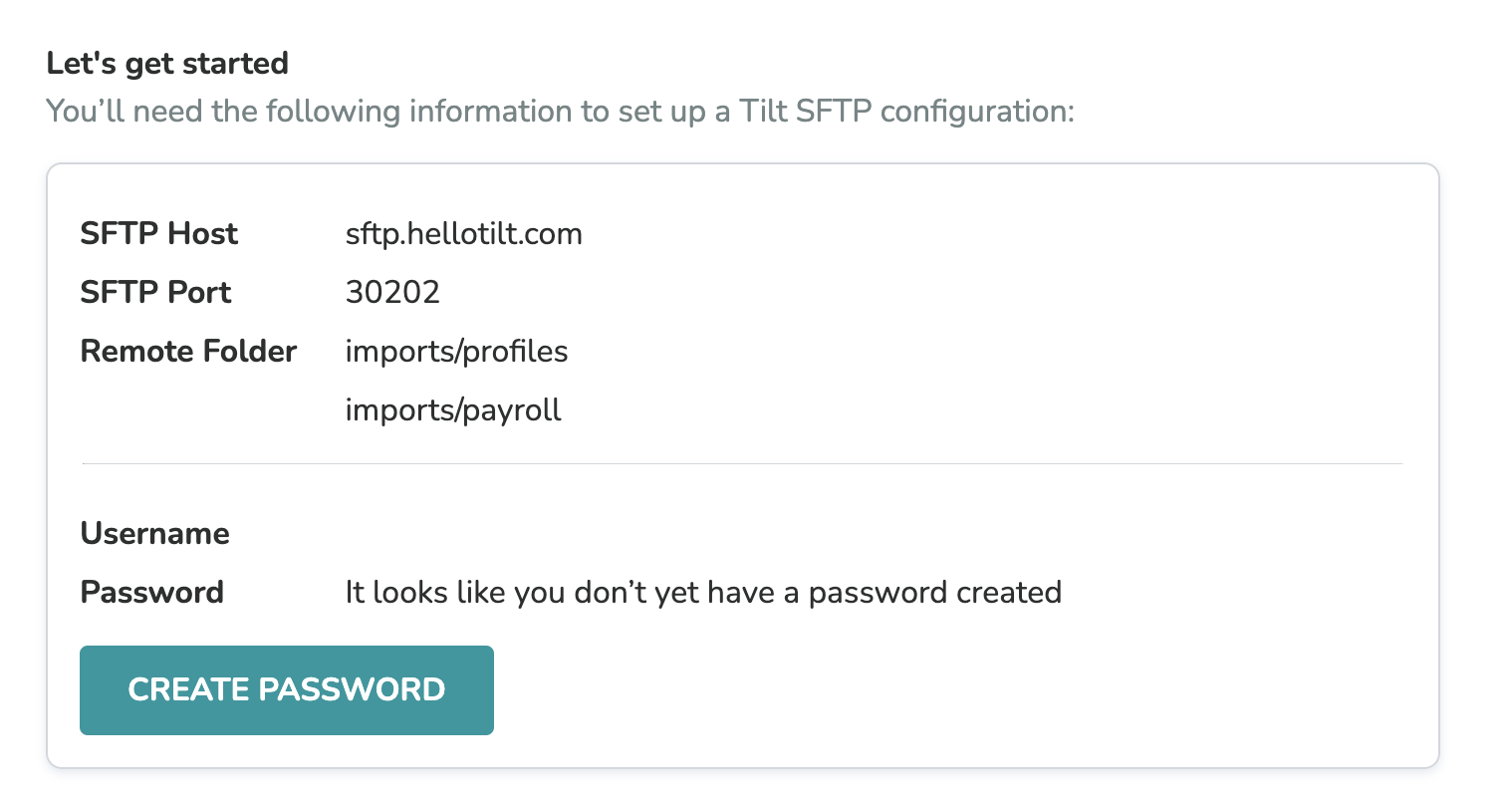
- Give the host, port, folders, username, and password to your IT team so they can connect your HRIS system.
- Start sending files — ad hoc or on a recurring schedule that fits your company.
What if it doesn't work
- You don't see SFTP Configuration under Integrations — confirm you're logged in as an HR user. Only HR users can access org settings and integrations.
- Your IT team can't connect — double-check they're using the exact host and port shown in your Tilt org settings, not an old or cached value.
- You lost track of the password — any HR user can update it at any time from the same Integrations tab.
- You're connecting from Workday — Workday needs the port folded into the address field. See "Why is my SFTP import failing, and what file format does Tilt require?"
Limits and exceptions
- Only HR users can view or configure SFTP settings in Tilt.
- Changing your Tilt login credentials — password, email, or authentication method — breaks your existing connection. You'll need to reauthenticate to restore it.
- Tilt doesn't configure the receiving side of the connection. Your internal IT team or HRIS administrator sets that up.
- SFTP doesn't currently support payroll data export from Tilt.
Related questions
- What is SFTP data import and how does it work in Tilt?
- Why is my SFTP import failing, and what file format does Tilt require?
- How do I manually import employee profile data?