
You turn on SAML single sign-on (SSO) in Tilt's Security settings, then use the values Tilt gives you to create a matching connection in Microsoft Azure. Once both sides are connected, your team logs into Tilt with their Azure credentials instead of a separate Tilt password.
Who this applies to / Prerequisites
- You need HR-level admin access to your company's Tilt account.
- You need admin access to your company's Microsoft Azure account.
- Your company uses Azure (Microsoft Entra ID) to manage sign-in access to business applications.
Steps
In Tilt:
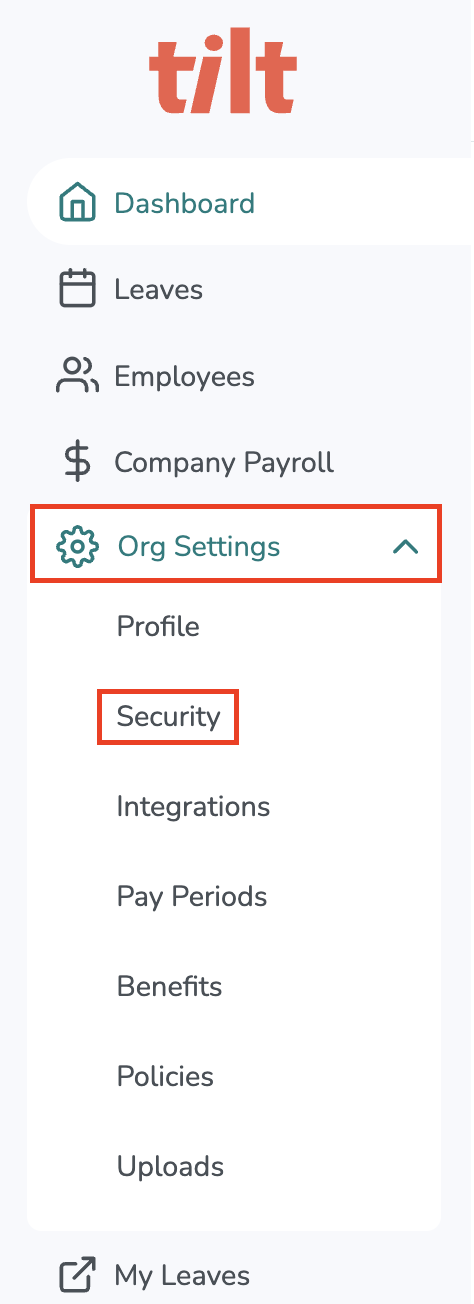
- Go to your HR dashboard and click Org Settings in the left-hand navigation menu.
- Select the Security tab from the drop-down menu.
- Toggle on SAML SSO. (SAML stands for Security Assertion Markup Language — it's the standard Tilt and Azure use to exchange login credentials securely.)
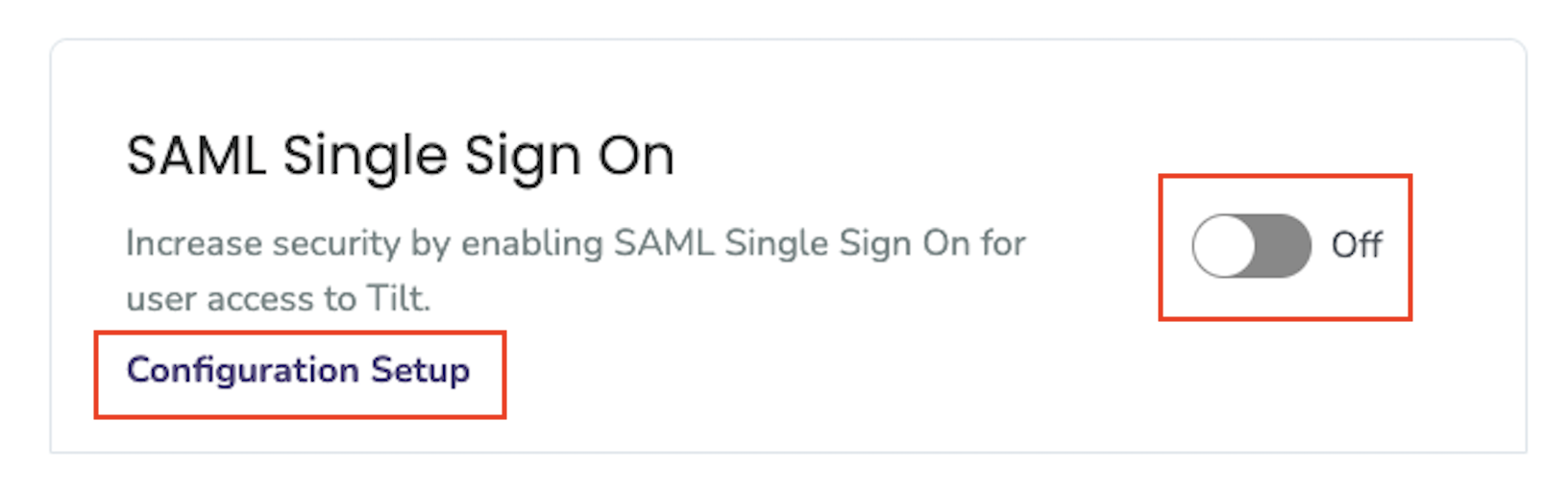
- Click Configuration Setup to expand the setup details.
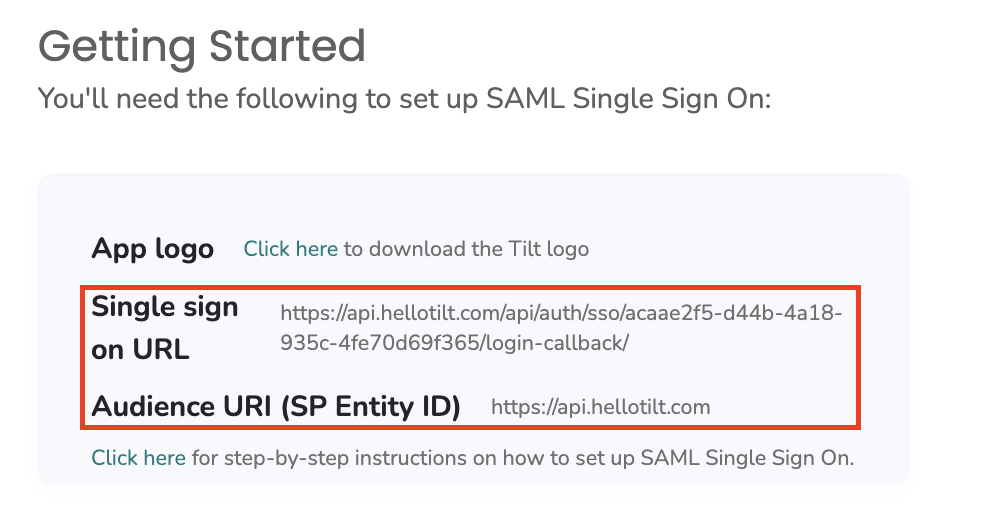
- Copy the Single Sign-On URL and the Audience URI (SP Entity ID) shown on this screen. Keep this tab open — you'll need both values in Azure.
In Azure:
- In a separate browser tab or window, log into your Microsoft Azure account (admin permissions required) and open Azure's enterprise application SSO setup page.
- On the Single Sign On page, go to Basic SAML Configuration and enter:
- Identifier (Entity ID): paste the Audience URI (SP Entity ID) from Tilt.
- Reply URL (Assertion Consumer Service URL): paste the Single Sign-On URL from Tilt.
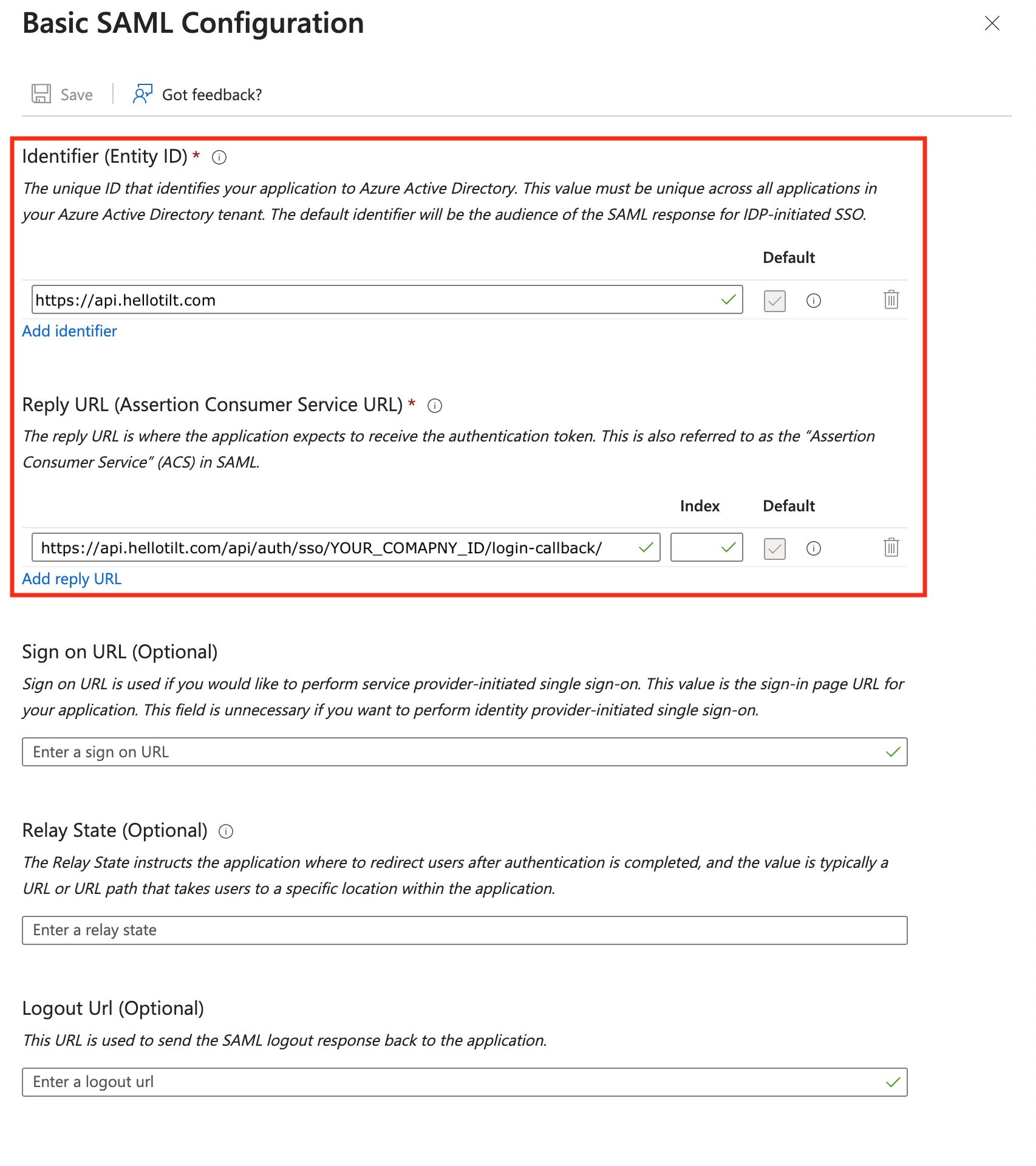
- Leave the other fields in this section blank.
- In Attributes & Claims, add three new claims, typing each name exactly as shown (matching upper- and lower-case letters):
- firstName — Source: Attribute, Source attribute: user.givenname
- lastName — Source: Attribute, Source attribute: user.surname
- email — Source: Attribute, Source attribute: user.mail
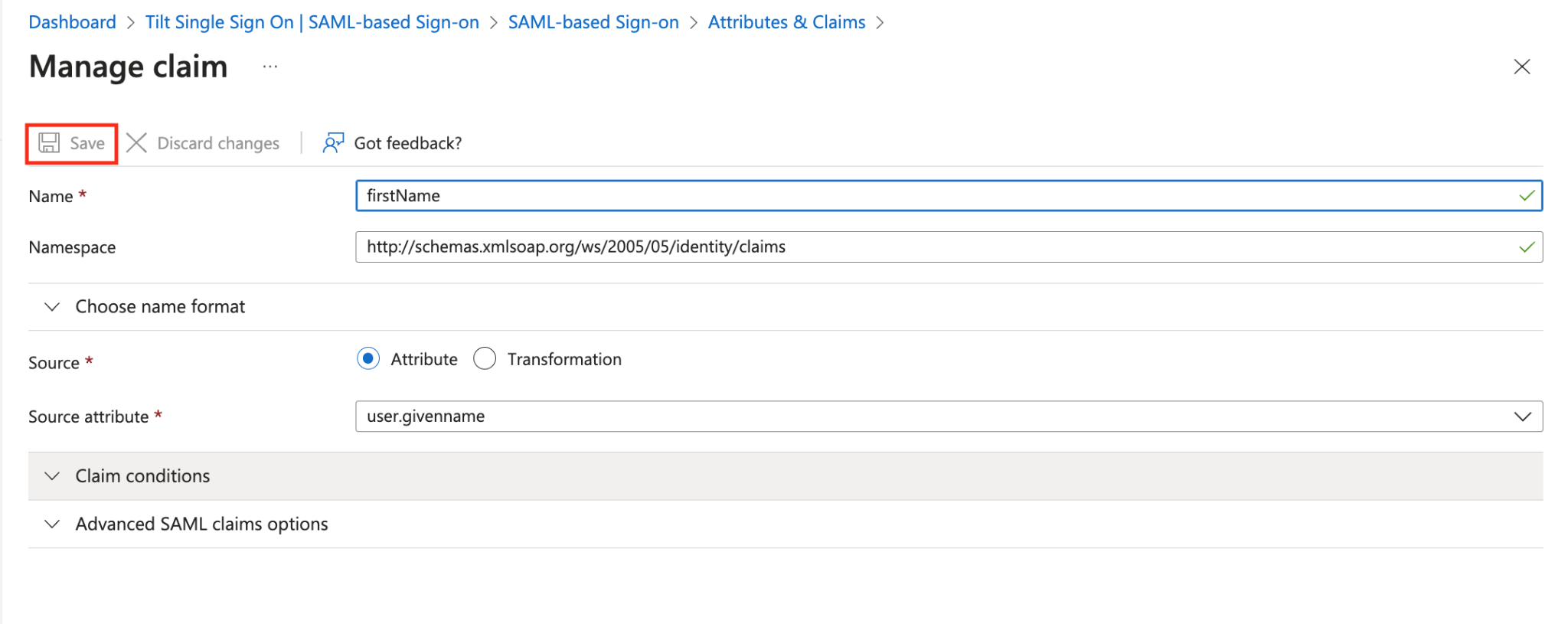
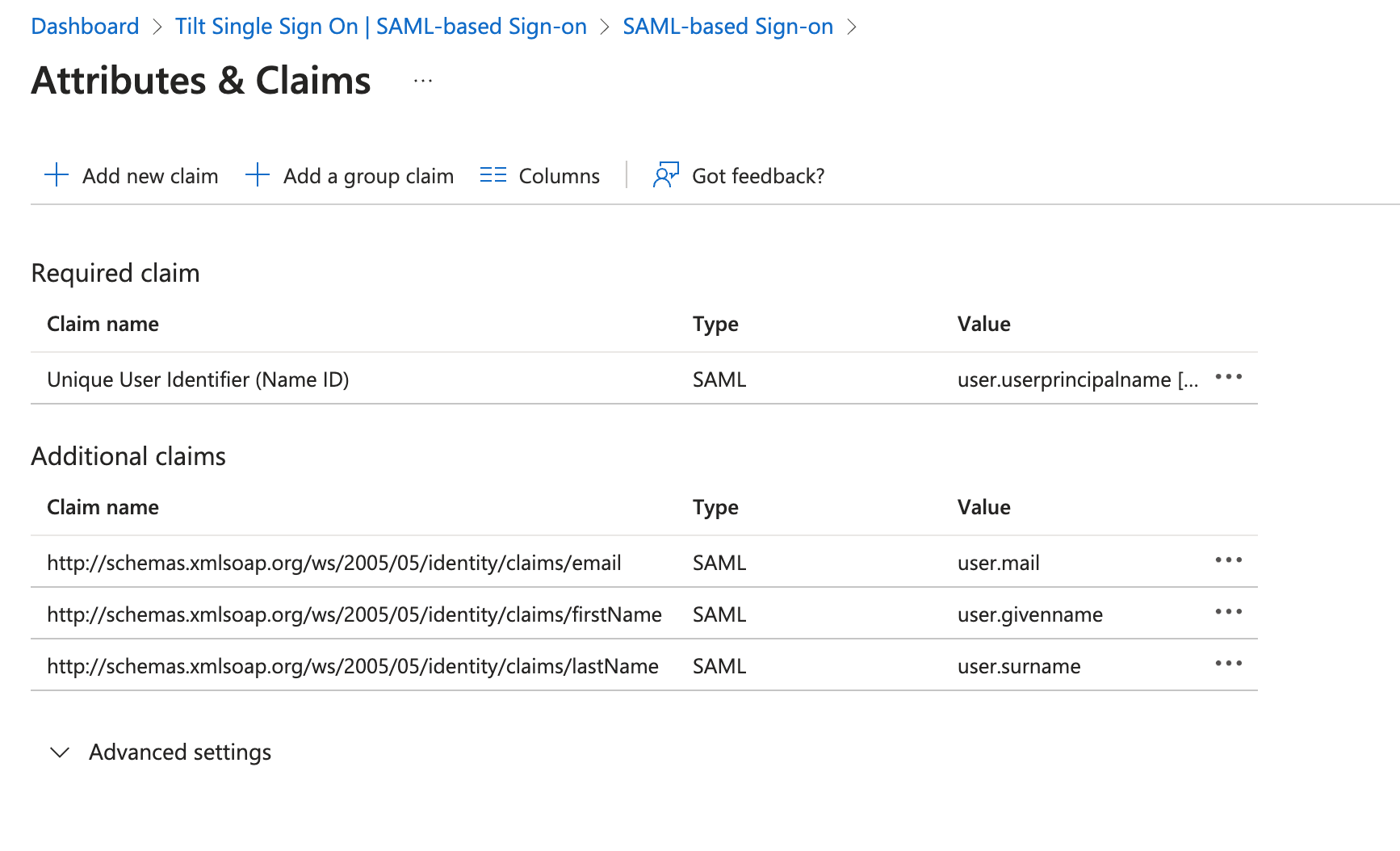
- Click Save.
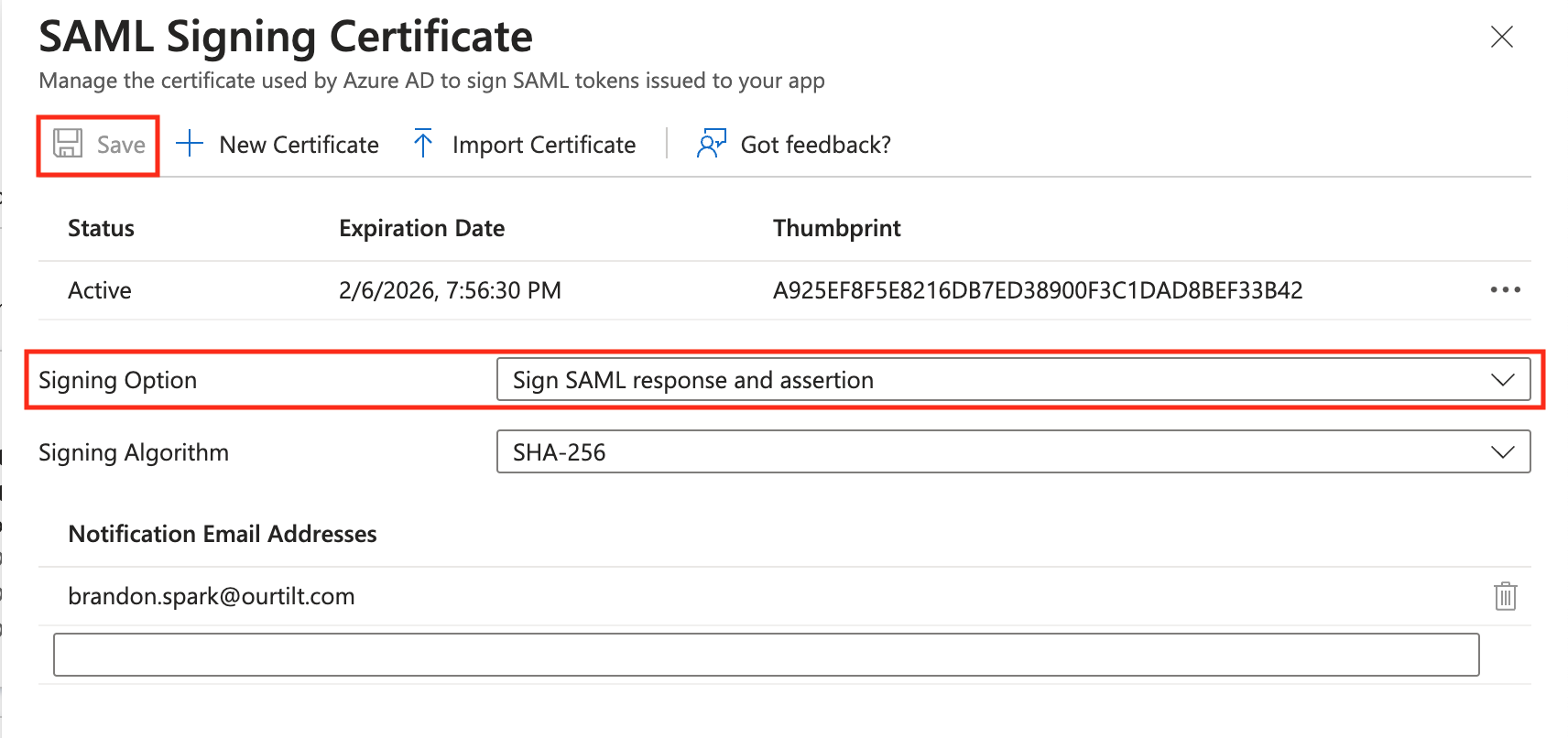
- In SAML Certificates, click Edit, set Signing Option to Sign SAML response and assertion, leave Signing Algorithm as is, and click Save.
- Click Download Certificate (Base64) — you'll upload this file to Tilt next.
Back in Tilt:
- Go back to your Tilt tab and confirm you're still on the Security page with Configuration Setup open for SAML SSO.
- Copy the Identity Provider Single Sign-On URL from Azure (listed under Login URL) and paste it into Tilt.
- Copy the Identity Provider Issuer from Azure (listed under Azure AD Identifier) and paste it into Tilt.
- Click Upload File under X.509 Certificate and upload the Base64 certificate file you downloaded from Azure.
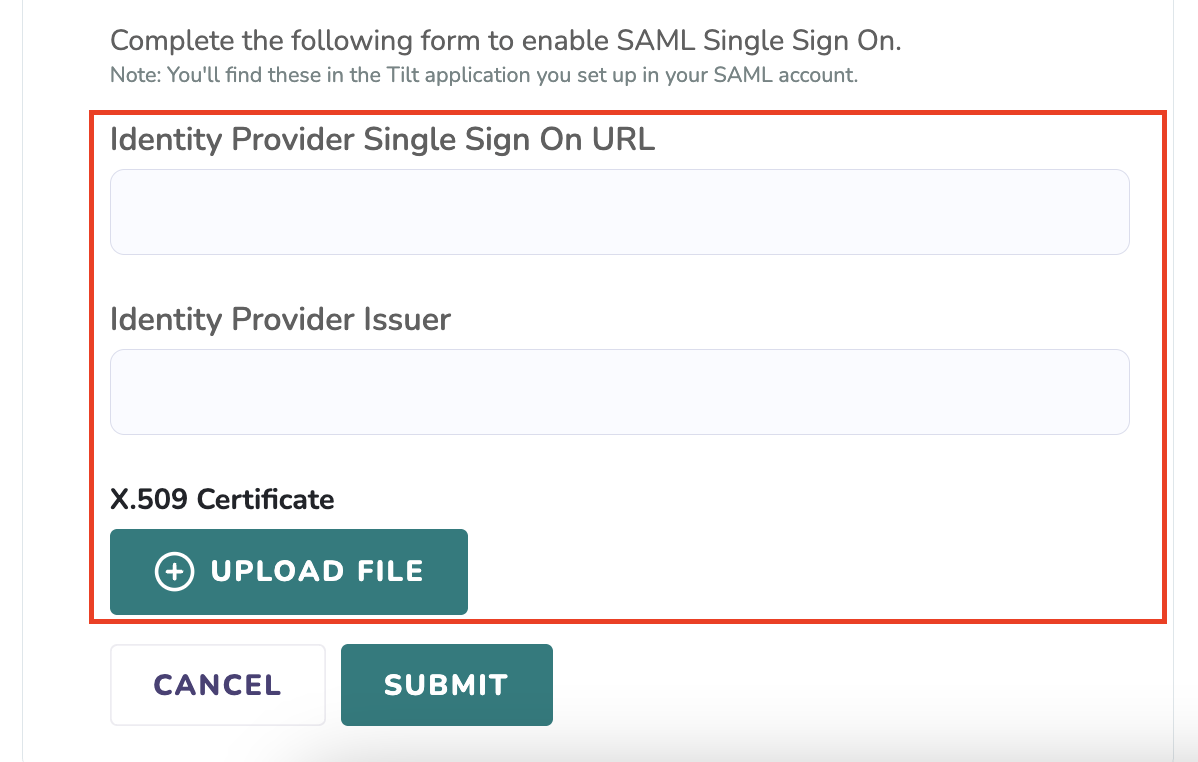
- Click Submit to save.
What if it doesn't work
- If you don't see Org Settings or the Security tab, you don't have HR-level admin access. Ask your Tilt admin to grant it, or contact Tilt Support.
- If your Azure setup doesn't match Tilt's values, or logins fail after setup, contact your internal IT team or Microsoft Azure support. Tilt can't troubleshoot Azure-side SSO configuration.
- If the certificate upload fails in Tilt, confirm you downloaded the Base64 version of the certificate from Azure, not another format.
- If names or emails come through blank or wrong after login, double-check the firstName, lastName, and email claim names and source attributes in Azure match exactly, including capitalization.
Limits and exceptions
- Tilt doesn't troubleshoot Azure account or Azure configuration issues. That support goes through your IT team or Azure directly, not Tilt Support.
- Only users with HR-level admin access to Tilt can turn on or edit SSO settings.
- SSO setup requires the firstName, lastName, and email claims to be configured exactly as described. Tilt doesn't support alternate claim names.
- If you revoke or suspend an employee's Azure access while they're on leave, they lose access to Tilt too — see the related question below.
Related questions
- Will my employees lose access to Tilt if they're on leave and I use Azure SSO?