
You turn on SAML SSO in Tilt's Security settings, then connect it to Okta by exchanging a few configuration values between the two systems. Once both sides are set up, your employees log into Tilt with their Okta credentials instead of a separate Tilt password.
Who this applies to / Prerequisites
- Company admins setting up login for their whole organization — not something individual employees configure.
- You need HR access to your company's Tilt account.
- You need admin access to your company's Okta account, or a colleague (often an IT admin) who has it.
- Your company must already use Okta to manage access to its business applications.
Steps
- From the Tilt HR dashboard, click Org Settings in the left-hand navigation menu.
- Select Security from the drop-down menu.
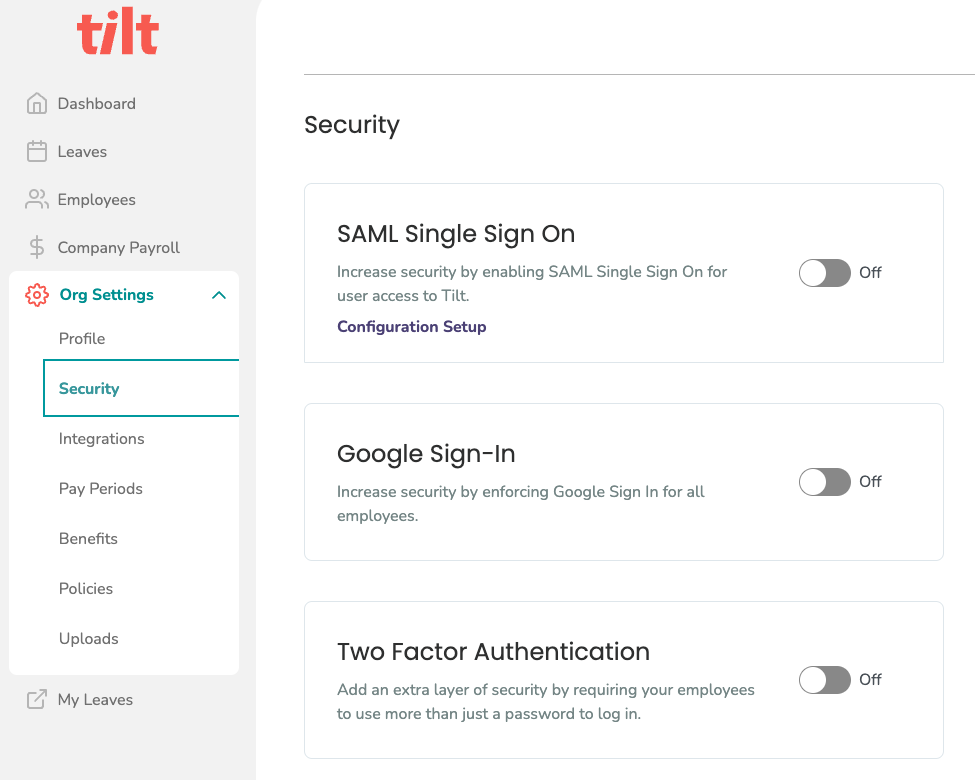
- Toggle on SAML SSO.
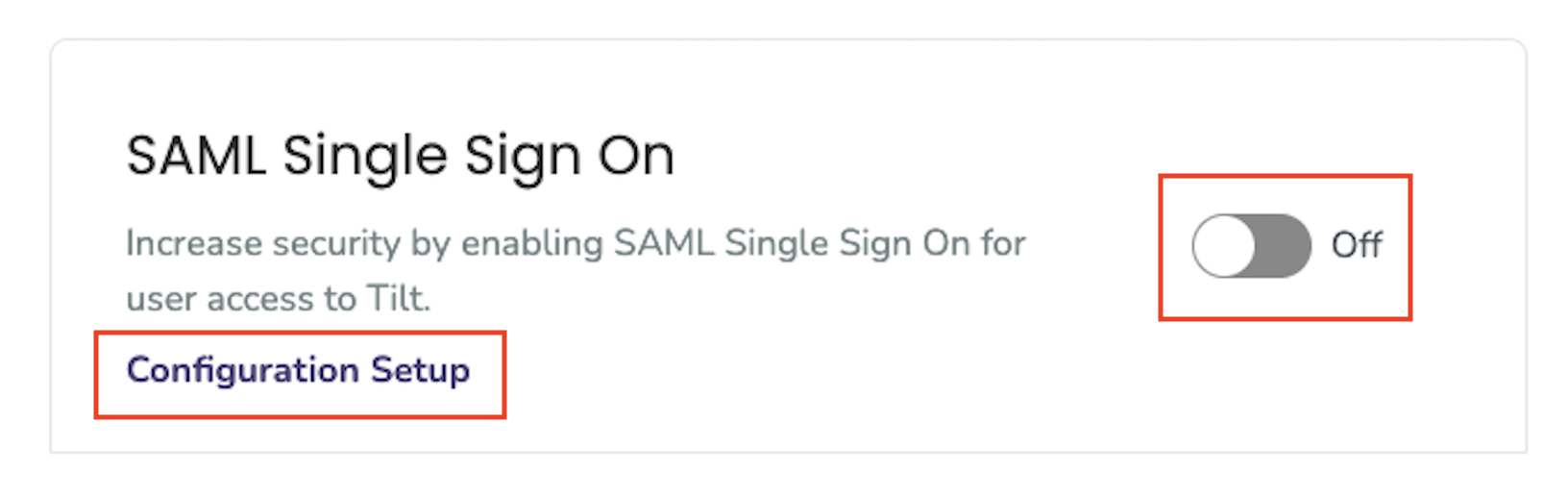
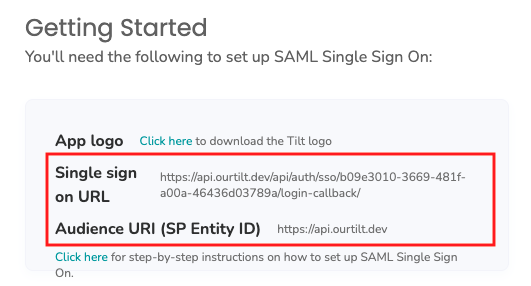
- Click Configuration Setup to expand the setup details.
- Copy the Single Sign-On URL and the Audience URI (SP Entity ID) shown on this page. You'll hand these to whoever creates the Tilt app in Okta (see "How do I create the Tilt app integration in Okta?").
- Once the Okta app integration is created, you'll receive three items back: the Identity Provider Single Sign-On URL, the Identity Provider Issuer, and a certificate file named okta.cert.
- Back on the Security page in Tilt, paste the Identity Provider Single Sign-On URL into the matching field.
- Paste the Identity Provider Issuer into the matching field.
- Click Upload under X.509 Certificate and select the okta.cert file from your downloads folder.
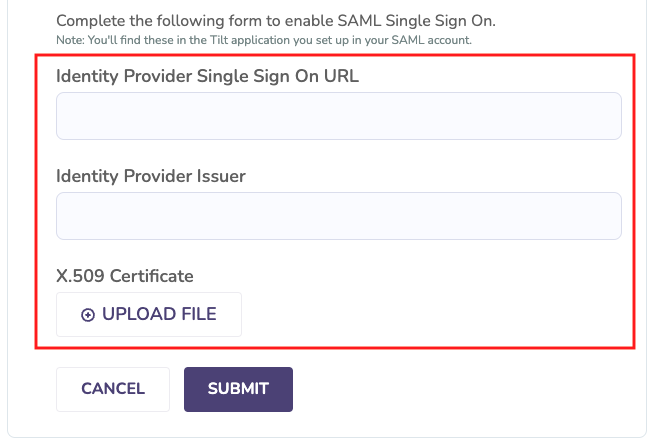
- Click Submit to save.
What if it doesn't work
- If you don't see Org Settings or Security in the left-hand navigation, you don't have HR-level admin access in Tilt. Contact Tilt Support to request access.
- If you can't find the Single Sign-On URL or Audience URI after expanding Configuration Setup, refresh the page or confirm SAML SSO is toggled on first.
- If employees still can't log in with Okta after you click Submit, confirm your Okta admin has assigned the Tilt app to those specific users inside Okta — that's a separate step done in Okta, not in Tilt.
- If you're stuck at any step, contact Tilt Support.
Limits and exceptions
- Only someone with HR access in Tilt and admin access in Okta can complete this setup. Individual employees can't turn on SSO for themselves.
- If your company revokes an employee's Okta access while they're on leave, that employee loses access to Tilt too, once SSO is enforced. To avoid this, ask your IT admin to set up a separate Okta security group for employees on leave, so they keep access to Tilt only.
- This setup doesn't cover assigning the Tilt app to individual Okta users. That's a separate step your Okta admin completes directly in Okta.
Related questions
- How do I create the Tilt app integration in Okta?
- What happens to my Tilt access if my company revokes my Okta access while I'm on leave?