
Overview
The Security section under Org Settings is where your organization configures and enforces sign-in security: Okta Single Sign-On (SSO), Google Sign-In, and Two-Factor Authentication (2FA). Only HR users can manage the Security section.
Who this applies to / Prerequisites- You must be an HR user to manage all Org Settings.
- Your company must have completed (or be actively in) Tilt implementation.
Security
The Security settings are where your organization can configure and enforce security options: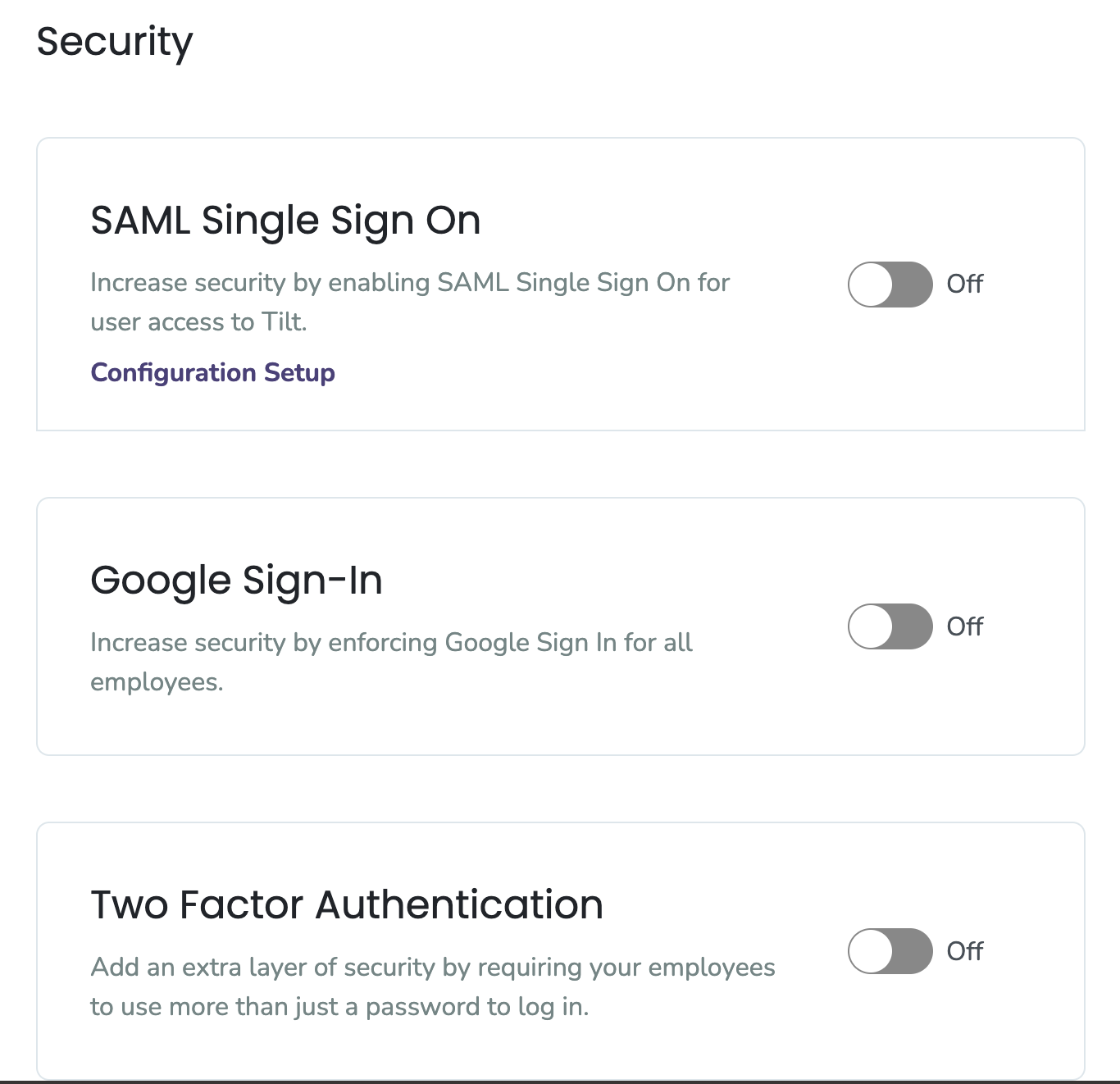
- Okta Single Sign-On (SSO)
- Google Sign-In
- Two-Factor Authentication (2FA)
- Click Org Settings, then Security.
- Configure the options you want to enforce: Okta Single Sign-On (SSO), Google Sign-In, or Two-Factor Authentication (2FA).
- I can't see the Security section: You are likely a Payroll user, who only has access to Pay Periods. Ask an HR user at your company.
- If Google Sign-In is not working as expected, contact your Customer Success Manager or use the Contact Us option in your Tilt dashboard.
- If none of these apply, contact your Customer Success Manager or use the Contact Us option in your Tilt dashboard.
- Only HR users can manage Security settings.
- Set Up the Okta Integration
- Set Up SSO with Azure
- Org Settings: General Overview
- Org Settings Overview: Profile
- Org Settings Overview: Cohorts
- Org Settings Overview: Integrations
- Org settings Overview: Pay Periods
- Org Settings Overview: Benefits
- Org Settings Overview: Polices
- Org Settings Overview: Uploads
- Org Settings Overview: Exports