
You request the install from the Paylocity marketplace, then finish the connection in Tilt by entering the Company IDs Paylocity emails you — once it's connected, Tilt automatically imports employee data from Paylocity so you don't have to enter it manually.
Who this applies to / Prerequisites
- HR Admin users with admin access to your company's Paylocity account
- HR Admin access to your Tilt account
- The Paylocity feature turned on in your Tilt account — contact Tilt Support if you don't see it under Integrations
Steps
- Log in to your company's Paylocity account and find Tilt in the Paylocity marketplace.
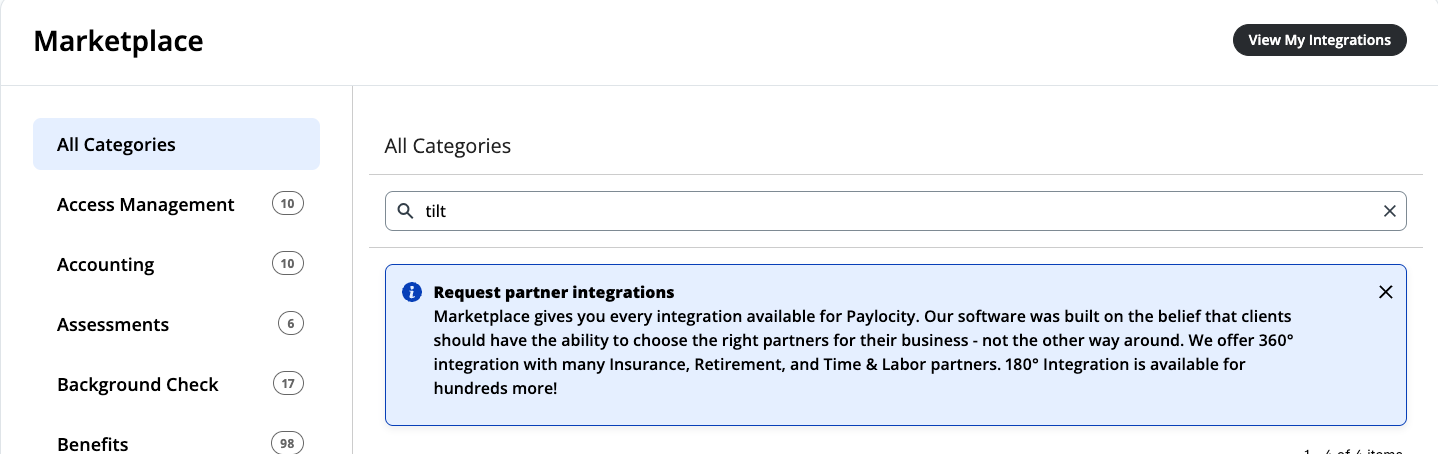
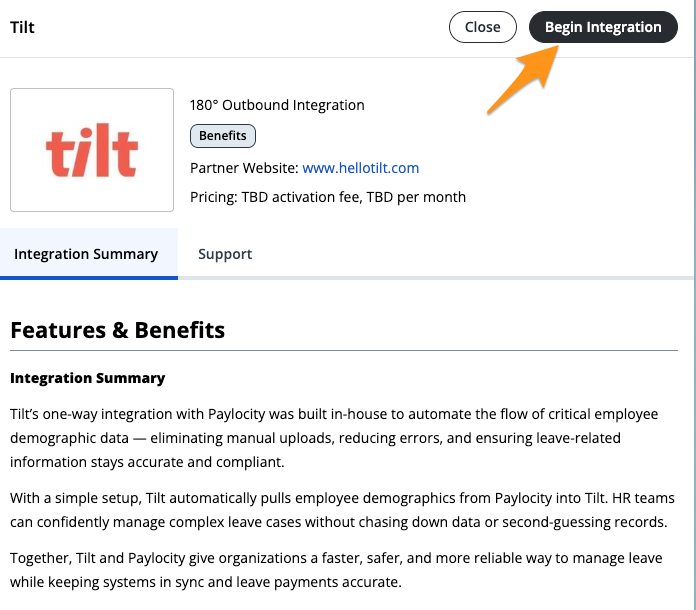
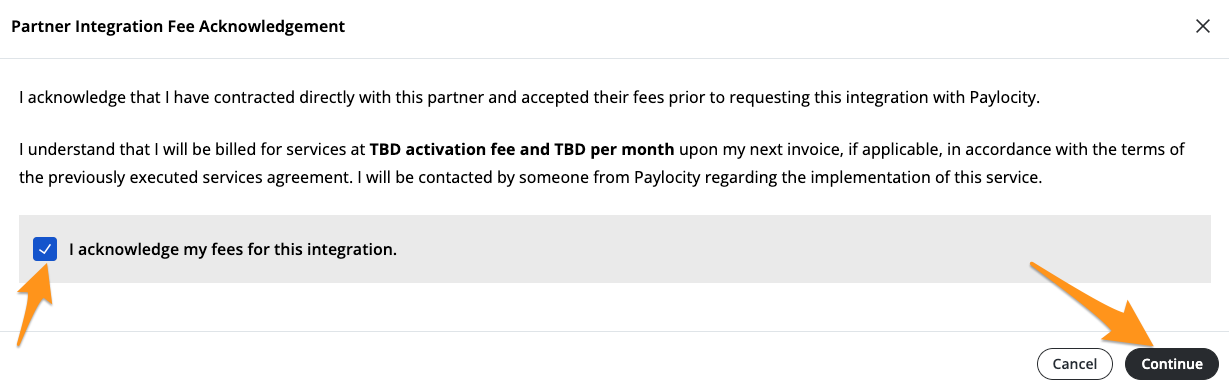
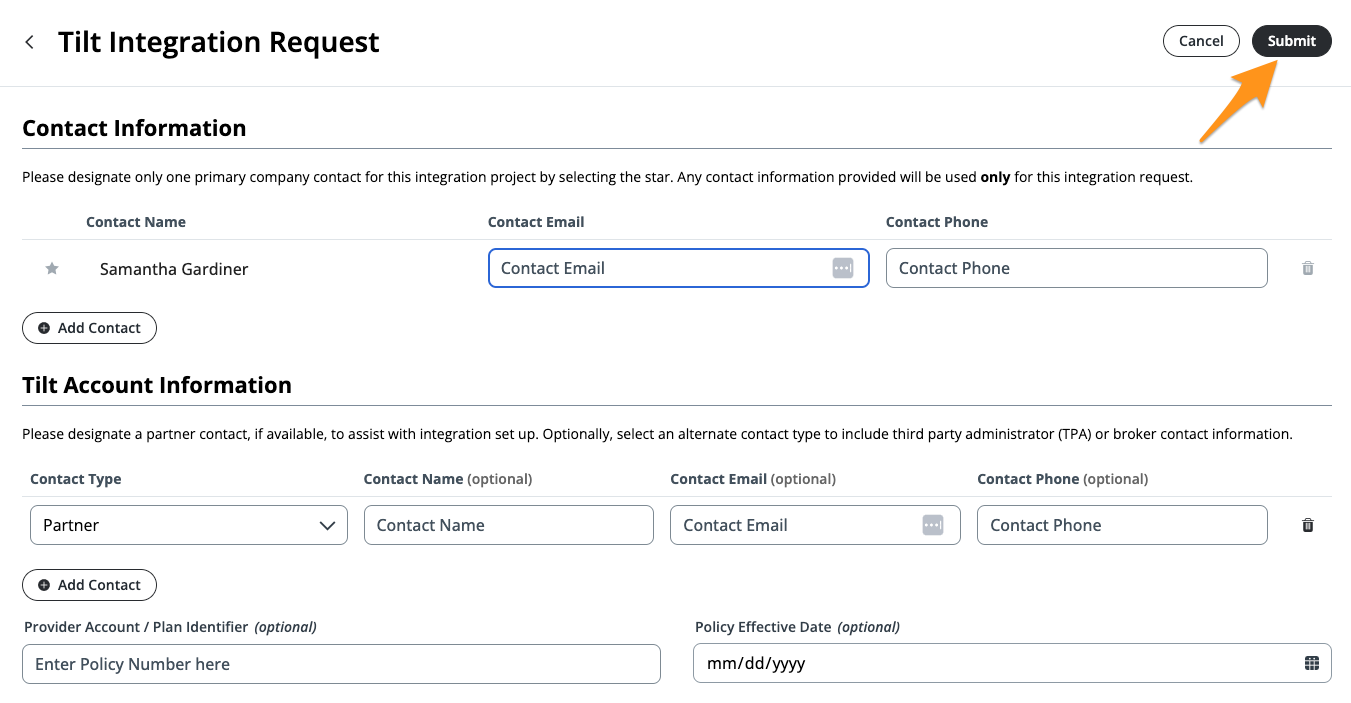
- Request the install of the Tilt integration from the marketplace listing.
- Wait for Paylocity to complete setup on their end. This takes 3–5 business days.
- Watch for a confirmation email from Paylocity. It includes the Company IDs enabled for the integration.
- Don't start the Tilt-side setup until you've received that confirmation email.
- Log in to Tilt as a user with HR Admin permissions.
- Click Org Settings in the left-hand navigation menu.
- Select Integrations.
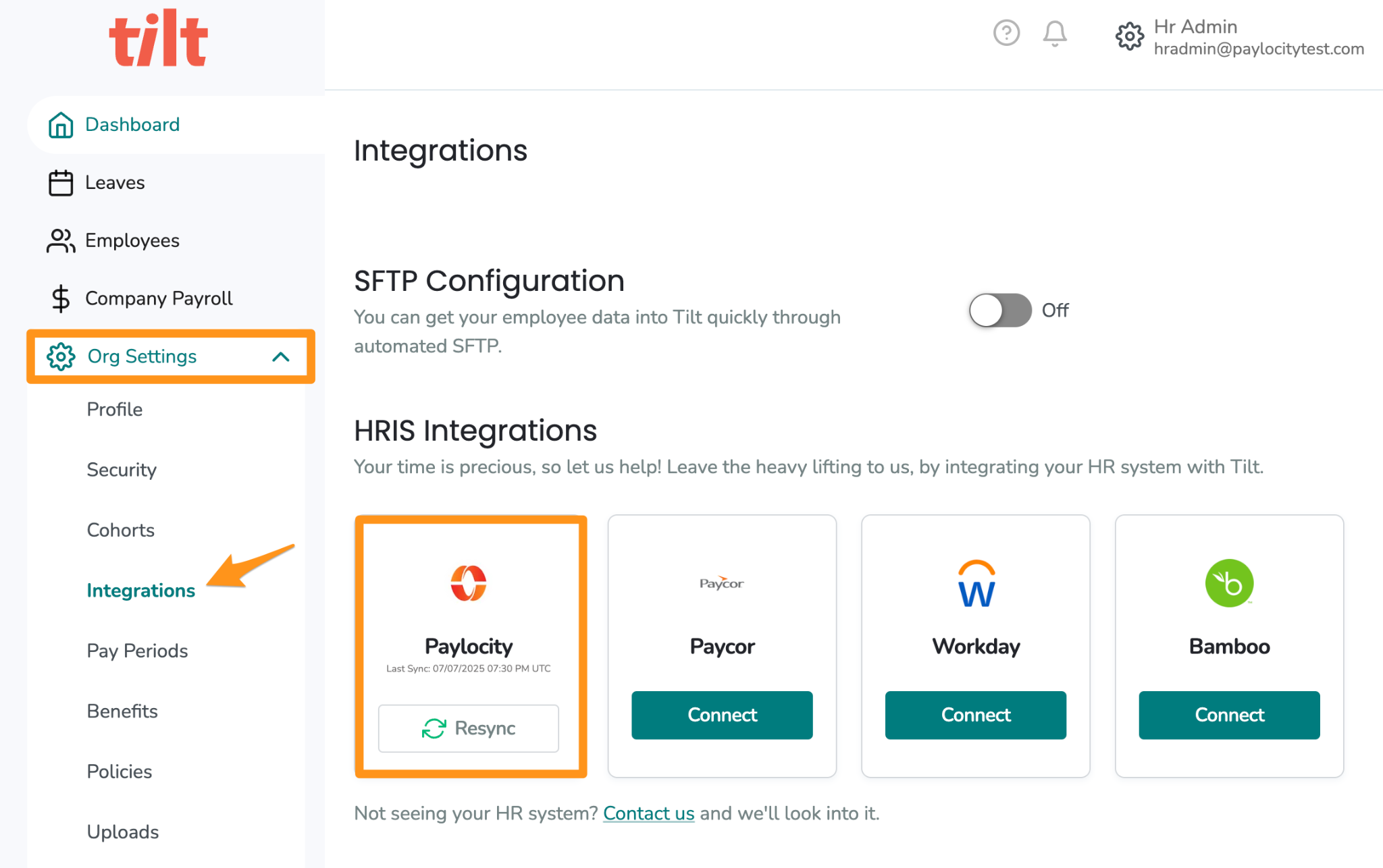
- Click the Paylocity tile to open the setup screen.
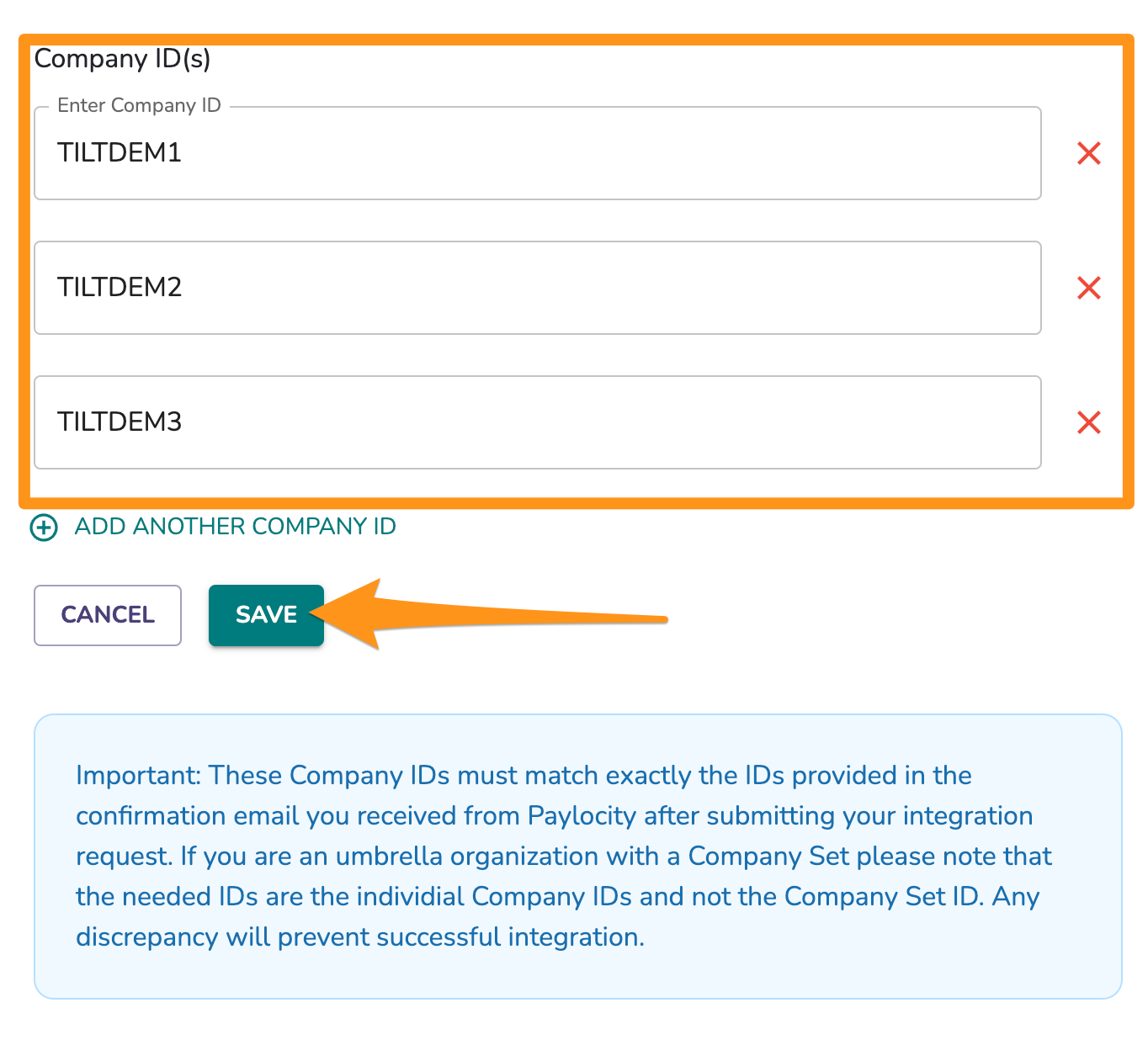
- Enter the Company IDs exactly as they appear in Paylocity's email, then click Save.
What if it doesn't work
- If the connection doesn't finalize, check the Company IDs for typos or extra spaces — they must exactly match what Paylocity sent.
- If you entered a Company Set ID instead of individual Company IDs, remove it. Tilt only accepts individual Company IDs.
- If you don't see the Paylocity tile on the Integrations page, confirm you're logged in with HR Admin permissions and that your Tilt account has the Paylocity feature turned on.
- If more than 5 business days have passed with no confirmation email, check the install status with Paylocity, or contact Tilt Support.
- If data in Tilt looks outdated after setup, check the sync schedule below before assuming something's broken.
Limits and exceptions
- This is a one-way integration — data flows from Paylocity into Tilt only. Tilt never sends information back to Paylocity.
- Tilt only accepts individual Company IDs. Company Sets aren't supported.
- Don't set up the Tilt side of the integration before Paylocity confirms their side is complete.
- Tilt only imports specific fields from Paylocity's employee data — nothing else, like time-off balances, benefits enrollment, or performance records, comes over:
- Used to create user profiles: first name, last name, email, personal email, home/mobile phone, employee ID, company ID, job title/position description, supervisor, pay type, status type, effective date
- Used to determine leave entitlements and eligibility: hire date, work location (country/state/city), home address (country/state/city), overtime/minimum wage exemption status, employee type
- Used to calculate leave payments: base rate / annual salary
- Profile fields sync daily. Eligibility and demographic fields sync weekly — a same-day change in Paylocity may take up to a week to show up in Tilt.
Related questions
- How does the Paylocity integration change the leave request process?