
If your company uses both Tilt and Rippling, you can sign in to Tilt directly from your Rippling dashboard — no separate Tilt login required.
Who this applies to / Prerequisites
- Employees and HR teams at companies that use both Tilt and Rippling for payroll and human resources (HR) management
- Your company must be a Tilt customer
- Your company must be a Rippling customer
- The Rippling integration must be active on your contract as a paid add-on — check with your Tilt Customer Success Manager (CSM) if you're not sure
- An admin at your company must have already installed the Tilt App in Rippling
- You must already have access to Tilt (the integration doesn't grant Tilt access on its own)
Steps
If you access Tilt through your Rippling dashboard:
- Log in to Rippling as you normally would.
- Find the Tilt tile among your apps on your Rippling dashboard.
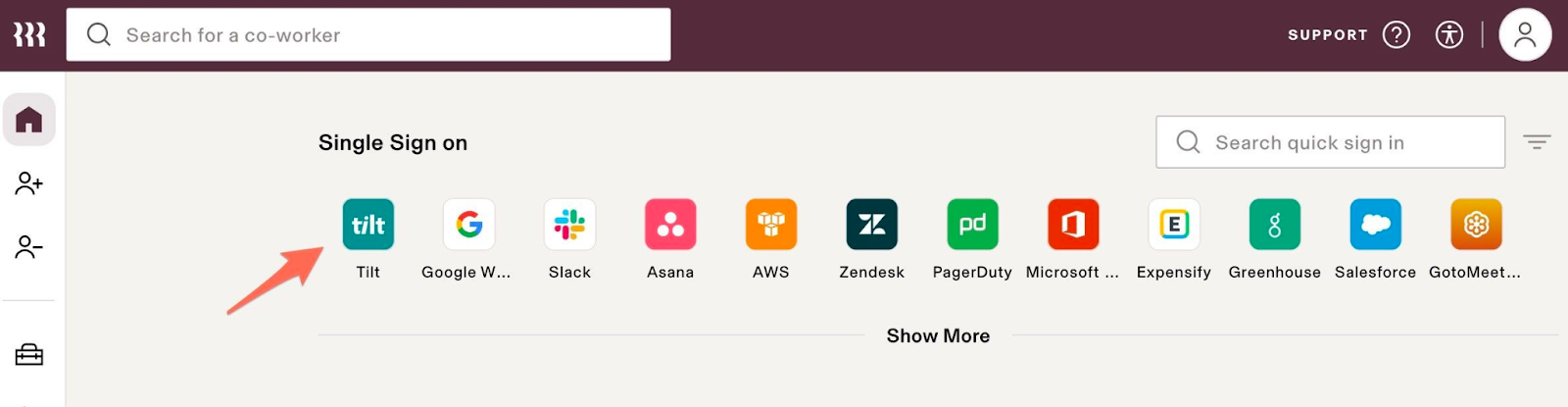
- Click the Tilt tile. You're signed in to Tilt automatically — no separate username or password needed.
If you access Tilt through your company's Tilt subdomain:
- Go to your company's Tilt subdomain login page.
- Click Log in with Rippling.
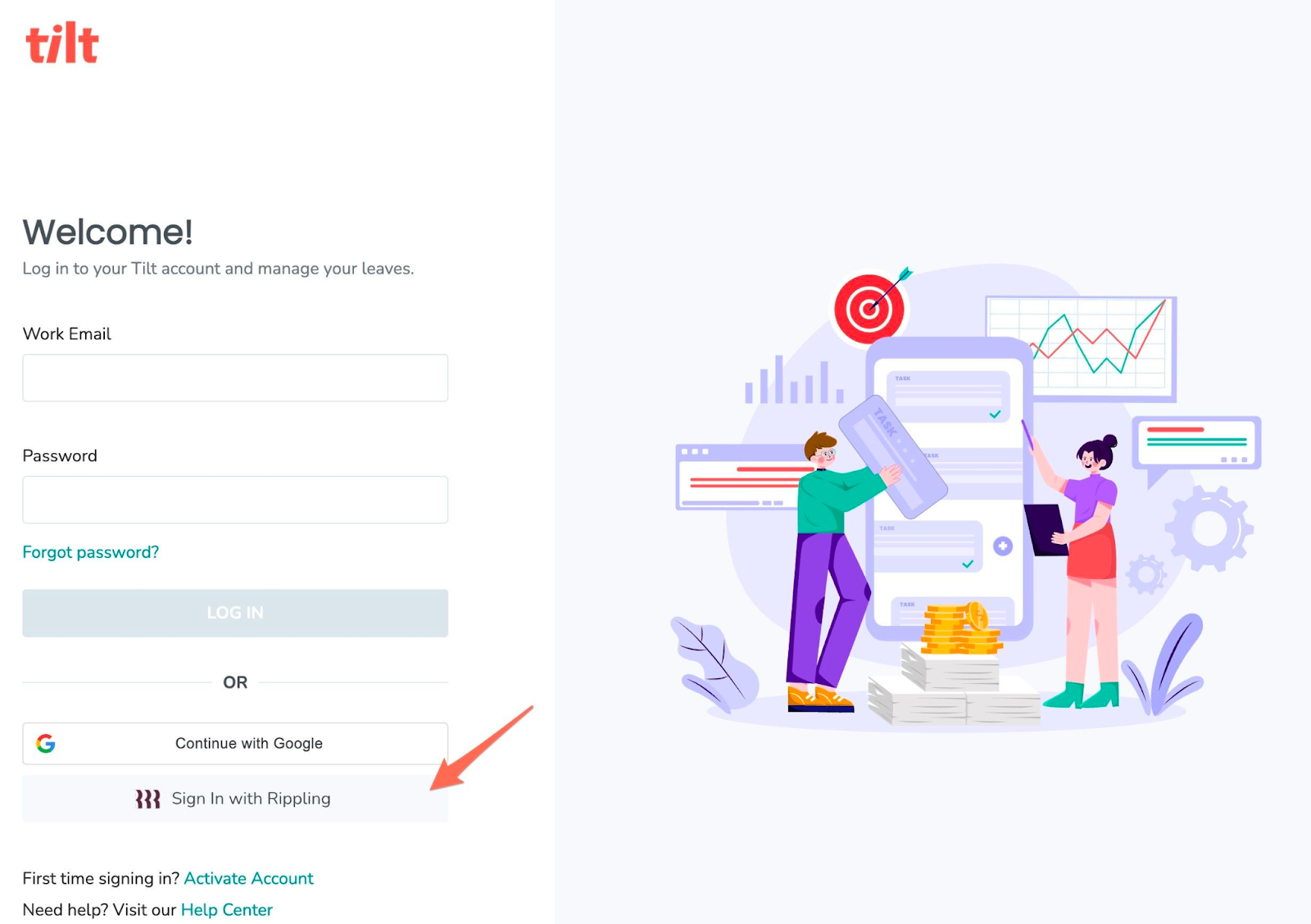
- You're signed in to Tilt using your Rippling credentials.
What if it doesn't work
- No Tilt tile on your Rippling dashboard: the Tilt App likely isn't installed yet. Ask your Rippling admin to install it, or confirm with your Tilt CSM that the Rippling integration is included in your contract.
- No "Log in with Rippling" option on your Tilt subdomain page: same cause — the integration isn't installed, or your company isn't using Rippling as a sign-in method for Tilt yet.
- You click through but land on an error page: contact Tilt Support.
- You're signed in but your leave or pay details look wrong or missing: that's a data sync issue, not a sign-in issue — see "How does the Tilt integration keep my leave and pay data in sync with Rippling?"
Limits and exceptions
- You can't use the Rippling tile to sign in if you don't already have Tilt access — contact your HR team to get set up first.
- Individual employees can't install the Tilt App in Rippling themselves; it requires a Rippling admin.
- The integration is a paid add-on. Having both a Tilt and a Rippling account doesn't automatically mean the integration is active for your company.
- Signing in successfully doesn't guarantee your employee data is fully synced — sign-in and data sync are separate processes.
Related questions
- How does the Tilt integration keep my leave and pay data in sync with Rippling?