
Overview
When employees request a new leave of absence in Tilt, it's the HR team's responsibility to submit the request so that Tilt can process the leave request, determine the employee's eligibility for leave under any applicable laws and company policies, and build the leave plan for the employee.
This article will walk you through how to submit a leave request for an employee.
Prerequisites
You must be an HR user in Tilt and have a pending leave in the Waiting on HR stage to submit a leave request.
Finding the Request
On the HR Dashboard, pending employee leaves are listed under the Pending Leaves section toward the bottom of the page. Click on the specific leave within the table to open it and begin submitting.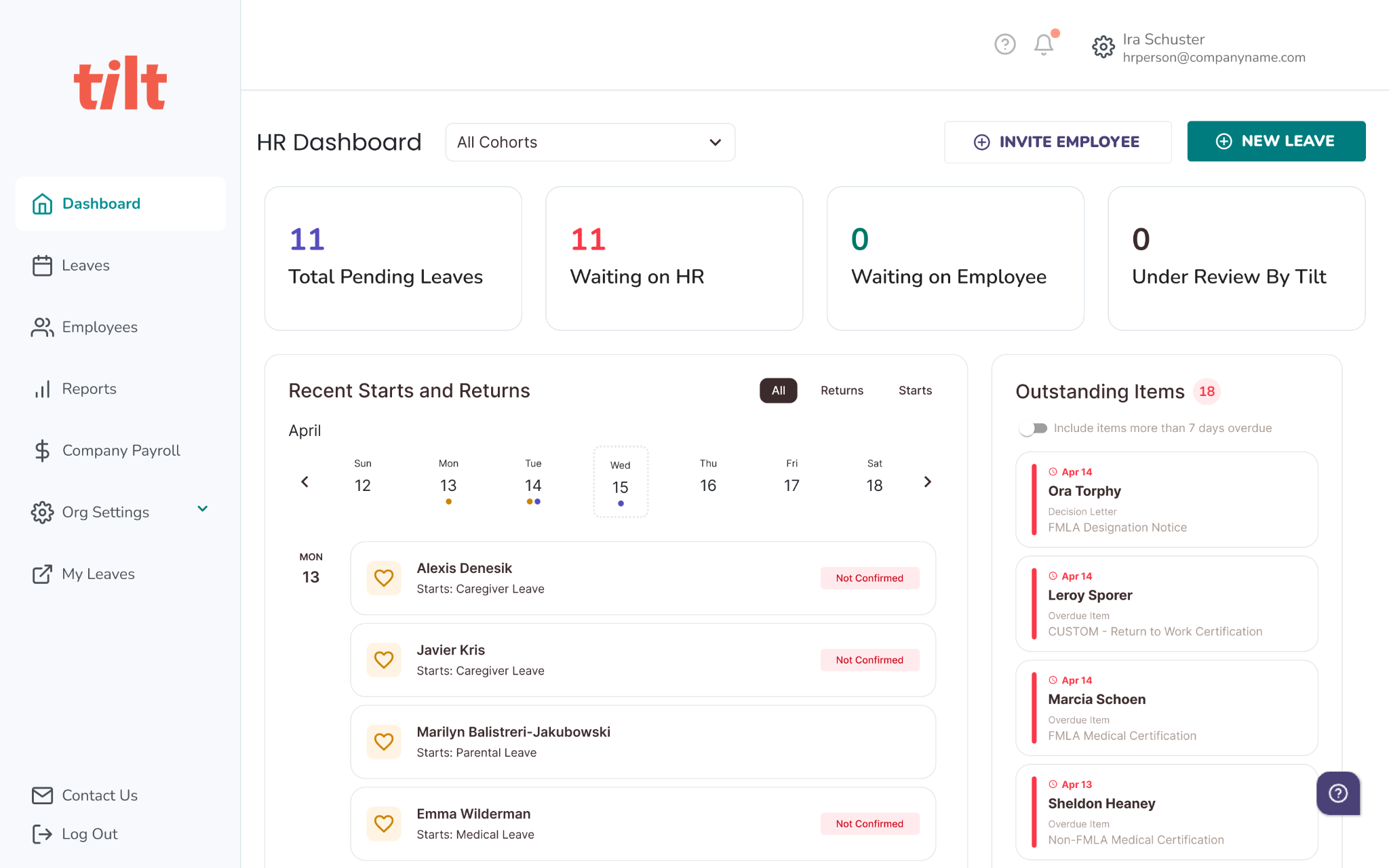
Submitting the Request
As an HR user, you will need to provide the following details before submitting a leave request.
Note: Some details may have already been filled in by your company's integration. If your company has an API integration or SFTP feed set up with Tilt, many of these fields will flow in automatically from that connection rather than needing to be entered manually.
- Type of Leave
- Employee's Job Title
- Employee's state of residence
- Employee's state of work
- Manager name
- Employee's date of hire
- Employee's exemption status
- Employee's pay classification
- Employee's pay schedule
- Employee's job classification
- Employee's current pay rate
- Employee's last 3, 6, 12, or 18 months of pay stubs
- The number of required pay stubs will be communicated to you within Tilt and is dependent on the state that the employee works in (related to the state of work question from above)
- If employee is enrolled in company health benefits
- If employee is enrolled in short-term disability benefits
- If employee is enrolled in long-term disability benefits
- If the employee has worked at least 1,250 hours in the last 12 months
- If the employee has taken any FMLA leave in the last 12 months
- Any additional files you would like to upload
Click the Submit Leave button to save the details and submit the leave. This kicks it off to the employee so they can fill out their side of the leave survey.
Note: That you can edit details as long as it is still under the Waiting on Employee status.
What if it doesn't work
- You can't find the employee's leave under Pending Leaves: Only leaves in the Waiting on HR stage appear there. If the employee hasn't started their request yet, there's nothing to submit; if the leave has already moved past this stage, it won't show in Pending Leaves. If the employee themselves can't be found, their account may be deactivated.
- The leave was started with the wrong employee email address: You cannot correct the email on a pending leave yourself, and resubmitting under the correct email can create a duplicate account. Contact support to fix the email on the existing leave instead of re-entering it.
Limits and exceptions
- Submitting a leave as an HR User will initate the leave from the Waiting on HR stage.
- Submitting the leave does not complete the request. It moves the leave to the employee, who must complete their side of the leave survey before Tilt can determine eligibility and build the plan.
- The number of pay stubs required (3, 6, 12, or 18 months) is determined by the employee's state of work and is shown in Tilt. You cannot choose or reduce this requirement.
- Integration-filled fields (API or SFTP) should be reviewed before submitting. If an integration field is wrong, correcting it may need to happen in your HRIS rather than in Tilt, depending on your setup.
Related questions
- Cancel a Leave Request
- Submit a Leave Request as an Employee
- Invite New User to Tilt
- Resend the Welcome Email to New Users