
Turn on the leave data sync in Tilt's Workday integration settings to start pushing leave time back to Workday.
Who this applies to / Prerequisites
- Tilt admins finishing 2-way integration setup.
- You've already assigned the required Workday permissions.
- You've already configured your Workday leave types.
Steps
- In Tilt, click Org Settings, then select Integrations.
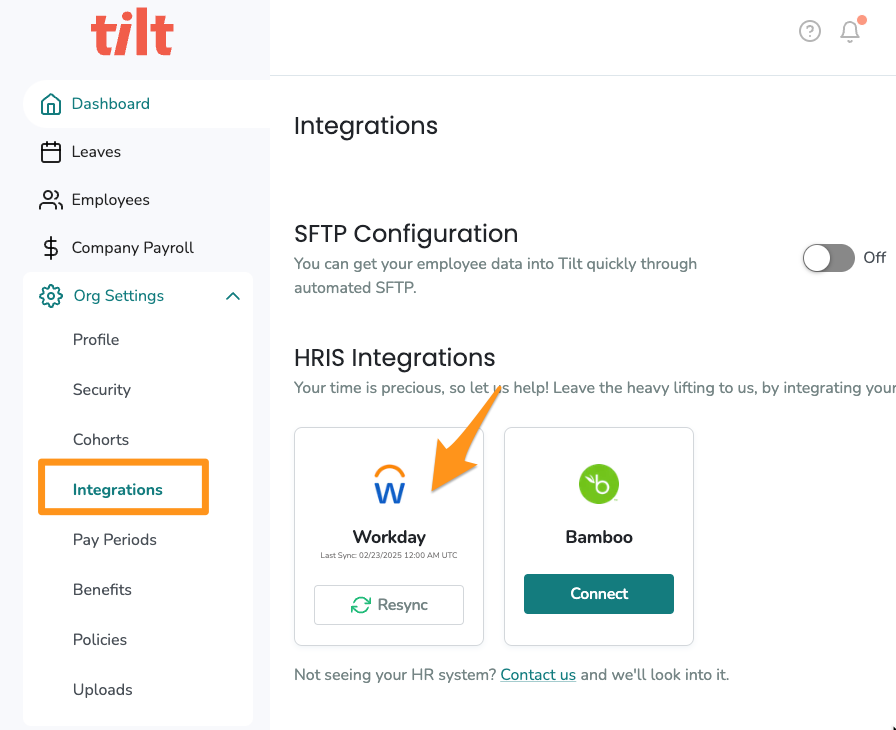
- Click the Workday tile.
- Click the Data Mapping tab.
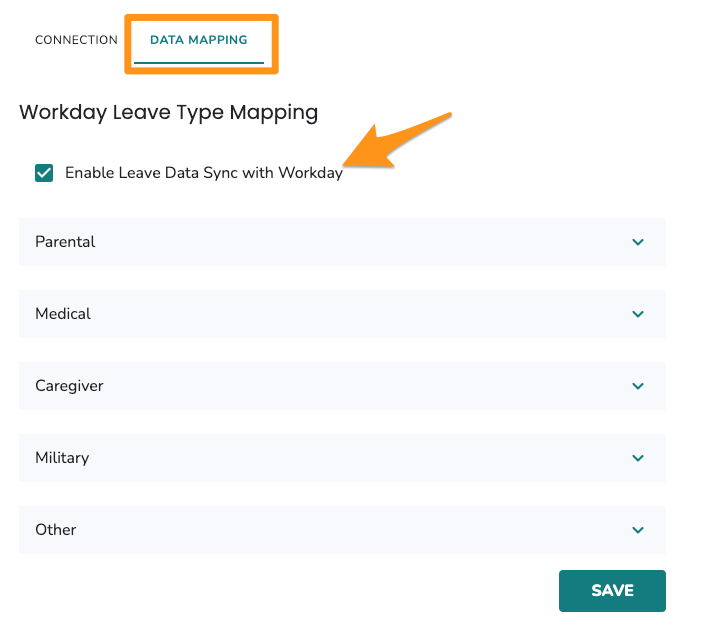
- Check the box for Enable Leave Data Sync with Workday.
What if it doesn't work
- If you don't see a Workday tile under Integrations, the integration may not be installed on your account yet. Contact your CSM.
- If the checkbox is greyed out or missing, confirm the 1-way integration and required Workday permissions are already in place.
- If you're not sure the sync is working after enabling it, contact Tilt Support.
Limits and exceptions
- You can't enable this setting without admin access to Tilt Org Settings.
- Turning this on doesn't map any leave types by itself — you still need to map each leave type afterward for data to actually push to Workday.
Related questions
- How do I map my Tilt leave types to Workday?
- How do I find the Workday integration ID for a leave type?
- How do I find the Workday integration ID for a time off type?