
Quick answer
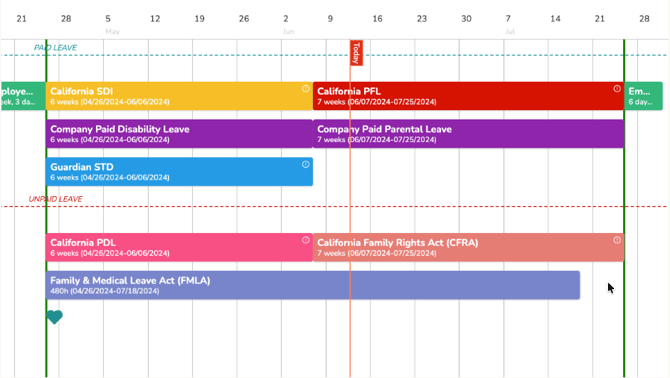
The Leave Balances section of your leave plan shows two things: a Leave Map (a timeline view of all the benefits applied to your leave) and Benefit Balances (a breakdown of how much time each benefit covers and how much is left).
Who this applies to / Prerequisites
- You are an employee at a Tilt customer.
- Your customized leave plan is published in Tilt (you'll receive a notification when it's ready to review).
Steps
Navigate to your Leave Balances:
- Log into Tilt.
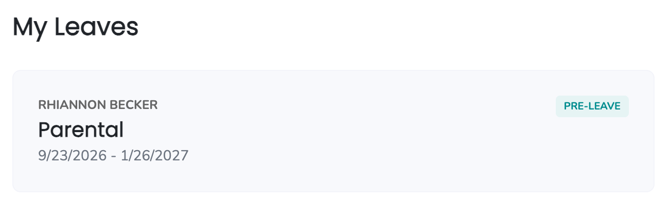
- From your My Leaves, click on your leave plan.
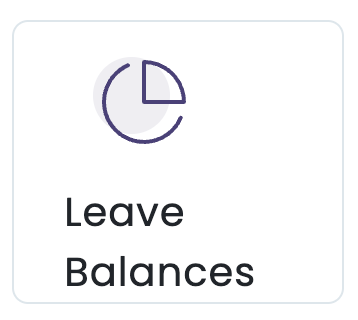
- Click on the Leave Balances card.
Read your Leave Map (timeline view):
- At the top of the Leave Map, you'll see your leave start date, your return-to-work date, and your leave duration.
- The timeline runs left to right — the beginning of your leave on the left, the end on the right.
- Each benefit runs left to right on the timeline and shows the anticipated duration of that benefit.
- Paid leave benefits appear at the top of the map. Unpaid leave benefits appear directly below.
- When benefit blocks are stacked on top of each other, they run concurrently (at the same time).
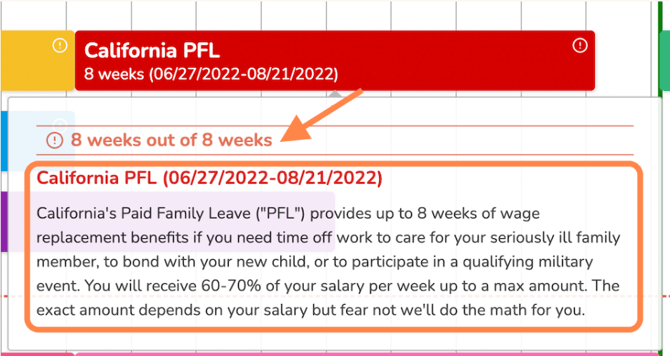
- Click any benefit block to open a detailed explanation. You'll see:
- The total time the benefit program runs
- How much time is used within that benefit
- General information about the benefit
- Quick tip: if you can't see the full title or dates on a small benefit block, click on it to open the details view.

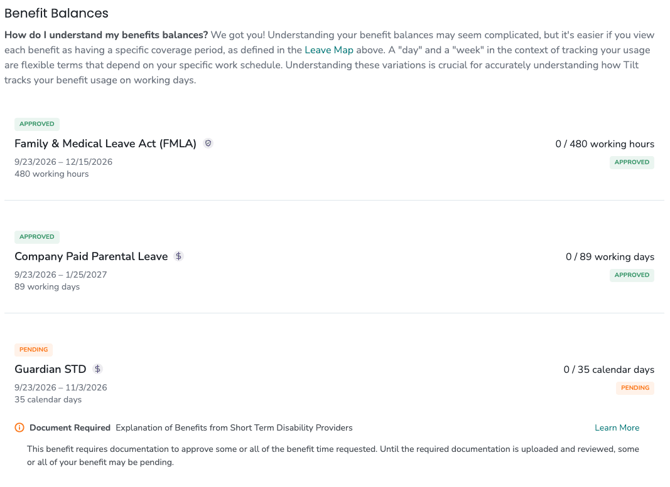
Read your Benefit Balances (breakdown):
- Scroll below the Leave Map to find the Benefit Balances section.
- For each benefit, you'll see:
- The benefit name
- The benefit's duration and measure
- The benefit status
- Total time included in the benefit
- Time taken vs time planned in the leave plan
What if it doesn't work
- If you don't see the Leave Balances card, confirm your leave plan is published. You'll get a notification when it's ready.
- If your leave dates need to change, use the Time Off Calendar. See How do I add or update my leave dates on the Time Off Calendar? Once approved, your Leave Specialist will update your leave, and the Leave Map will reflect the changes automatically.
- If a benefit or date on your Leave Map looks wrong, contact Tilt Support. Your Leave Specialist can review and correct any errors.
Limits and exceptions
- The Leave Map is a visual timeline. To change dates or benefits, work through your Time Off Calendar or your Leave Specialist — the Leave Map itself is not editable.
- Concurrent benefits (stacked blocks) run at the same time. Non-concurrent benefits run sequentially.
- The X / Y display shows time used so far vs. time planned for the specific leave, not the total remaining benefit amount.
- Benefits are measured differently — some in working hours, some in working days, some in calendar days. Check each benefit's measurement in the Benefit Balances section for accuracy.
Related questions
- How do I add or update my leave dates on the Time Off Calendar?
- Navigating Your Leave Plan
- Navigating Your To-Do Items