
Quick answer
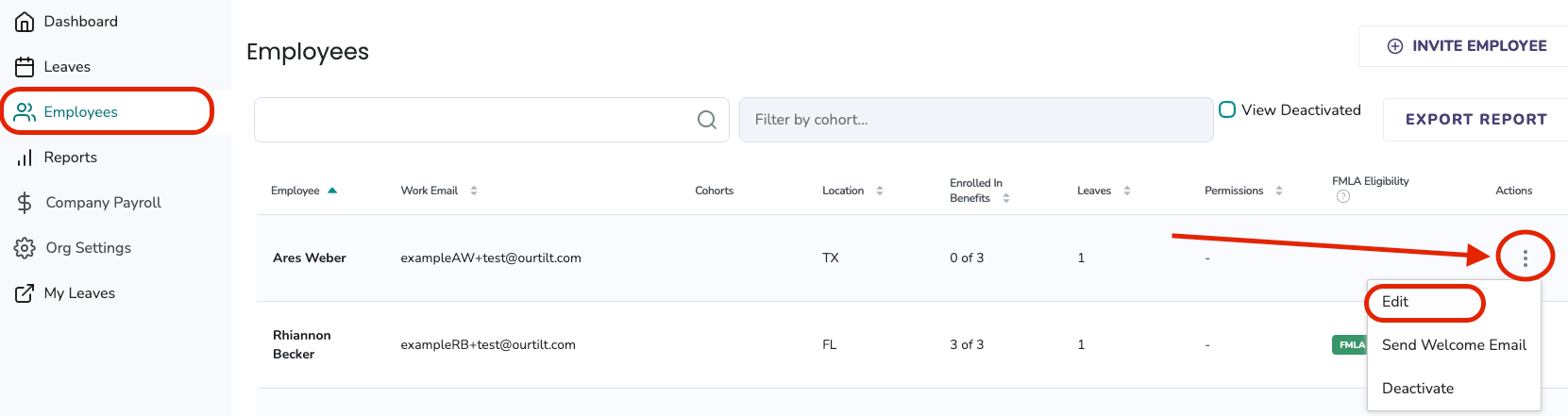
You can update an employee's details from the Employees page in Tilt. Click the three-stacked-dots icon next to their row and select Edit.
If your company uses an HR integration or SFTP file sync, update user details in your source HR system instead — those changes will flow into Tilt automatically.
Who this applies to / Prerequisites
- You are an HR user at a Tilt customer.
- Your company manages user data manually (not through an SFTP or HR integration).
- You need to update an employee's name, email, phone, or Tilt permissions.
Steps
- Log into Tilt as an HR user.
- Click Employees in the left-hand navigation.
- Find the employee using the search bar at the top of the page, or scroll through the list.
- Click the three-stacked-dots icon at the far right of the employee's row.
- Click Edit.
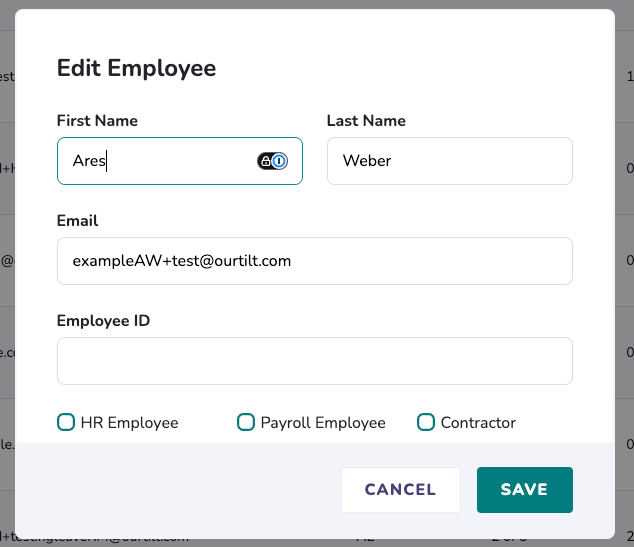
- In the pop-up modal, update the fields you need to change. This includes name, email address (used as the employee's Tilt login), phone number, and Tilt permissions. From here you can enable HR, Payroll, or Contractor permissions for the user as needed.
- Click Save.
What if it doesn't work
- If you don't see the ellipsis menu or the Edit option, confirm you have HR permissions in Tilt.
- If your company uses an integration or SFTP file feed, changes made directly in Tilt may be overwritten on the next sync. Update the source system instead.
- To update an employee's manager or salary information, reach out to your Leave Specialist. These fields aren't editable through the Employees page.
Limits and exceptions
- Manager assignments and salary information cannot be updated directly from the Employees page. Contact your Leave Specialist for these changes.
- If your company uses an HR integration or SFTP file sync, employee details are updated in Tilt at the point the source system syncs. You do not need to update them manually in Tilt.
- The email address you set for a user becomes their Tilt login credential. Changing it will change how the employee logs in.
- This is where you can enable HR, Payroll, or Contractor permissions for a user.
Related questions
- Invite New Users to Tilt
- Resend the Welcome Email to New Users
- How do I deactivate an employee's account in Tilt?
- How do I reactivate a previously deactivated employee's account in Tilt?
- Tilt User Permission Overview
- Manually Import Employee Profile Data via CSV File