
Quick answer
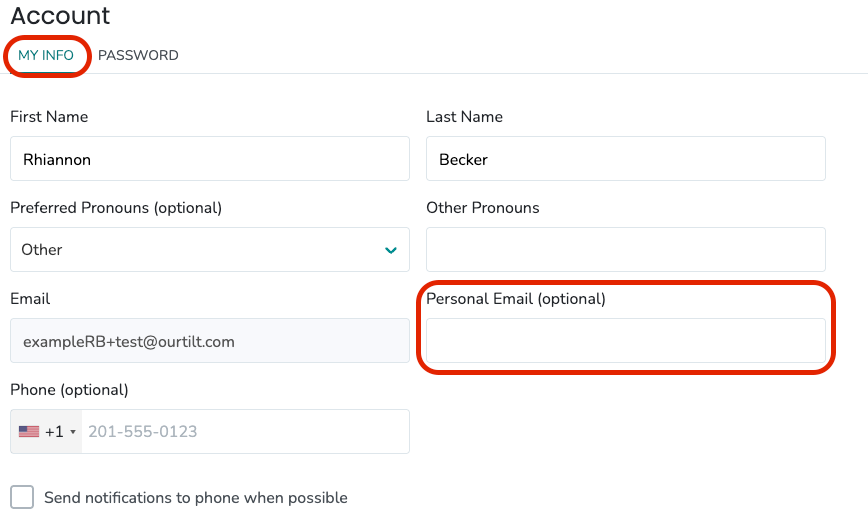
You can update your personal email address on the My Info tab of your Tilt account settings.
Who this applies to / Prerequisites
- You have an active Tilt account.
- You want to add or change the personal email address on your account.
Steps
- Log into Tilt.
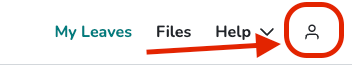
- Click the account icon in the top-right corner of the page.
- On the My Info tab, find the Personal Email field.
- Enter or update your personal email address.
- Click Save Changes at the bottom of the page.
What if it doesn't work
- If your changes don't save, make sure you clicked Save Changes at the bottom of the My Info page. Navigating away without saving discards your edits.
- If you're not sure whether the change went through, refresh the page — your updated email should now appear in the Personal Email field.
Limits and exceptions
- You cannot change your work email from this screen. To change your work email, contact your HR team.
- Add a personal email before starting a leave of absence. If your employer deactivates your work email during leave, Tilt will still send platform communications to your personal email so you don't miss anything.
- Even after you set a personal email, you continue to log into Tilt with your work email. The personal email is used only for Tilt communications.
Related questions
- How do I change my Tilt password from my account settings?
- Add your Emergency Contact to Tilt