
Quick answer
You can upload documents required for your leave from the Documents section of your leave plan or from your To-Do Items list.
Who this applies to / Prerequisites
- You are an employee at a Tilt customer.
- You have an active leave plan in Tilt.
- Your Leave Specialist has requested one or more documents that need uploading.
Steps
- Log into Tilt.
- Open your leave plan from My Leaves.
- Choose your entry point:
- From the Documents tab: click Documents, find the document you need to upload, and click UPLOAD. If you want to review the document's FAQs before uploading, click the > arrow next to the document to expand it first.
- From your To-Do Items tab: find the document in your Required Items list and click START. This opens a pop-up that combines the upload area with the document's FAQ sections and any available template in one place.
- Drag and drop your file into the gray upload area, or click Browse to select files from your device. Tilt supports .PDF, .JPEG, .PNG, and .HEIC.
- You can select multiple files for the same document requirement — they'll be submitted together.
- Review the acknowledgment at the bottom of the window.
- Click UPLOAD to submit.
- The status updates — to Completed for standard uploads, or to Under Review for documents that your Leave Specialist reviews.
From Documents tab: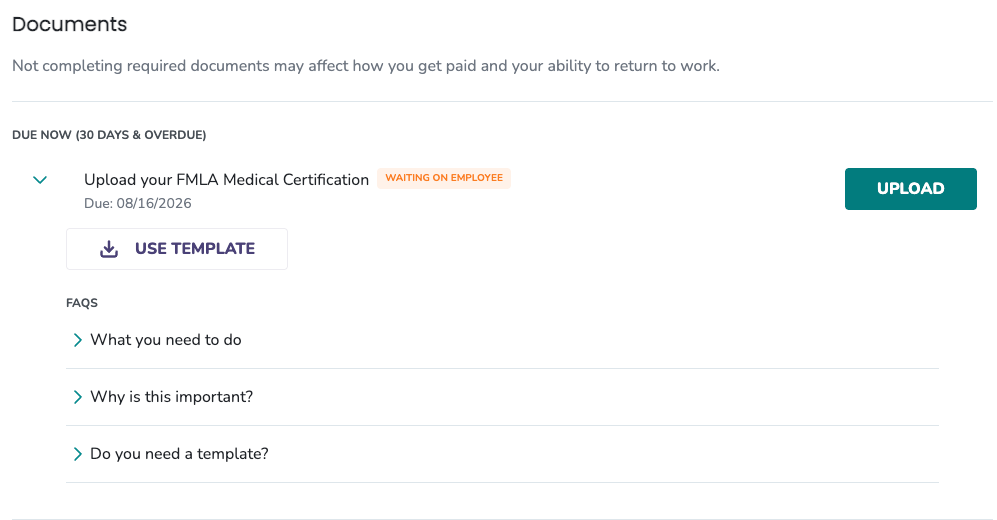
From To-Do Items tab: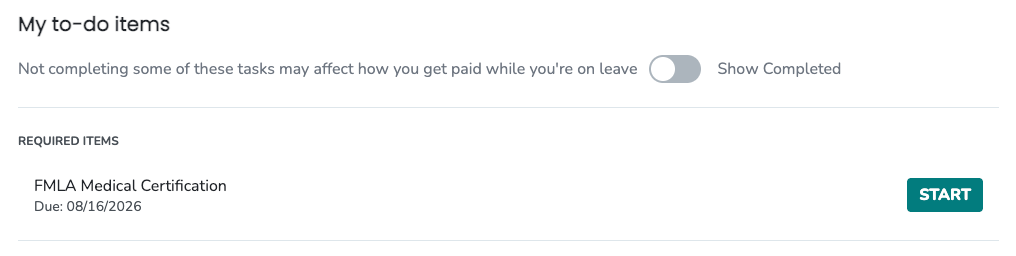
What if it doesn't work
- If your upload fails, confirm the file type is supported (.PDF, .JPEG, .PNG, .HEIC) and the file isn't corrupted. Try again.
- If a document you expected isn't listed, contact your Leave Specialist.
- If the button says FILL OUT instead of UPLOAD or START, the document is completed and signed directly in Tilt rather than uploaded. See How do I fill out and sign a document directly in Tilt?
Limits and exceptions
- Documents you upload are accessible to your Leave Specialist and your HR team. Your manager cannot see them.
- Uploading multiple files for the same document adds them as one submission — new uploads don't automatically remove older ones.
- Medical Certifications and similar documents move to Under Review after upload for your Leave Specialist to review.
- After a document is completed, you can add another file via Upload Another File on the completed card.
Related questions
- How do I fill out and sign a document directly in Tilt?
- How do I download a document template in Tilt?
- What do the document statuses in Tilt mean?