
Quick answer
The Leave Planner is a self-serve feature in Tilt that helps you explore your leave options before submitting an official request. You answer a few questions about your situation, and Leave Planner shows you which benefits you're likely eligible for and which are potentially available. When you're ready, you can start your leave request directly from there.
Who this applies to / Prerequisites
- You are an employee at a Tilt customer.
- Your company has enabled Leave Planner for its employees. If you don't see it in Tilt, your HR team may not have turned it on.
Steps
Open Leave Planner:
- Log into Tilt.
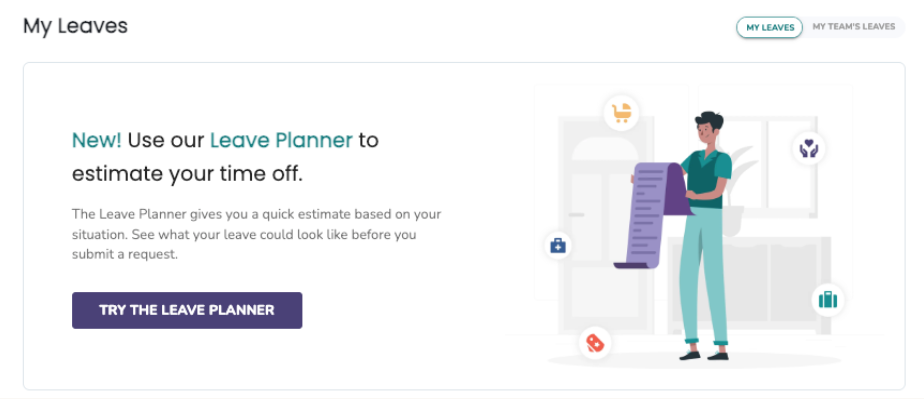
- Look for the Leave Planner option on your home screen. It appears every time you log in, once your company has enabled it.
- Click Try The Leave Planner to start.
Answer the intake questions:
- Leave Planner walks you through questions about your leave situation. These are similar to the leave survey but include more context to help you understand what's being asked.
- Answer each question. Your responses shape which benefits the Leave Planner surfaces for you.
Review your leave breakdown:
- Once you finish the intake, the Leave Planner shows you a breakdown of your leave options.
- Benefits are color-coded:
- Blue benefits are benefits you're likely eligible for based on the information you provided.
- Yellow benefits are potential benefits — Tilt may need more information to fully determine your eligibility.
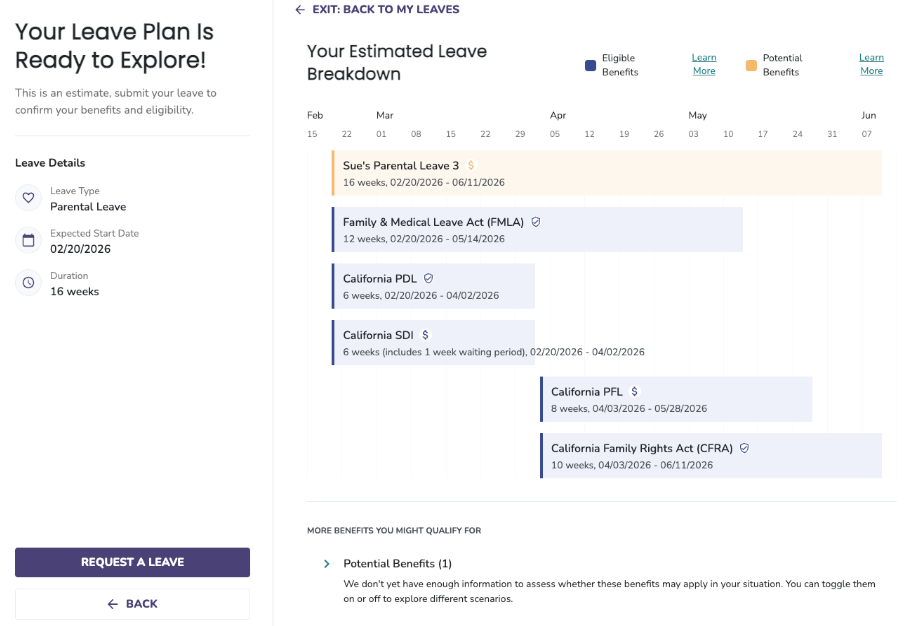
- Click any benefit to learn more about what it covers and how it works.
Explore how potential benefits impact your plan:
- You can toggle Yellow (potential) benefits on and off to see how they change your overall leave picture.
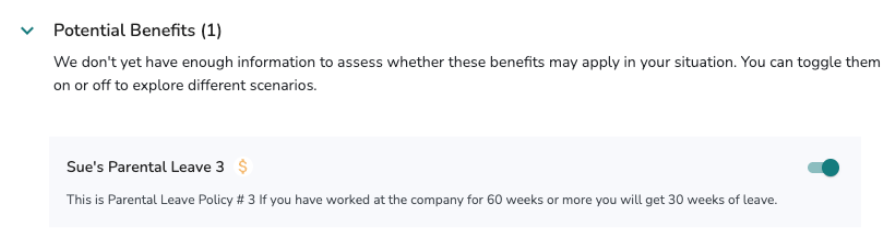
- Use this to compare scenarios and understand what might apply to you.
Submit a leave request (when you're ready):
- If you decide to move forward with a leave after exploring your options, click Request a Leave.
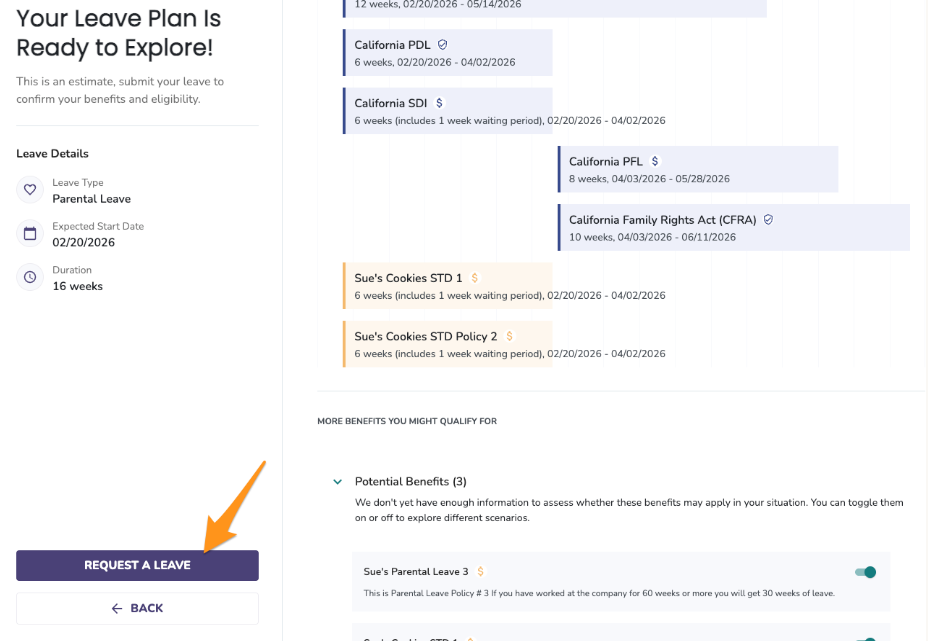
- This starts the standard leave request process in Tilt.
What if it doesn't work
- If you don't see Leave Planner in your Tilt account, your company may not have enabled it yet. Check with your HR team.
- If you're unsure about a question, click for more context — the Leave Planner is designed to guide you through unfamiliar terms.
- If the Leave Planner shows fewer benefits than you expect, review your answers to the intake questions. Small changes may change which benefits appear.
- If you're not ready to submit a leave, you don't have to. The Leave Planner is just an exploration tool — using it doesn't lock you into a leave request.
Limits and exceptions
- Leave Planner is opt-in for your company. If your HR team hasn't enabled it, you won't see the feature. This isn't a limitation on your account.
- Blue vs. Yellow benefits are estimates. Final eligibility is determined by your Leave Specialist once you submit an actual leave request. Leave Planner gives you a preview, not a final answer.
- Leave Planner is private — the answers you give during the intake are for exploration only. Nothing is submitted to your HR team or Leave Specialist until you click Request a Leave.
- To officially start a leave, you must complete the full leave request through the Request a Leave flow. Exploring in Leave Planner alone doesn't create a leave request.
Related questions
- How do I submit a leave request as an employee?
- Navigating Your Leave Plan
- Understand your Leave Balances