
Quick answer
The Company Payroll page is where you view current pay periods, close pay periods manually, and download payroll reports.
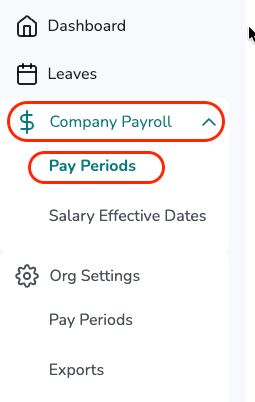
You'll find this section under Company Payroll → Pay Periods in the left-hand navigation.
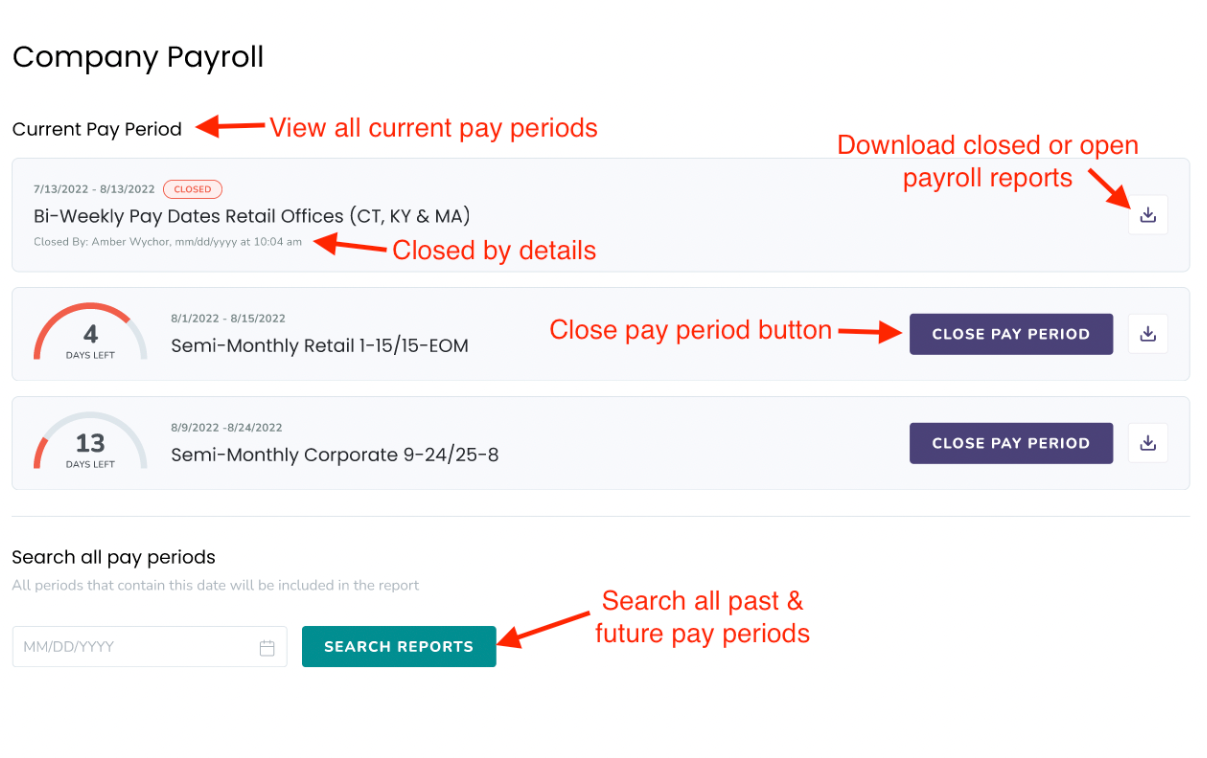
The page has two sections: Current Pay Period (pay periods running today) and Search All Pay Periods (search by date for any past, current, or future period).
Who this applies to / Prerequisites
- You are an HR or Payroll user at a Tilt customer.
- Your company's pay period schedules are stored in Tilt. Without a schedule, the page will be empty. See How do I add a new pay period schedule in Tilt?
Steps
Navigate to the Company Payroll page:
- Log into Tilt as an HR or Payroll user.
- Click Company Payroll in the left-hand navigation.
- Click Pay Periods.
Understand the Current Pay Period section:
The Current Pay Period section lists all pay periods where today's date falls between the pay period's start and end dates. Each pay period card shows:
- The pay period schedule title
- The start and end dates of the pay period
- The number of days left in the pay period
- A Close Pay Period button (see How do I close a pay period in Tilt?)
- A Download icon (see How do I download a payroll report from Tilt?)
Once a pay period is closed, its card displays a red Closed tag along with the closed-by details (who closed it and when).
Understand the Search All Pay Periods section:
Use this section to find any pay period — past, current, or future — by date. Enter any date that falls within the pay period you're looking for, then click Search Reports.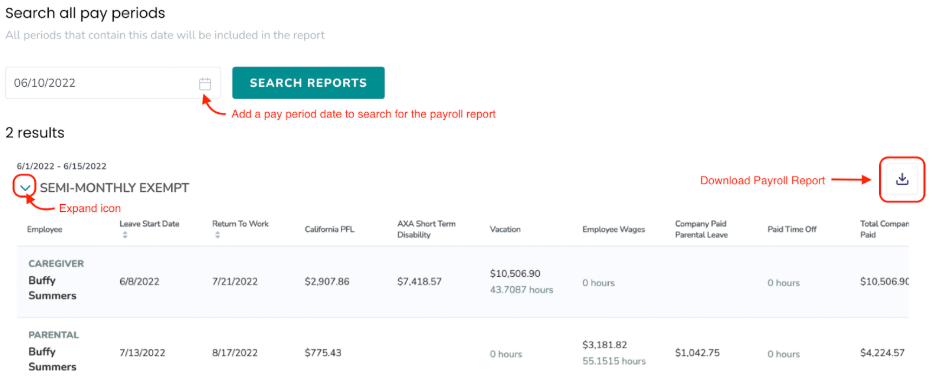
The results behave differently depending on whether the pay period is open or closed:
- Current and future (open) pay periods: the payroll report is viewable on the page. Click the Expand icon next to the pay period schedule name to view it, or the Download icon to export it as a CSV.
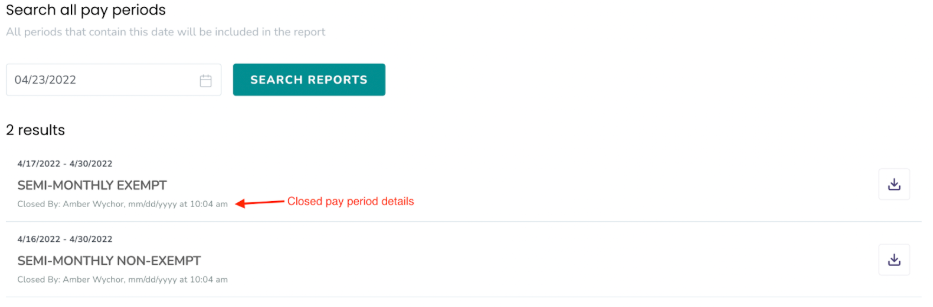
- Past (closed) pay periods: the report can only be downloaded, not viewed inline. Click the Download icon to export as a CSV. Closed pay periods also display the Closed By details (who closed it and when).
What if it doesn't work
- If you don't see the Company Payroll option in your left navigation, contact your HR team so they can review your Tilt access.
- If no pay periods appear on the page, confirm your company's pay period schedules have been added to Tilt. See How do I add a new pay period schedule in Tilt?
- If a search returns no results, verify that the date you entered actually falls within a pay period, and that the schedule for that period has been added.
Limits and exceptions
- Past (closed) pay periods can be downloaded but not viewed inline on the page. To review the report data, you need to download the CSV.
- Once a pay period is closed, the action cannot be undone.
- Pay periods close automatically at 11:59:59 PM PST on the last day of the pay period if no one closes them manually first.
- If your company uses a Rippling integration, pay periods close automatically based on the integration — you don't need to manually close them.
Related questions
- How do I add a new pay period schedule in Tilt?
- How do I close a pay period in Tilt?
- How do I download a payroll report from Tilt?
- Payroll Report Overview
- Understand a Payroll Report