
Quick answer
The HR Dashboard is the landing screen for HR users when they sign into Tilt. It brings your current leave info and action items into one place — snapshot counters at the top, outstanding items needing your attention, upcoming leave starts and returns, and a company-wide activity feed. Every section is interactive, so you can click through to any leave directly from the dashboard.
Who this applies to / Prerequisites
- You are an HR user at a Tilt customer.
- Your company has active leaves in Tilt.
Steps
Get to the HR Dashboard:
- Log into Tilt as an HR user.
- The dashboard opens automatically as your landing screen.
- If you’ve set up Cohorts, you can use the All Cohorts dropdown at the top to filter the dashboard by a specific cohort (helpful for HR Users scoped to specific cohorts).
- Use INVITE EMPLOYEE or NEW LEAVE at the top right to take those actions directly from the dashboard.

Understand the snapshot counters at the top:
The top of the dashboard shows five tiles with counts, giving you a real-time snapshot of your team's leave activity:
- Total Pending Leaves — leaves that haven't been finalized
- Waiting on HR Leaves — leaves waiting for HR to complete their intake portion
- Waiting on Employee Leaves — leaves waiting for the employee to complete their intake portion
- Under Review By Tilt Leaves — leaves where Tilt is building the customized plan
- Missing Effective Date Salaries — leaves where the effective salary date is missing

Use the Outstanding Items section:
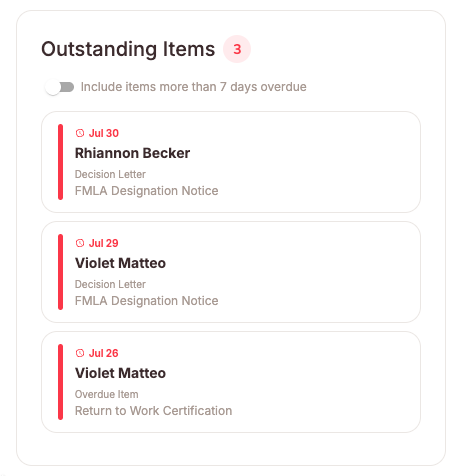
The Outstanding Items section surfaces the items that need attention. Most items are automatically filtered to the last 7 days:
- Decision Letters sent — filter by send date, showing letters sent within the last 7 days.
- Overdue Required Items (Documents, Steps) — filter by due date, showing items overdue by 7 days or less by default. Toggle Include items more than 7 days overdue to expand the view to include older items.
- Benefit Denials — filter by date of denial, showing denials within the last 7 days.
- Document Remediation — filter by date of document rejection, showing rejections within the last 7 days.
Use the Recent Starts & Returns section:
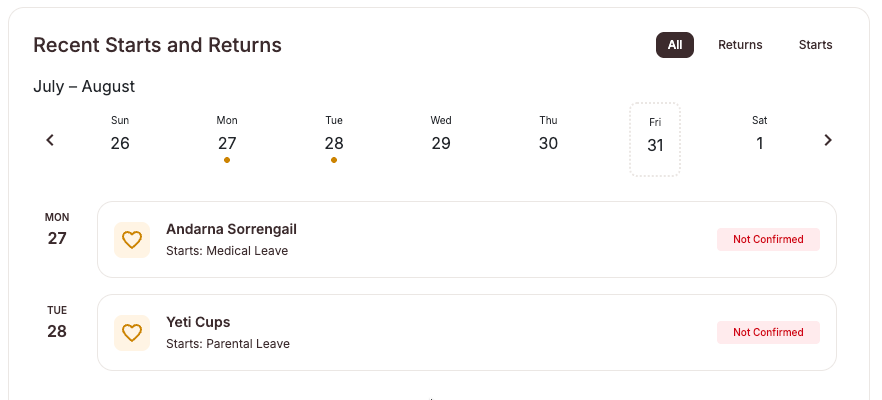
This section shows employees starting or returning from leave soon, with a confirmation status so you can see what's confirmed and what's still outstanding.
- Use the tabs (All, Returns, Starts) to filter what you see.
- Navigate by day or week using the calendar controls.
- Status labels (like Not Confirmed) tell you where each item is.
Use the Activity Log section:
The Activity Log is a company-wide feed of leave activity, filterable by date range and category.
- Category tabs let you filter by Documents, Leave Updates, or Notes (or view All).
- Toggle between Today and Last 7 Days for the date range.
- Each entry shows a timestamp and a short description of what happened.

What if it doesn't work
- If you don't see the HR Dashboard, confirm you have HR access. Regular users, Payroll users, and Managers don't see this dashboard.
- If a section looks empty, no relevant activity has happened within the default filter window. Adjust the filter to see more.
- If you're a cohort-scoped HR User, your dashboard is limited to activity within your assigned cohorts. Use the cohort filter at the top to see specific cohorts, or ask an HR Admin for broader access.
Limits and exceptions
- Cohort-scoped HR Users only see activity for employees in their assigned cohorts. HR Admins see everything across the company.
- Tilt's daily email is a short summary that links directly to the HR Dashboard. The email shows a snapshot: employees starting leave today, ending leave today, leaves awaiting HR review, overdue required items, and salaries missing an Effective Date. For details on any of those, log in and use the dashboard. The reporting dashboard remains available in its own tab.
- The Activity Log currently includes items in the Documents, Leave Updates, and Notes categories. More categories may be added over time based on customer feedback.
- The dashboard shows current data at the time of load. Refresh to see updates.
- Only HR users can see this dashboard. Managers see the Manager Dashboard instead. Employees see their own leave plans and to-do items.
Related questions
- How do I check document status across my company's active leave plans?
- How do I view documents for a specific employee on leave?
- How do I view the Leave Activity Feed for an employee's leave?
- What can each user role do in Tilt?