
Quick answer
Some documents on your leave plan are sent to you by Tilt for review (like the FMLA Rights and Responsibilities Notice). These have a VIEW button — click it to open and read the document. Tilt marks it as reviewed automatically.
Who this applies to / Prerequisites
- You are an employee at a Tilt customer.
- You have an active leave plan in Tilt.
- Your leave plan includes one or more documents that Tilt sends for your review.
Steps
- Log into Tilt.
- Open your leave plan from My Leaves.
- Find the document. It'll show a VIEW button.
- Click VIEW. The document opens in a new window for you to read.
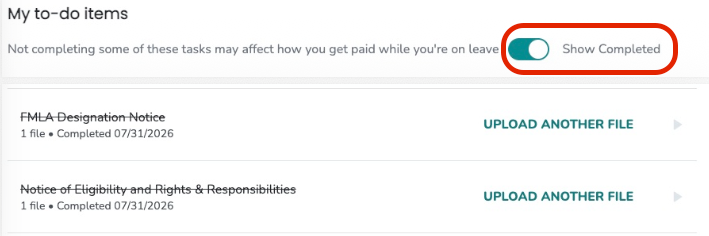
- The status updates to Viewed, and the document moves to the Completed category.

What if it doesn't work
- If the document doesn't open when you click VIEW, check whether your browser is blocking pop-ups or downloads and adjust settings.
- If you can't find the document, check the Completed category — it may already show as Viewed.
- If a document you expected to view is missing, contact your Leave Specialist.
Limits and exceptions
- Documents Tilt sends for you to view require no upload or signature — clicking VIEW is what marks them as complete.
- Once viewed, the document status changes to Viewed and moves to Completed. You can re-open it any time from the Completed section.
Related questions
- How do I upload a document to my leave in Tilt?
- How do I fill out and sign a document directly in Tilt?
- What do the document statuses in Tilt mean?