
Quick answer
Click any employee's row on the Active Leave Plans page to open a fly-out modal, then click the Documents tab. You'll see all their leave documents grouped by category (Due Now, Due Later, Completed) with status and due date for each. Click View Documents on any card to open the full leave plan and take actions like upload or preview.
Who this applies to / Prerequisites
- You are an HR user at a Tilt customer.
- The employee whose documents you want to view has an active leave plan in Tilt.
Steps
- Log into Tilt as an HR user.
- Click Leaves in the left-hand navigation.
- On the Active Leave Plans page, click the row for the employee.
- A fly-out modal opens on the right side of the page. Click the Documents tab.
- Documents are grouped into three categories:
- Due Now (30 Days & Overdue)
- Due Later
- Completed
- Each document card shows the document name, current status, due date, and the names of any files uploaded for that requirement.
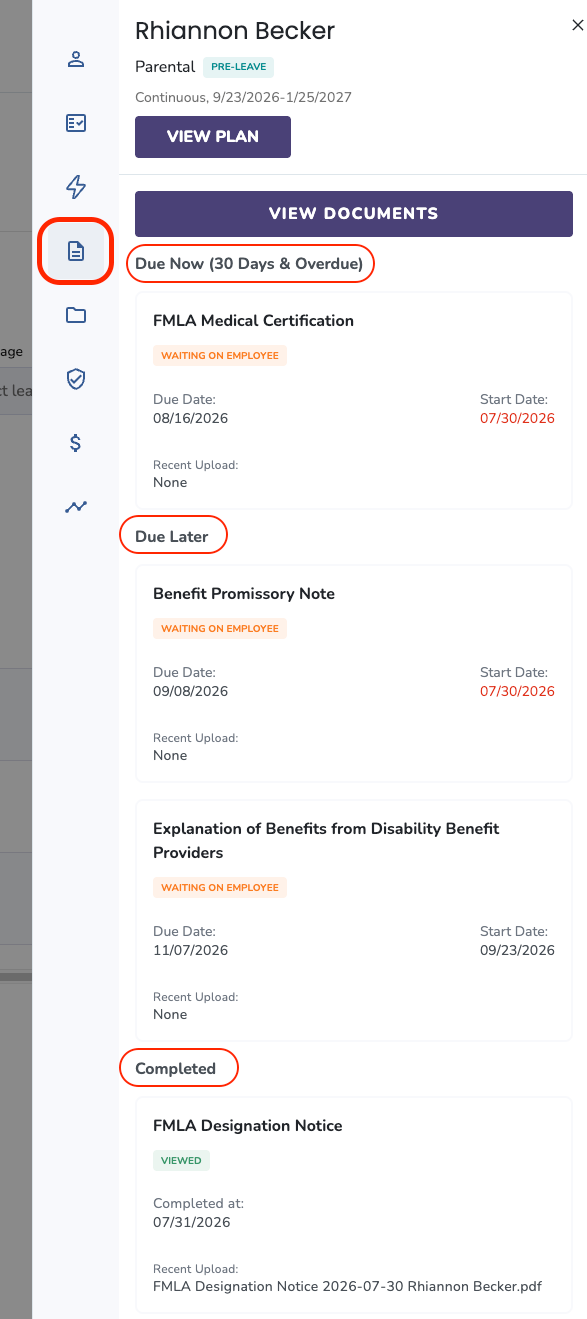
- To open the employee's full leave plan (where you can upload documents, preview uploaded files, or download templates), click View Documents on any card.

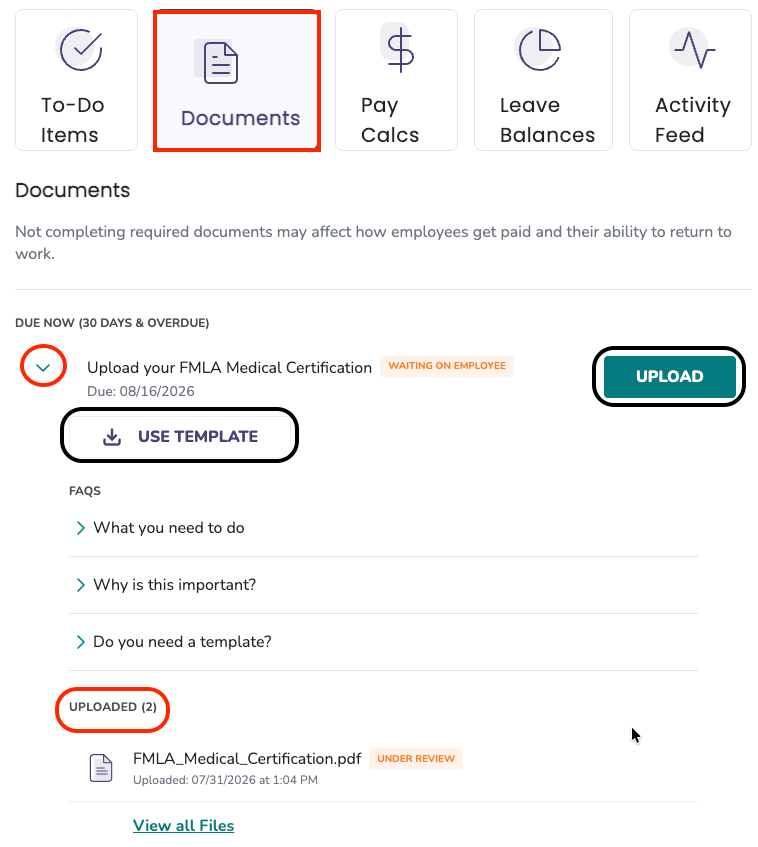
- On the full leave plan Documents page, you can:
- Click UPLOAD to upload on the employee's behalf
- Click USE TEMPLATE to download a blank template
- Click the > arrow next to a completed document to see uploaded files listed under Uploaded — click any file to preview it
What if it doesn't work
- If clicking a row doesn't open the fly-out modal, refresh the page.
- If you don't see a Documents tab in the fly-out, confirm the employee has document requirements. If they don't, contact your Leave Specialist.
- If a document is missing that you expect to see, check the Completed category — it may already be submitted.
Limits and exceptions
- The fly-out modal is read-only for documents — to upload, preview, or download templates, click View Documents to open the full leave plan.
- Only HR users can view another employee's documents. Managers cannot.
- Managers can see leave plan basics (like start and end dates) but not the specific documents required or uploaded.
Related questions
- How do I check document status across my company's active leave plans?
- How do I upload a document on behalf of an employee on leave?
- How do I download a document template to share with an employee on leave?